v6.4.0MinorReleased

Emails Preview Screen with Drafts and Scheduled Conversations, Voyager AI Assistant Improvements, Modified By on All Entities, and other Various Improvements…

Coevera 6.4.0 turns the Emails Preview Screen into a complete mail client — drafts that save themselves, scheduled email handled as conversations — gives the Voyager AI Assistant free-form answers about your CRM data, and lands twelve improvements across auditing, user roles, and AI fields.

EmailVoyager AIAdministration
Share
Features
2
Improvements
12
Security
2
Coming soon

Overview

Two capabilities lead this release. This release extends the Emails Preview Screen introduced in 6.3.0 into a complete mail client: Drafts become a first-class object with a dedicated Drafts view, autosave in the Create Email dialogue, and support in both the horizontal and the vertical layout, while scheduled emails are shown as conversations and open directly in the email detail, with Cancel Send converting one back into a draft. Voyager AI Assistant Improvements then broaden the assistant itself — it now answers free-form questions about your CRM data, reads Navigator dashboards through a rebuilt layer with new Board and Compact views, supports pivot reports and more editable report types, and works with any record visible on screen.

Twelve Various Improvements round out the release: a Modified By field across all entities alongside extended Created By coverage, User Role on user lookup fields and filters, Task and Appointment type access by user role, Messages as a data source in AI Smart Fields, a configurable Last Contacted Date, child dropdown editing in List View, rich text in the View Changes log, and an asynchronous Update AI Fields action in Automatizer.

What's in this release
  • Drafts as a first-class Inbox object, with a new Drafts view, autosave in the Create Email dialogue, and support in both the horizontal and vertical layouts.
  • Scheduled emails shown as conversations, opening in the email detail instead of a dialogue — and in the Edit Scheduled Email dialogue when opened from a report, a drilldown, a step checklist, or a direct link.
  • Cancel Send converts a scheduled email back into a draft, reopening a standard email in the Create Email dialogue.
  • Voyager AI — Create New Records from an Email Address: a Lead, Contact, and Account created, AI-prefilled, and linked in one action.
  • Email Account Identification split into My Personal Email Accounts and a new Shared Personal Email Accounts section, with email list selection aligned to the other preview screens.
  • Voyager AI Assistant answers free-form questions about your CRM data — counts, lists, lookups and totals across accounts, contacts, leads, opportunities and activities.
  • Navigator dashboards read through a rebuilt layer, adding Board (target, velocity, fitness, linked items) and Compact views.
  • Voyager Reports rework — pivot reports supported, more report types editable, and the assistant can read an existing report’s actual numbers.
  • Voyager works with any record visible on screen, keeps context when the screen changes mid-conversation, and offers follow-up suggestion chips.
  • Report Scheduler attachment settings rendered at full opacity.
  • Automatizer: Send Test Email lists only senders that resolve in a test context, and Update AI Fields now runs asynchronously with an Async label.
  • Modified By field across all entities, with Created By extended to Quotes, Tasks, Appointments, and custom entities — and Projects gaining both.
  • Every entity with a User Lookup field gains a User Role filter field, and user roles can restrict which Task and Appointment types a user may work with.
  • Messages (feed) added as a data source in AI Smart Fields, and step descriptions shown in the sales step extract.
  • Confirmation on bulk add in the Add Contacts dialog, with the threshold lowered to more than 10 records.
  • Long Text fields rendered as rich text in the View Changes log, dependent (child) dropdowns editable in List View, and Last Contacted Date made configurable.
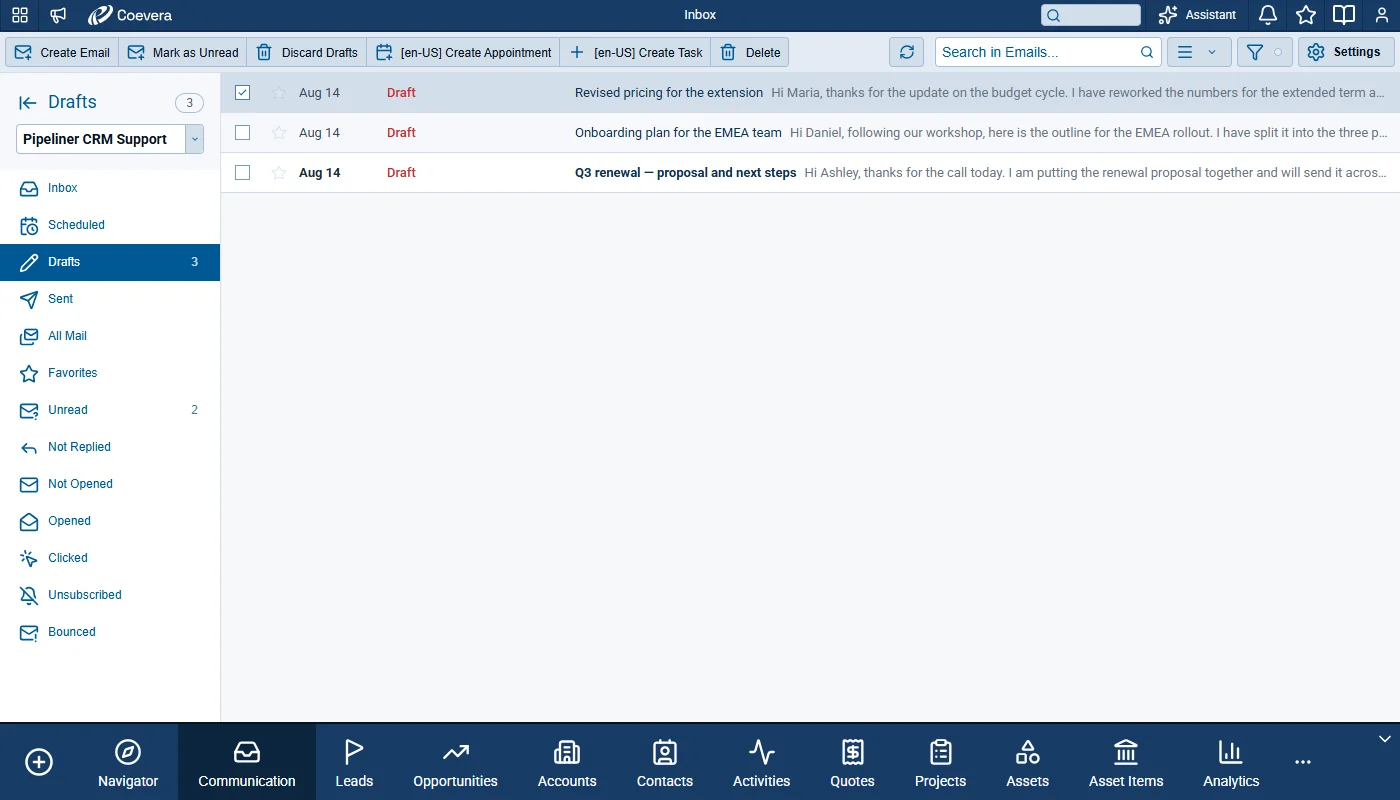
Drafts View

What we're proud of

The inbox becomes somewhere you can work

6.3.0 put the inbox inside the CRM. Scope 2 makes it a place to write: drafts save themselves as you type, a scheduled email sits in the conversation it belongs to instead of a dialogue, and Cancel Send hands it straight back to you as a draft.

01New · Email

Emails Preview Screen

Drafts View

Scope 2 extends the Inbox preview screen introduced in 6.3.0 into a complete mail client. Emails can now be saved as drafts, scheduled emails are handled as full conversations rather than dialogues, and the Create Email dialogue autosaves everything the user writes. Email account identification, email list selection, and AI-assisted record creation from unknown senders have also been reworked.

All screenshots

9
Documentation#emails-preview-screen-scope-2
02New · Voyager AI

Voyager AI Assistant Improvements

Ask anything about your CRM data

What was changed in Voyager for this release

Ask anything about your CRM data — free-form data questions now get answered: “how many open opportunities do I have”, “what’s my most recently created account”, “show me leads from Texas” — it can return counts, lists, lookups, totals across accounts, contacts, leads, opportunities, activities. It builds and runs a report behind the scenes, then discards it — nothing is saved to your reports. Inside the Reports module it behaves differently: there it creates a real report you keep.

Navigator — we rebuilt the code that reads Navigator dashboards: dashboard lists, dashboard grids and report charts all read through a new layer which also adds Board view (target, velocity, fitness, linked items) and Compact view.

All screenshots

3
Documentation#voyager-ai-assistant-improvements

Various Improvements

As part of our ongoing usability enhancement program, we've updated the following features.

Various ImprovementsReports

Report Scheduler: Attachment Options

Report Scheduler: Attachment Options

The attachment settings in Report Scheduler are now rendered at full opacity. Previously the Settings and Lock icons in the attachment row were shown in a muted tone, so the options already available were easily missed. Both icons now render in the standard interface accent colour and darken on hover, matching the rest of the interface. No option has been added or removed.

#report-scheduler-attachment-options
Various ImprovementsAutomatizer

Automatizer: Send Test Email Sender Options

Automatizer: Send Test Email Sender Options

The sender selector on the Automatizer Send Test Email action now lists only options that can resolve in a test context. Previously it offered dynamic options, most notably the record owner’s email account, which has no meaning when sending a test.

  • The selector lists all personal email accounts of the currently logged-in user, plus the company email accounts that user is allowed to watch.
  • Dynamic sender options, including the record owner’s email account, are no longer offered.
  • A test email sent this way arrives in the selected target inbox.
#automatizer-send-test-email-sender-options
Various ImprovementsAdministration

Modified By Field on All Entities

Modified By Field on All Entities

A Modified By field arrives across the entity set as the counterpart of Created By, which is itself extended to Quotes, Tasks, Appointments, and custom entities; Projects gain both.

#modified-by-field-on-all-entities
Various ImprovementsAdministration

User Role on User Lookup Fields and Filters

User Role on User Lookup Fields and Filters

Filters built on User Lookup fields can now target the role a user holds rather than only individual users, everywhere relation entity filters are offered.

#user-role-on-user-lookup-fields-and-filters
Various ImprovementsAdministration

Task and Appointment Type Access by User Role

Task and Appointment Type Access by User Role

User roles can now restrict which Task and Appointment types a user may work with, using the same pattern already available for Account types.

#task-and-appointment-type-access-by-user-role
Various ImprovementsVoyager AI

Messages as a Data Source in AI Smart Fields

Messages as a Data Source in AI Smart Fields

AI Smart Fields can now draw on feed messages as well as emails. In Admin › AI Smart Field setup, Message (feed) is added to the list of Related Records entities.

  • The entity filter for Message exposes the Message field group only.
  • Filter options match those already available for Emails.
  • The data source is labelled Message throughout the setup and filter.
#messages-as-a-data-source-in-ai-smart-fields
Various ImprovementsPipeline

Step Description in the Sales Step Extract

Step Description in the Sales Step Extract

The step extract that appears when hovering a step header now includes the step description, which previously showed metrics only. Applies to Pipelines and Lead Processes.

  • When a step has a description filled in, that description is shown at the top of the step extract, above the metrics.
  • Short descriptions render in full; around three lines are shown by default.
  • The description area is capped at a maximum of 10 lines and scrolls internally, with a hidden scrollbar and a fade at the bottom indicating more text.
  • Steps without a description show the extract exactly as before.
#step-description-in-the-sales-step-extract
Various ImprovementsAutomatizer

Automatizer: Update AI Fields Runs Asynchronously

Automatizer: Update AI Fields Runs Asynchronously

The Update AI Fields action now runs in the background instead of holding the process while the AI result is produced, and carries an Async label on the action card.

#automatizer-update-ai-fields-runs-asynchronously
Various ImprovementsAccounts

Confirmation on Bulk Add in the Add Contacts Dialog

Confirmation on Bulk Add in the Add Contacts Dialog

Add all now opens a confirmation dialog before it runs, and the confirmation threshold drops from more than 100 records to more than 10.

#confirmation-on-bulk-add-in-the-add-contacts-dialog
Various ImprovementsAdministration

Rich Text in the View Changes Log

Rich Text in the View Changes Log

Long Text fields now render as rich text in View Changes instead of plain text, so formatting and embedded pictures are preserved where users go to see what changed.

  • Rendering matches the email body rendering already used in Feeds, so formatting appears consistently.
  • Embedded pictures are displayed, not replaced by file names or thumbnails.
  • Rows have a maximum height, with an inner scrollbar on either side of the comparison when the content exceeds it.
#rich-text-in-the-view-changes-log
Various ImprovementsAdministration

Child Dropdown Selection in List View

Dependent (child) dropdowns are now editable in List View. Previously they could be edited on the record detail only, because inline editing shows just the edited field and therefore had no parent value to work from.

  • Options are resolved from the current value of the parent field on that row.
  • When the parent field has a value, the child dropdown offers the correct dependent options.
  • When the parent field is empty, the child dropdown is disabled.
  • If saving would leave other dependencies or form errors unresolved, the dynamic form opens so the user can complete the record before the value is stored.
#child-dropdown-selection-in-list-view
Various ImprovementsAccounts

Last Contacted Date: Configurable Calculation

Last Contacted Date: Configurable Calculation

Last Contacted Date becomes configurable — any field returning Date or DateTime can replace the system calculation, which stays the default.

#last-contacted-date-configurable-calculation

Frequently Asked Questions

A new Drafts view lists all single drafts — standard and mass email — that are not part of an existing conversation, plus every conversation that contains a saved draft. Drafts are also present in the All Mail view, and are excluded from Feeds, Reports, Drilldowns, and Rollups.

No. The Create Email dialogue saves the email as a draft 3 seconds after the last change to the body or subject fields, after each completed file upload, and after changes to the FROM and TO fields. An indicator under the text input shows Saving Draft while saving and Draft saved once it is stored.

Scheduled emails are now shown as conversations, and scheduled standard emails open directly in the email detail instead of a dialogue. Cancel Send cancels the scheduling and converts the email into a draft. Opening a scheduled email from a report drilldown dialog, the main report table, a record or dashboard drilldown grid, a Send Email step checklist item, or a direct link opens the Edit Scheduled Email dialogue instead.

Free-form questions about your CRM data — counts, lists, lookups and totals across accounts, contacts, leads, opportunities and activities. It builds and runs a report behind the scenes and then discards it, so nothing is saved to your reports. Inside the Reports module it behaves differently: there it creates a real report you keep.

AI Record Enrichment under Voyager 2 AI must be activated for the user. With it activated, Create with AI opens the Create New Records dialogue where a Lead, Contact, and Account can be created, prefilled, and linked together. Without it, Create with AI is not offered and the create forms open with only the email address prefilled.

A Modified By field is added to Accounts, Contacts, Leads, Opportunities, Quotes, Tasks, Appointments, and custom entities, and Projects gain both Created By and Modified By. The value is always a User — including when the change originated from Automatizer, the API, or another integration — and corresponds to the last change visible in the change log.

See these changes in your own pipeline

Start a free trial and explore what's new for yourself.

No credit card required · Free 14-day trial

groupsTrusted by clients around the globeverified_userISO 27001 CertifiedshieldGDPR CompliantblockData never used to train AI