May 28th, 2026
We are happy to announce our newest release of Coevera.
This release includes another exciting batch of new features for our app and other improvements to existing functionality.
Please note that some of these features are only available for our Business, EnterpriseEnterprise Enterprise (in the context of sales) is a relatively large organization typically composed of multiple levels, locations, and departments which need multi-layer software systems that support collaboration across a large corporate environment., or Unlimited Tiers.
Voyager AI Relationship Charts — AccountAccount Account refers to a record of primary and background information about an individual or corporate customer, including contact data, preferred services, and transactions with your company. Hierarchy
Voyager II AI now builds and maintains Account Hierarchies. From any Account record, Voyager AI can detect missing parent or subsidiary companies, suggest the correct corporate structure, and let users apply those changes to the Org Chart in a guided preview-and-confirm flow.
Existing companies are linked through Parent Account relations, and unknown companies can be added as Ghost Accounts that can be promoted to real Account records when the userUser User means a person who uses or consumes a product or a service, usually a digital device or an online service. is ready.
When the AI Record Assistant and the AI Relationship Charts Agent are enabled in the Automation Hub and the user’s Role gives them access to Voyager II features, and both the Record Detail Widget and Org Charts are visible for the selected Account Type, Voyager II AI runs a Quick Check on the Account.
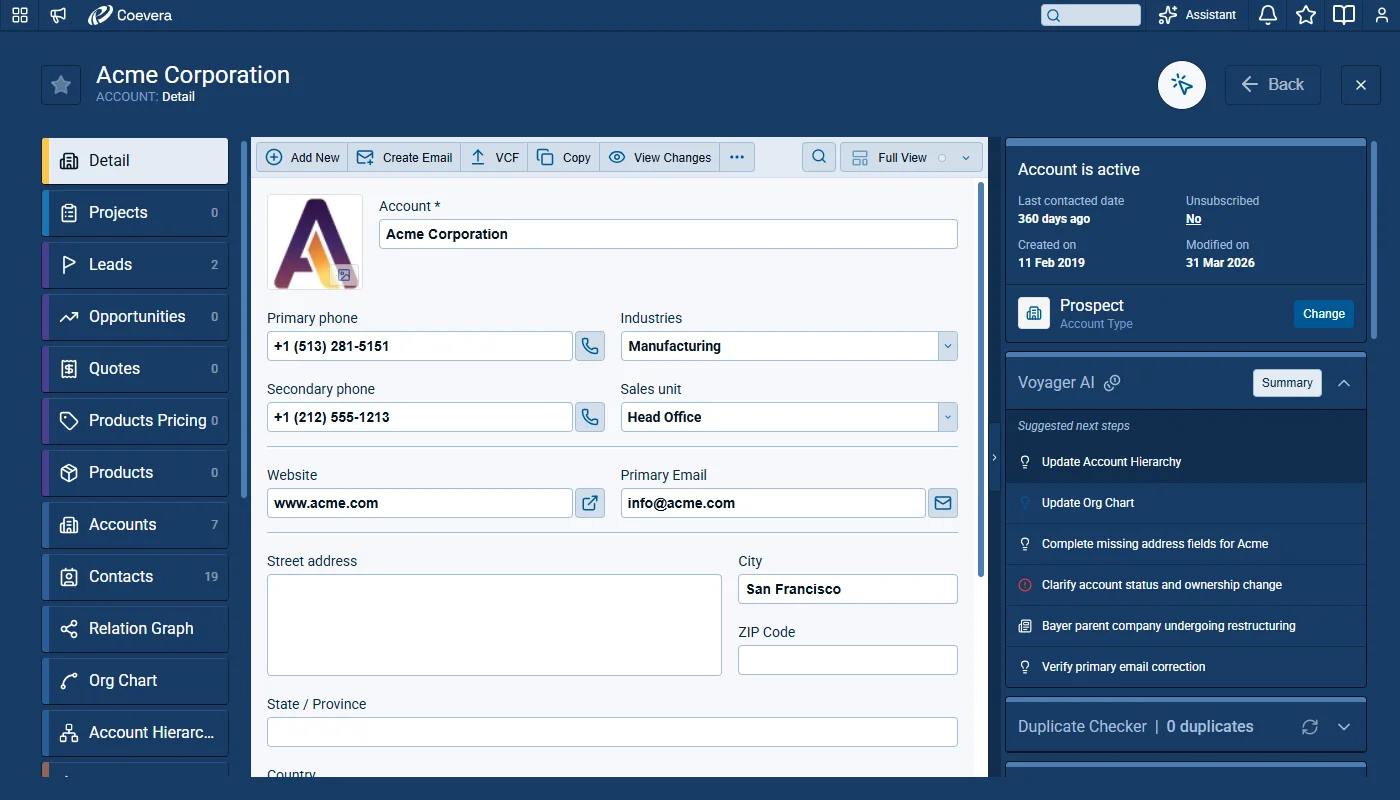
If the Quick Check finds that the existing hierarchy is incomplete or outdated, a new enrichmentEnrichment Enrichment means the act or process of upgrading the value or improving the quality of something (such as a product, service or function) that induces the target beneficiary (customers, employees, etc.) to have a better experience, or derive a deeper meaning, connection and attachment to the product or function. suggestion “Update Account Hierarchy” appears on the Detail tab.
Clicking the suggestion takes the user directly to Org Chart › Account Hierarchy. ⤵
When the user opens the Account Hierarchy view, a banner indicates that Voyager AI has detected changes worth reviewing. The banner shows an AI Credits info icon indicating how many credits the deeper analysis will use. Clicking on “Analyze” performs a deep analysis of the current Account Hierarchy and switches the chart into Preview mode when complete. ⤵
Preview mode displays the proposed company structure for the selected Account, including existing linked records, existing Account records not yet linked, and new records suggested by Voyager II. The AI Credits icon shows the credits spent on the analysis. Records that were not previously part of the hierarchy are tagged ADDED above the card.
- “Create Records” is available when at least one suggested record does not yet exist in the database.
- “Apply Changes” is available when every proposed record already exists; selecting it links the records according to the proposed structure and reloads the hierarchy.
- “Hide Changes” returns to the normal view while caching the proposed structure. A “Show Changes” action then lets the user reopen the cached preview until the record is reloaded. ⤵
Account cards in Preview mode
- Existing Account records use the standard Account card, however the “Open Org Chart“, “Show Opportunities where this Account has participated“, and “Show Interactions with this Account” are hidden in this view.
- Records suggested by Voyager AI that do not yet exist in the database appear as Ghost Accounts — placeholder cards marked with a ? icon and the suggested account name. Ghost Accounts are not accessible from other parts of the application; they exist only inside the proposed structure until promoted by creating an Account record.
Ghost Account actions
- “Promote Account › New” opens the Create new Account dialog and replaces the Ghost Account with the new real record.
- “Promote Account › Existing” opens the Add Existing dialog (single selection) and replaces the Ghost Account with the chosen record.
- “Edit” opens a dialog for changing the suggested account name.
- “Delete” removes the Ghost Account from the proposed structure.
The side panel for a Ghost Account shows the account name and the Parent and Child relations within the proposed hierarchy.
Create Records dialog
- The “Create Records” action opens a dialog similar to the Account Import accept step, listing all Ghost Accounts from the proposed structure. The list shows the total number of valid records and a filter with “Show Valid” and “Show Invalid” options. The available and default columns match the Account Import screen. Each new Account defaults to the same Account Type as the currently opened record.
- Selecting a record opens a side panel with the record form, which adapts to the chosen Account Type. “Accept Selected” creates the selected Account record(s); “Reject Selected” removes them from the list. Per-row “Accept” and “Reject” actions are also available. Duplicate handling works the same as in standard Account Import.
- “Apply Changes” performs the suggested action, closes the dialog, and reloads the Account Hierarchy. “Cancel” returns to Preview mode without creating any records. If “Apply Changes” is used while some records are still unaccepted, a confirmation dialog informs the user before proceeding. ⤵
Enabling the AI Relationship Charts Agent
The AI Relationship Charts Agent is available in the Voyager 2 section of the Automation Hub, placed at the bottom of the list. It’s this agent that enables the option to create or update relationship charts such as Account Hierarchies when enabled for the user’s Role. The agent is turned off by default. Enabling it activates the related Account Hierarchy functionality across the productProduct Product refers to anything (an idea, item, service, process or information) that meets a need or a desire and is offered to a market, usually but not always at a price.. ⤵
User Roles — AI Relationship Charts Agent feature
The AI Relationship Charts Agent feature is available on the User Role configuration screen, added at the bottom of the Voyager 2 AI section. Enabling the feature for a role activates the related Account Hierarchy capabilities for users assigned to that role. ⤵
Fullsize Screenshots ⤵
Voyager AI Relationship Charts — Org Chart
Voyager 2 AI now builds and maintains organizational charts directly on the Account record. The new Org Chart view proposes the company’s leadership structure, matches it against existing Contacts, suggests new people to add, and lets users review and apply changes in a single guided flow.
Update Org Chart suggestion
On every Account record where the AI Record Assistant and AI Relationship Charts Agent are enabled, Voyager AI performs a Quick Check when the Record Detail Widget loads. The Quick Check requires that Record Detail Widget and Org Charts are enabled in Interface settings for the selected Account Type. When the Quick Check determines that changes to the existing Org Chart are needed, a new enrichment suggestion “Update Org Chart” appears on the Detail tab. Clicking the suggestion navigates the user directly to the Org Chart. ⤵
Update Org Chart banner
When the user opens the Org Chart and a Quick Check has not yet run, it is performed at that point. If a Quick Check was already performed during widget loading, the previous result is reused. If the Quick Check determines that updates are needed, an “Update Org Chart” banner is displayed above the chart. When the Quick Check runs from this screen, an AI Credits info icon appears to show that credits were consumed.
The “Update Org Chart” banner offers an “Analyze” action that performs a deep analysis of the current Org Chart. When the analysis completes, the Org Chart switches into Preview mode. ⤵
Preview mode
Preview mode displays the proposed company structure with two possible actions, depending on the contents of the proposed structure.
- “Create Records” — available when at least one proposed person does not yet exist as a Contact. Clicking opens the create-records dialog.
- “Apply Changes” — available when every proposed person already exists in the database. Applies the new structure, reloads the Org Chart, and exits Preview mode.
- “Hide Changes” — switches the view back to Normal mode. The proposed structure is cached until the record is reloaded or changed, and a “Show Changes” action returns the user to Preview mode with the cached proposal.
The AI Credits icon in this mode shows the credits spent on the analysis.
The chart shows the proposed organizational structure for the selected company, built from a mix of existing Contacts and AI-suggested new people. Existing records include the selected Account‘s root record, Contacts already linked in the company structure, and Contacts not currently linked. New records are people who do not yet exist in the database suggested by Voyager AI. They are represented as Ghost Contacts — temporary records that are not saved to the database and are not accessible elsewhere in the application until the user explicitly creates them. ⤵
Contacts in the proposed Org Chart structure are tagged with the following legends:
- No Tag — existing Contacts whose position in the Org Chart is unchanged.
- Updated — existing Contacts whose position in the Org Chart has been changed by the proposal.
- Added — existing Contacts that were not previously in the Org Chart and are now being added.
- New — newly proposed people who do not yet exist in the database (Ghost Contacts).
Existing Contacts use the standard contact card, with two actions removed in this view: the action that lists opportunities the person participated in, and the action that lists interactions with the contact. Ghost Contacts use a dedicated card that supports all existing Ghost Contact functionality.
Create Records dialog
Clicking “Create Records” opens a dialog modeled on the Contact Import accept step, listing every proposed Ghost Contact from the analysis.
- “Accept Selected” creates the selected Contact records.
- “Reject Selected” removes them from the list view.
The dialog shows the total number of valid and invalid records, and provides a filter with two options: “Show Valid” and “Show Invalid“. Available columns and the default column set match the Contact Import screen. Contact Type defaults to the type of the currently opened Contact. Selecting a single record opens a side panel with the record form for that Contact Type. The user can Accept or Reject the record individually.
When one or more records are being accepted, the system checks for duplicates. Duplicate handling works the same way as in the Import functionality. ⤵
“Apply Changes” links all existing Contact records to the Account according to the proposed structure. From the Create Records dialog, “Apply Changes” performs the same action, closes the dialog, and reloads the Org Chart. If “Apply Changes” is triggered while some proposed Contacts have not yet been accepted, a confirmation dialog is shown so the user can decide how to proceed. “Cancel” in the Create Records dialog returns the user to Preview mode without applying anything.
Faster Org Chart loading
The Org Chart tab now loads the chart and the Missing Contacts list independently, so users see the chart sooner instead of waiting for both areas to finish in sequence.
Fullsize Screenshots ⤵
AI Smart Field
Updates to the Voyager 2 Smart Field feature deliver refinements to make the fields more reliable, transparent, and easier to work with in everyday use. Users now see clear status indicators on each AI Smart Field, can edit values inline without unnecessary confirmation steps, get rich-text output when the underlying field supports it, and have finer control over scheduled updates through filtering. Bulk updates now display real progress, related notes are available as a dataData Data is a set of quantitative and qualitative facts that can be used as reference or inputs for computations, analyses, descriptions, predictions, reasoning and planning. source, and Automatizer behaves predictably when the feature is disabled at the Automation Hub or User Role level.
Automatizer Handling When AI Smart Field Is Disabled
- When the AI Smart Field is turned off in Automation Hub, the AI value update action is no longer available in the action list. Any existing process that still references it skips the action during evaluation. Skipped runs are logged with the message "Action was skipped, AI Smart Field feature was disabled in Automation Hub."
- When AI Smart Field is disabled for a particular User Role, the AI value update action no longer appears in Automatizer for users based on that role. If such a user is the actor of an existing process, the action is skipped. Skipped runs in this case are logged with the message "Action was skipped, user is not allowed to use AI Smart Field feature".
- When the AI credit overage limit has been reached, the action is also skipped and logged with the message "Action was skipped, AI credit overage limit exceeded".
Inline Edit Behavior
- Updating an AI Smart Field value by clicking the "Update" button applies the new value directly. No confirmation step is required and no "Confirmation" button appears.
- Editing the value manually in the input field shows a "Confirmation" button so the user can confirm the manual change before it is saved.
Rich Text Output in Long Text Fields
When a Long Text field has the Rich Text option enabled, the AI now produces output as rich text instead of plain text. ⤵
Field Status Indicators
- Each AI Smart Field on the form now shows the status of its last AI update. The states load asynchronously, the same way rollup fields do.
- If an update fails, the field displays an Error state. If the AI cannot process the data, the field displays a Warning state. When the last update finished successfully, the field appears in its normal state.
- Hovering over a field with an Error or Warning state shows a tooltip with the last error or warning message.
- Error and Warning states persist on the field until a new update replaces them. Manually entering a value resets the field back to its normal state.
The messages shown in the tooltip are:
- Unknown error: Value update failed — please try again
- Known error: Value update failed —
- No source data: Unable to update — source data is missing
- Request not understood: Unable to update — request wasn't understood
- No result returned: Unable to update — no result returned
Progress Indicator on Bulk Action
The message shown during a bulk AI Smart Field update now reports live progress, displaying the message Updating AI Smart Field values ( of records), where the numbers refresh as each record completes. ⤵
Related Notes Available as a Data Source
Notes from related records are now part of the Related Records list that the AI Smart Field can use as input to summarize or otherwise process notes from related records. ⤵
Filter in Scheduled Trigger Option
When setting the Value Update criteria for an AI Smart Field, the Scheduled trigger option now includes a filter, which controls which records the scheduled AI update runs against. The filter can be built from any field on the current entity or on its related entities. By default, no filter is set. When no filter is set, a warning is displayed: If no filter is applied, then all records will be updated. This results in consuming a significant number of AI credits. ⤵
Once a filter has been configured, the message changes to Filter is now set. ⤵
Fullsize Screenshots ⤵
Various Improvements
As part of our ongoing usability enhancement program, we've updated the following features.
Setting Email Notification Settings by User Role
Administrators can now globally manage email notification settings for all users assigned to a given user role, with the option to enforce those settings so individual users cannot override them.
Admin Module — User Role Settings
A new "Email Notifications" item is available in Admin › Roles › User Role Settings › Features. The section contains an "Enforce Email Notification Settings" toggle which off by default.
- When the toggle is OFF, default values configured here apply to new users (or users newly assigned to the role) while existing users retain their own settings.
- When the toggle is ON, the default values are enforced for all users with the role and individuals can no longer change their own email notification settings. ⤵
Individual User Settings
- When enforcement is OFF, all toggles and checkboxes remain editable and existing users keep their current preferences.
- When enforcement is on, all toggles and checkboxes become read-only and reflect the values configured by the administrator. An informational box appears at the top of the section while enforcement is active. ⤵
Hide Archived Records When Linking Records
The option to exclude archived records, previously available on card fields, now also applies to the "Add existing" action when linking records to a parent entity. When the option is OFF, archived records are filtered out of the selector so users only see active records available for linking. ⤵
Filter Records by Inactive Users
Users can now filter records of inactive owners dynamically, without having to pick each user individually. Two new operators are available on every Owner field in Custom Filters:
- "is active" — returns records owned by currently active users.
- "is not active" — returns records owned by inactive users. ⤵
AI Support for Inactive User Filtering
The conversational AI assistant understands the new "is active" and "is not active" operators on Owner fields, so users can phrase requests such as filtering records owned by inactive users in natural language and have the assistant build the matching filter.
Fiscal YearFiscal Year Fiscal Year is a financial accounting period of one year (that may or may not coincide with the calendar year), which is used by governments and businesses for taxation, budget planning, performance assessment, strategy formulation and other purposes. Options for the RevenueRevenue Revenue is the amount of money a business generates during a specific period such as a year or a quarter; also called sales. Trend Component
The Period setting of the Revenue Trend component on the Navigator screen now offers two additional values under Year Period: Current Financial Year and Last Financial Year. Selecting one of these values renders the trend using the customerCustomer Customer is an individual or an organization that purchases a product or signs up for a service offered by a business.'s configured financial year rather than the calendar year. ⤵
Separate Color Control for Comparison Lines in Reports
The Show Comparison section in Reports now includes a new Comparison Line Color option with its own color selector. Changing the main line color no longer affects the comparison line — each line is controlled independently, making it easier to distinguish the two series visually. ⤵
Related Account and Contact Type Mapping in Import
When importing Leads and Opportunities, users can choose the Account or Contact type used for the related record directly in the import mapping step.
Opening the related record through the More Fields option always opens the first available form regardless of the selected type; opening the related record through the main form opens the form that matches the chosen type. ⤵
Advance Notice Messages for Automatic Sign-Out
When an administrator has configured automatic sign-out as part of Advanced Sign-In Security, users now receive a notification before the session ends so they have time to save their work.
- A notification appears approximately five minutes before the session expires.
- For a fixed daily sign-out time, the message reads: Your organizationOrganization Organization is a cohesive group of people working together and formally bound by a shared identity (e.g., one team, company, club, etc.) and a common purpose (e.g., business growth, athletic victory, etc.).'s policy enforces an automatic sign-out every day at on the Pipeliner CRM application.
- For an inactivity-based sign-out, the message reads: Your organization's policy enforces an automatic sign-out from the Pipeliner CRM application after . You will be signed out in minutes. ⤵
Use Case Library in Coevera
A new Use Case Library is now available in Coevera, accessible from the top-right help menu. It provides a curated, in-product collection of feature-level use cases — short, practical walkthroughs showing how to apply specific Coevera features to real sales scenarios. Each use case includes a title, description, preview image, and a link or downloadable resource. ⤵
Use cases are grouped by feature, with filtering support so users can quickly find relevant examples (e.g., "AI Smart Field").
The first contentContent Content refers to a material or document released in various forms (such as text, image, audio, and video) and created to inform, engage or influence specific audiences. set covers AI Smart Field, with more features to follow. ⤵