April 29th, 2026
We are happy to announce our newest release of Coevera.
This release includes another exciting batch of new features for our app and other improvements to existing functionality.
Please note that some of these features are only available for our Business, EnterpriseEnterprise Enterprise (in the context of sales) is a relatively large organization typically composed of multiple levels, locations, and departments which need multi-layer software systems that support collaboration across a large corporate environment., or Unlimited Tiers.
AI Super Agent
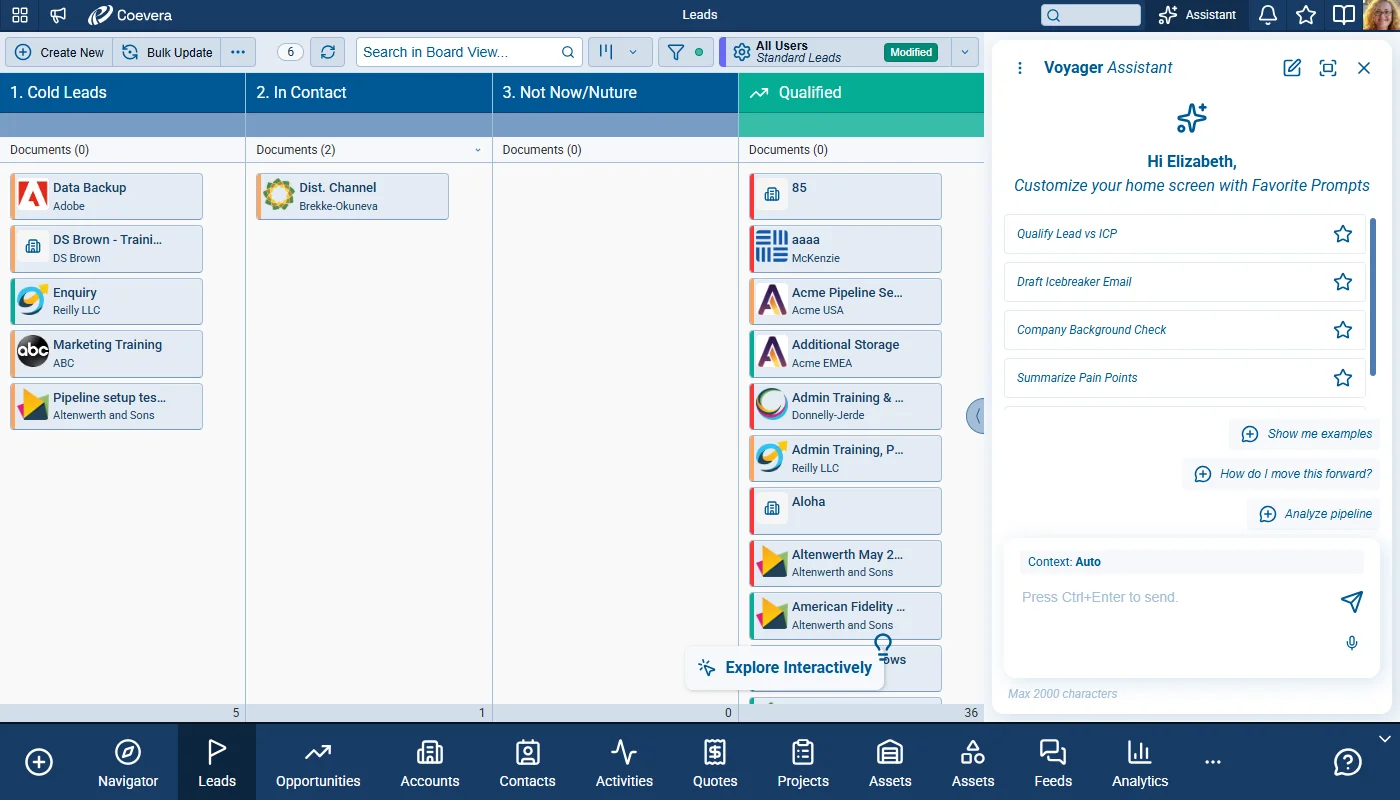
The Voyager 2 AI Super Agent is Coevera’s unified AI assistant, accessible from the top-right corner of the application. It replaces the previous collection of separate AI widgets with a single, context-aware agent that understands what you are looking at, draws on your CRM dataData Data is a set of quantitative and qualitative facts that can be used as reference or inputs for computations, analyses, descriptions, predictions, reasoning and planning., and can delegate to specialized agents for records, reports, automatizer processes, and online forms — all from one persistent chat interface.
Clicking on the AI Assistant icon opens the Super Agent in a sidebar panel on the right side of the screen without covering the main contentContent Content refers to a material or document released in various forms (such as text, image, audio, and video) and created to inform, engage or influence specific audiences.. It includes a menu for accessing Chat History, Saved Prompts, and starting a new conversation. Previous conversations are automatically saved so users can return to any earlier session. Simply closing the panel preserves the ongoing conversation — reopening it resumes exactly where you left off. A toggle button switches the panel to Full Screen mode for longer working sessions. ⤵
Clicking on the three dots opens options to review previous chat history or access previous and suggested prompts. ⤵
Saved prompts are organised by category. ⤵
Full Screen Mode expands the AI Super Agent to occupy the full application window, ideal for extended or complex conversations. The left sidebar in full screen mode shows Saved Prompts and Chat History, both fully searchable. Users can return to the normal sidebar mode at any point. Conversation Topics and Favorite Prompts remain available in full screen. ⤵
Prompt Component
The prompt input area supports up to 2,000 characters per message. Users can use the speech-to-text button to dictate prompts instead of typing. Keyboard shortcuts: “Ctrl+Enter” (or “Cmd+Enter” on Mac) submits the prompt; “Alt+Enter” adds a new line.
Once a prompt is submitted, a “Stop” button appears, allowing users to cancel the ongoing response at any time. Cancelled requests display the message: “You stopped this response.”
If no response is received within 10 minutes, the session times out with the message: “Oops! Your session timed out unexpectedly. Please try again.” ⤵
A context selector in the prompt area lets users choose what data the AI uses when answering.
- Auto — the AI decides the most relevant context based on the current screen.
- Opened Record — focuses the AI on the record currently open in full detail view, including all fields, change log, and feed.
- Selected Record(s) — uses the records currently selected in list, board, or other views (single or multiple).
Context is fixed for the lifetime of a conversation. To change context, users need to start a new chat. Note that the available context options vary by screen: list views, record details, reports, automatizer processes, online forms, and home screen each offer a relevant subset. ⤵
Conversation Starter Topics & Examples
When opening a new conversation, the AI presents screen-specific suggested topics to help users get started quickly, grouping these suggested topics into categories such as Examples, Analysis, Suggestions, Win-Loss Prediction, and others, depending on which screen is active.
Clicking “Show Examples” expands a set of predefined prompt examples tailored to the current view. Clicking any example copies it into the prompt input, ready to submit or edit. ⤵
Clicking “Show Suggestions” asks the AI to generate context-aware recommendations based on the currently loaded data. ⤵
After the AI responds, it automatically generates follow-up conversation topic suggestions based on the last answer and current context, following a pattern of three varied intents: data-focused, action/strategy-focused, and risk/insight-focused.
Any conversation started from an example or topic immediately becomes a regular chat and appears in the Chat History.
Screen Agent & On-Demand Suggestions
The Screen Agent analyzes the data currently loaded on the active screen — including applied filters, visible records, and selected items — and surfaces relevant insights without requiring a typed prompt. ⤵
Suggestions are generated on demand: clicking the suggestions trigger causes the Screen Agent to produce up to five recommendations. Three types of suggestions are available: Required Actions (urgent next steps), Record News (notable recent activity), and Record Updates (field or status changes of interest).
All suggestion types and data sources adapt to the screen: record detail views, navigator, reports, online forms, and automatizer processes each deliver relevant, context-appropriate insights and clicking a suggestion opens the AI Super Agent chat with that suggestion already in context, ready for follow-up questions.
Unified Intelligence
- The Super Agent acts as an orchestrator, combining CRM data, specialized sub-agents, and live web search to answer questions.
- It selects the best approach automatically: using existing knowledge, querying your CRM data, delegating to a specialized agent, or performing a live web search for current information.
- When a question cannot be answered, the agent responds clearly: “I’m not able to resolve your question.“
- The Super Agent takes full responsibility for all information it provides, regardless of whether it came from a sub-agent, a previous conversation turn, or a web search result.
Specialized Sub-Agents
When working in the context of a specific CRM area, the Super Agent automatically routes the request to the appropriate specialist:
- Record Agent — answers questions about record details, relationships, activity history, and field values.
- Report Agent — analyzes report data and answers questions about pipelinePipeline Sales pipelineis a visual representation of the stage prospects are in the sales process. performance, trends, and metricsMetrics Metrics are quantities that are measured and used to:.
- Automatizer Agent — explains and provides guidance on automation processes and their configuration.
- Online Form Agent — provides guidance and analysis within online form contexts.
Users interact with the Super Agent naturally — routing to the right specialist happens transparently in the background.
Changes to Existing Modules
With the introduction of the AI Super Agent, several existing AI entry points have been consolidated:
Record Detail
- The standalone AI chat button has been removed from Record Detail views. The AI Super Agent in the top-right corner is now the single entry point for all AI interactions on records.
- The “Show all suggestions” button has been removed. Suggestions are now accessed directly through the Super Agent sidebar.
- Clicking any suggestion from a record detail view opens the Super Agent chat with that suggestion in context.
The standalone AI buttons in the Automatizer process editor, Report Details views and the Online Form editor have been removed. AI assistance in Automatizer, Reports and Online Forms is now provided through the Super Agent.
Automatizer
When the Super Agent is open, the Automatizer editor adjusts its layout to remain fully visible alongside the AI panel. Suggestions from the Automatizer context are surfaced through the Super Agent‘s Screen Agent, with the same click-to-expand behavior.
Reports
- Report suggestions are delivered via the Screen Agent with the same quality and insight depth as the former AI Report widget.
- Dashboard views use the Screen Agent by default to surface relevant insights.
AI Coach
- AI Coach functionality has been integrated into the Super Agent as part of the unified AI experience.
Chat History & Saved Prompts
The Chat History shows all previous conversations for the current userUser User means a person who uses or consumes a product or a service, usually a digital device or an online service. in the current space, organized chronologically and fully searchable. Each user can only see their own conversation history — conversations are private. Saved Prompts stores favorite prompts organized by entity-specific categories, making frequently used prompts easy to find and reuse. Both Chat History and Saved Prompts are available in both normal sidebar and full screen modes.
AI Credit Tracking
A coin icon appears below each AI response showing how many AI credits that interaction consumed and hovering over the icon displays a tooltip: “Used [n] AI credits.” Free responses show “0” credits. Clicking a suggestion also deducts credits, displayed the same way.
When all AI credits have been used, the system displays: “Your request cannot be processed, all AI credits have been used.” Subscription administrators receive an email notification when the credit limit is reached (once per day maximum). ⤵
Administration & Access
Administrators can control which user roles have access to the AI Super Agent through the User Roles settings. All Super Agent capabilities are available by default for new spaces and new roles. ⤵
Voyager 2 appears as a separate, named item in the Automation Hub, visible to Administrators. In the AI Configuration panel, the Super Agent and Record Assistant are both visible and configurable. ⤵
Super Agent usage is tracked in AI Statistics, accessible to Subscription Admins. ⤵
Fullsize Screenshots ⤵
AI Smart Field
The AI Smart Field adds configurable AI-powered value generation for supported CRM fields. Administrators can enable AI behavior per field, define prompt and data sources, configure update triggersTriggers Triggers are a set of signals or occurrences that meet certain criteria to be considered an opportunity to make a sale., and expose controlled manual or automated updates in record forms, list views, and Automatizer flows. The experience includes permission controls, credit-awareness messagingMessaging Messaging is the process of communicating your brand’s value proposition, the benefits you offer, and the perceived meaning of such communication among your target audience., and progress feedback during updates.
AI Smart Field options are available for supported field types which include: single-line text, long text, integer, float, email, phone, URL, and base currency.
- The value update flow is defined for both manual and automated execution paths.
- The release introduces a clear end-to-end AI update flow from setup through execution and completion feedback.
Field Configuration
When creating a new field — of one of the supported types — the field properties include an AI update toggle that can be left off, enabled with incomplete setup, or enabled with saved setup. ⤵
The “Fill Value with Voyager AI” option is also available for existing fields when editing field properties. ⤵
AI Setup — Prompt, Preview, and Data Sources
After enabling “Fill Value with Voyager AI” and clicking on “Setup“, Administrators can define AI instructions in a dedicated prompt text area. Prompt personalization supports dynamic field placeholders to build contextual prompts from entity and related data. ⤵
Results and Cost Preview
A preview section lets admins select a record and validate the generated output before relying on updates in production workflows. The preview output adapts to the configured target field type. Preview includes a cost display which shows the AI credit usage information which will apply each time the field is updated. ⤵
Selectable Data Sources
The setup options support selectable data sources, including web search, main record data, related records, and record documents. Related record sources support multiple relation components with configurable filters. ⤵
Document sourcing accepts supported file types and applies system constraints for size and volume. ⤵
Update Trigger Configuration
Once the prompt and data sources are set up, the admin can then choose appropriate Value update settings. Multiple options can be active at the same time.
- Manual update enables explicit user-triggered updates on the record.
- Automatic updates support on-create and on-update triggers. ⤵
- Scheduled updates support weekly and monthly recurrence patterns. ⤵
Field Indicators and Manual Actions
AI-enabled fields are marked with an AI indicator so users can identify smart-updated fields directly on record forms. The Update Fields domain action on the menu is available when enabled in Automation Hub and permitted by the user’s role. The update list includes undeleted fields with AI update enabled and manual update allowed. ⤵
Save Requirement, Progress, and Completion Feedback
- If there are unsaved form changes, users must confirm save before the AI update starts. ⤵
- During update processing, the form is locked from further saves until completion.
- After completion, a message confirms successful processing. ⤵
Automatizer Integration
Automatizer includes a new Update AI Fields action type and users can multi-select AI-enabled fields from the triggered entity. The UI confirms that AI credits will be consumed for update actions. The AI field updates run independently of standard record form editing actions. If a field included in an Automatizer process is subsequently deleted, the action is skipped with a warning notification to the process owner. ⤵
List View Operations and Safeguards
AI Smart Fields can be added to supported list views and drill-down grids. Batch AI updates for selected records and fields are supported but those batch updates enforce a safety limit of 100 records per operation. When this limit is exceeded, users receive a warning asking them to refine their filter criteria to reduce the number of records. ⤵
After processing, the updated field and record counts are displayed. ⤵
Automation Hub Availability
The Voyager 2 feature in the Automation Hub includes dedicated messaging for AI Smart Fields confirming that the features will auto-fill and update CRM fields using existing record data to improve completeness and reduce manual entry. ⤵
User Role Controls
User roles include an AI Smart Field permission that is conditionally visible when Voyager 2 is enabled in Automation Hub. When disabled for a role, AI Smart configuration is disabled in field settings and update domain actions are not available to those users. ⤵
Fullsize Screenshots ⤵
Various Improvements
As part of our ongoing usability enhancement program, we’ve updated the following features.
Additional Filter Operators In AI Context
The filter operators “Begins with” and “Ends with” added in release 6.0 are now recognized in AI-related flows. AI-driven components that interpret filter conditions now use these operators consistently with existing filter behavior.
Card View Details For Custom Entity Lookup
Custom Entity lookup cards now display configured card view field mappings instead of showing only the entity name. ⤵
Embedded lookup cards in forms follow the same detail visibility pattern as other supported entity cards. ⤵
Inner Scrolling For Inline Editor In List View
Inline editors for long text fields in List views now keep action buttons accessible on lower-resolution screens. The inline edit popup stays within the visible application area and provides inner scrolling when content is long. ⤵
ProductProduct Product refers to anything (an idea, item, service, process or information) that meets a need or a desire and is offered to a market, usually but not always at a price. Field Consistency In Quote And Opportunity Filters
Quote filters now include additional product-related fields that were previously unavailable and Quote product field naming is aligned with Opportunity naming for consistent filter setup across both record types. The same field support is available in mobile filtering and AI-enabled filter interpretation. ⤵
Product Fields In Approval Criteria For Quotes
Approval Process criteria for Quotes now include product-related fields previously limited to Opportunity criteria. Opportunity and Quote approval condition builders expose a more complete and consistent product field set. ⤵
Product Field Reference Unification In Change Tracking
Product field behavior is standardized so the same product reference is used consistently across filters, grids, and change log scenarios.
Historic and active automation contexts continue to work with aligned product field semantics after the field reference update.
Integration Expiration Failure Notification
Users receive an email when an integration failure is detected and background CRM functionality may be affected. The message includes the integration name, impact warning, and a direct path to the correct settings area for reactivation. The system sends at most one notification per integration failure cycle and allows a new notification after reactivation. The first release scope focuses on selected integrations where users might not directly see immediate UI errors.
This applies to the following integrations:
- OutlookEmail
- OutlookContacts
- OutlookCalendar
- OutlookTasks
- SharePoint
- OneDrive
- MicrosoftTeams
- ExchangeEmail
- ExchangeContacts
- ExchangeAppointments
- ExchangeTasks
- GmailSync
- GmailSend
- GoogleContacts
- GoogleCalendar
- GoogleTasks
- GoogleDrive
- Imap
- PandaDoc
- SendGrid
- Dropbox
- Calling
- Zoom
- Bcc
HTML And Markdown Document Preview Safety
Coevera supports safe previewing of HTML and Markdown documents in CRM document flows. Users can open document content in a separate browser tab while preserving a controlled preview behavior.


