July 1th, 2026
We are happy to announce our newest release of Coevera.
This release includes another exciting batch of new features for our app and other improvements to existing functionality.
Please note that some of these features are only available for our Business, EnterpriseEnterprise Enterprise (in the context of sales) is a relatively large organization typically composed of multiple levels, locations, and departments which need multi-layer software systems that support collaboration across a large corporate environment., or Unlimited Tiers.
Voyager AI Relationship Charts — Buying Center
This release extends Pipeliner’s Voyager AI Relationship Charts to the Buying Center on Opportunity records. Building on the existing AccountAccount Account refers to a record of primary and background information about an individual or corporate customer, including contact data, preferred services, and transactions with your company. Hierarchy and Org Chart capabilities, the AI Relationship Charts Agent now analyzes an opportunity’s contacts, activities, and email communication to propose a complete Buying Center — the set of people involved in a deal, the sales roles and relationships they hold, and the lines of influence between them. Users are able to preview the AI’s proposal, where every suggested change is clearly tagged, and then choose to apply it to the live chart with a single action.
“Update Buying Center” enrichmentEnrichment Enrichment means the act or process of upgrading the value or improving the quality of something (such as a product, service or function) that induces the target beneficiary (customers, employees, etc.) to have a better experience, or derive a deeper meaning, connection and attachment to the product or function. suggestion
On the Opportunity record Detail tab, Pipeliner now displays a new AI enrichment suggestion that keeps the Buying Center current as a deal evolves. ⤵
- The system performs a background check on the current Buying Center (see Pre-requisites).
- When that check determines the existing Buying Center is out of date — for example, new contacts or relationships have emerged in the deal — Pipeliner adds a new enrichment suggestion labelled “Update Buying Center“.
- Clicking the suggestion takes the userUser User means a person who uses or consumes a product or a service, usually a digital device or an online service. directly to the Buying Center so they can review and apply the proposed changes.
The Buying Center chart
The Buying Center presents the AI-proposed deal mapping for the opportunity. It uses the same banners and charts as for the Org Chart so the experience is consistent for the user. ⤵
Preview mode and change tags
Before any AI suggestion is committed, the user sees it in Preview mode, where each proposed change is visually tagged so it is clear what the AI is adding or changing versus what already existed. These preview tags are also applied retroactively to the existing Account Hierarchy and Org Chart, so the review experience is consistent across all relationship charts. The suggestions can be applied by clicking on the action button. ⤵
Records in the chart carry one of three tags:
- New — records the AI proposes that do not yet exist in the database.
- Added — existing records that were not previously part of the Buying Center and are now being brought in.
- Updated — records already present in the chart whose Sales Role, Relationship, or Comments the AI proposes to change.
Relations between records carry their own tag:
- New — a new relation set between two existing records. Relations drawn between two New records do not carry this tag, since the records themselves are already marked as new.
How the AI builds the Buying Center
The AI Relationship Charts Agent assembles the Buying Center proposal from the evidence already present in the CRM, rather than from manual entry. Its behavior is governed by a defined set of rules that determine who appears in the chart and how they are characterized:
- Who is included? A contact is added only where there is real evidence of involvement in the deal — they are linked to the opportunity, they appear in CRM activities, they are named in activity text, or they appear as a sender, recipient, or CC in email communication. Contacts with no signal are excluded, and the AI does not invent people who are not evidenced in the dataData Data is a set of quantitative and qualitative facts that can be used as reference or inputs for computations, analyses, descriptions, predictions, reasoning and planning..
- Sales roles. Where clearly supported by the evidence, the AI assigns recognizable buying roles such as Decision MakerDecision Maker Decision Maker in the context of sales, is a person who possesses the required expertise and authority in making purchase decisions., Signer, Consultant, Advocate, IT Leader, Naysayer, and Partner. A person can hold more than one role, and the AI leaves roles unassigned where the evidence is unclear.
- Relationship strength. Each contact is rated strong, moderate, or weak based on how directly and how often they engage across activities and email threads.
- Lines of influence. The AI proposes connections between contacts: positive influence (one person enables or advocates to another), negative influence (one person blocks or creates friction), or an undirected connection where a relationship clearly exists but its direction is unclear. Influence is drawn only from observed behavior in activities and emails, not inferred from org-chart reporting lines.
- Plain-language reasoning. Every proposed contact and every proposed relation carries a short, plain-English comment shown directly on the chart, explaining why the AI added it and why it assigned the role or relationship — so the user can judge each suggestion at a glance.
- Suggested new contacts. When a person is referenced in emails or activities but has no contact record, the AI surfaces them separately as a suggested new contact, with where they were mentioned and why they may matter to the deal.
Pre-requisites
The AI Record Assistant and the AI Relationship Charts Agent must be enabled for Opportunity records and the Record Detail Widget and Buying Center must also be switched on in the Interface settings for the record’s Account Type.
Check our Knowledge Base article to get more information about the Voyager AI Relationship Charts — Buying Center ›
Fullsize Screenshots ⤵
Emails Preview Screen
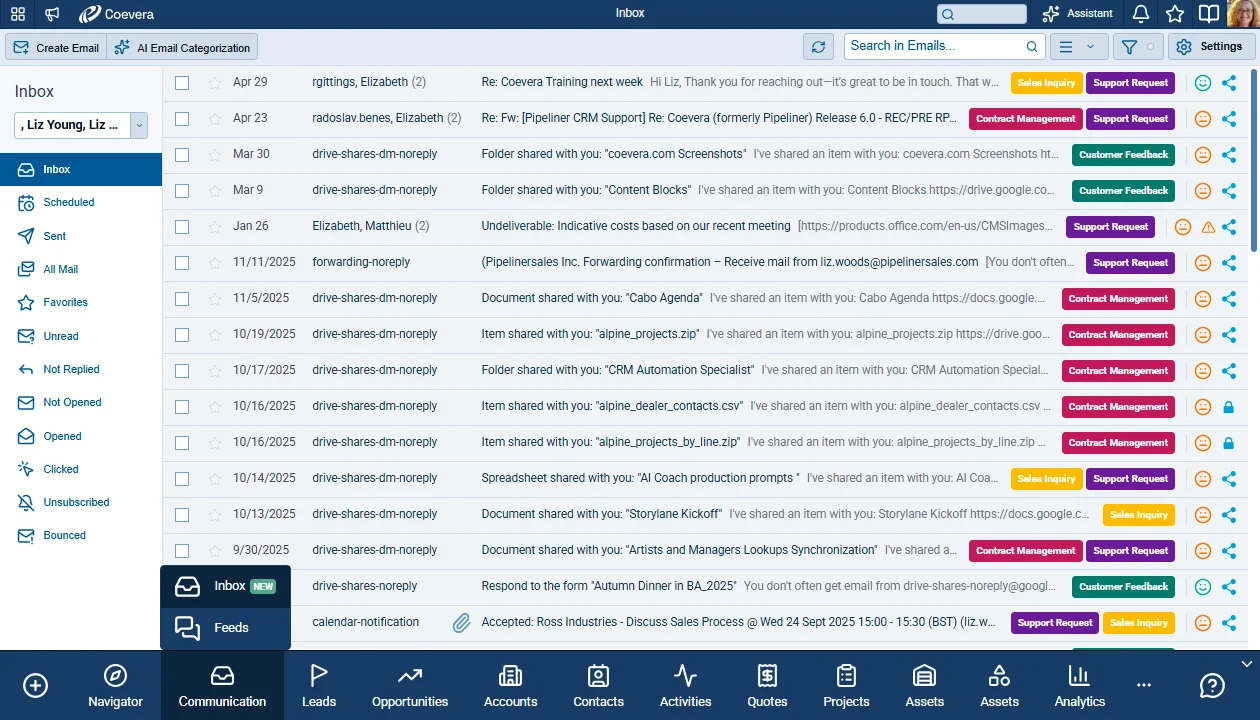
Coevera gains a dedicated Inbox preview screen that brings full email management directly into the CRM. Users can browse, filter, read, and act on their email conversations across one or more connected email accounts, organized into familiar mailbox views such as Inbox, Scheduled, Sent, and All Mail. The screen supports multiple email accounts, scheduled and mass emails, favorites and a linked-records side panel that ties each conversation back to the Accounts, Contacts, Leads, Opportunities, and other entities it relates to. Three view types are available for Inbox, each with its own icon: List View (the default), Horizontal View (Horizontal Split), and VerticalVertical Vertical refers to a market where a business targets only a small subset of customers such as a specific industry, sector, profession, or niche. For example, manufacturers of jet plane engines cater only to companies that produce or maintain jet planes. View (Vertical Split).
Navigation and Screen Layout
A new Inbox preview screen is added to the main navigation, accessible from the new “Communication” tab. The screen is composed of a left side panel of mailbox views, an email-account selector, a toolbar with various actions (options vary depending on whether one or more emails is selected) and quick filter, and the email list itself. ⤵
Toolbar
The toolbar provides Refresh, a full-text Search (matching the behavior of the Feeds email tab), a Quick Filter, and Settings. The side panel can be resized by clicking and dragging its right border. Quick Filter behaves the same as on other preview screens — any conversation containing at least one email that meets the criteria is shown. ⤵
Main Menu Actions
The menu offers actions that adapt depending on the current view and selections:
- Create Standard Email — opens the Create Standard Email window.
- AI Email Categorization — same behavior as in Feeds, with Last 7 Days and Last 30 Days options. In place of Custom Selection, a Selected Emails option runs categorization on the currently selected conversation.
- Mark as Read — marks selected unread email(s) as read.
- Mark as Unread — marks selected read email(s) as unread.
- Cancel Send — cancels a scheduled email.
- Delete — deletes the selected email conversations. Deleting a scheduled email also cancels its send.
Email Account Selector
The header includes an account selector that lists every email account the user has access to. Only conversations from the selected accounts appear in the list, and the selection is saved to the user’s profile. ⤵
Mailbox Views
The side panel presents a set of views, each showing emails and conversations based on rules. A conversation can appear in multiple views if it satisfies multiple conditions (for example Opened, Clicked, and Unsubscribed at once). The default view is Inbox. ⤵
- Inbox — conversations that include a received email.
- Scheduled — conversations with a scheduled reply.
- Sent — conversations with a sent reply.
- All Mail — timeline of all conversations newest to oldest, including received, sent, and scheduled emails.
- Favorites — conversations with a favorite email.
- Unread — conversations with a received email not yet opened or marked unread.
- Not Replied — conversations the account owner has not replied to.
- Not Opened — conversations where a sent email was not opened by any recipient.
- Opened — conversations where a sent email was opened by any recipient.
- Clicked — conversations where a link in a sent email was clicked.
- Unsubscribed — conversations where at least one recipient unsubscribed.
- Bounced — conversations where a sent email bounced.
Email List
Conversations are always sorted newest to oldest. Email ownership follows the email account owner rather than the actor:
- For personal accounts this applies when a user sends using another user’s account.
- Company accounts keep ownership with the actor.
If a user has access to multiple accounts that appear in the same conversation, the conversation is shown once per account.
- Checkbox — allows multi-selecting conversations; available main menu buttons change with the selection.
- Favourites Star — when unstarred, clicking marks the conversation’s last email as favorite; when starred, clicking removes favorite from all emails in the conversation. For company accounts, favorites are per user.
- Timestamp — shows the date/time for emails using the user’s format settings.
- Senders — shows names of senders (conversation participants).
- Icons — attachment, scheduled, and different-actor icons indicate additional information.
- Subject.
- Body.
- Tags and Sentiment — matching how it works in Feeds and are editable.
- Eye — shows tracking detail like in Feeds.
- Sharing — indicates whether the last email is public or private. ⤵
Unread and read items are styled differently. Items become read when opened or marked read, and unread when newly arrived or marked unread; for company accounts, read/unread is per user.
Inbox View and Received Email Detail
Opening a received email shows the detail tied to that specific email, with the same contentContent Content refers to a material or document released in various forms (such as text, image, audio, and video) and created to inform, engage or influence specific audiences. visualization and actions as the email detail in Feeds. The detail adds a Favorite control (not present in Feeds) and follow-up actions Reply, Reply All (only when there are multiple recipients), and Forward, each opening a Create Standard Email window as in Feeds. ⤵
Scheduled View
Scheduled emails are shown as single, separate emails rather than as part of a conversation.
- Timestamp — a future date/time when the email is due to be sent.
- Sender — standard emails show recipients’ first names, mass emails show the number of recipients.
- Icons — attachment, different actor, and mass email. ⤵
Opening a scheduled email opens the same dialog as in Feeds with identical behavior; Cancel Send removes it from the list. Mass email detail matches the scheduled mass email detail in Feeds.
Sent View and Sent Email Detail
Senders display as the first names of the recipients.
Sent items can show attachment and different-actor icons. Mass emails are listed as individual child emails per recipient, and the email detail adds a Show Mass Email link beside the tags that opens the parent mass email statistics, as in Feeds.
Opening a sent email shows the detail tied to that email with the same content visualization and actions as the outgoing email detail in Feeds. The detail adds a Different Actor indicator when sent by someone other than the account owner, a Favorite control, and the same Reply / Reply All / Forward follow-up actions as the received email detail. ⤵
All Mail View
All Mail aggregates received, scheduled, and sent emails on one screen in chronological order, newest on top, with future-scheduled emails always pinned to the top. Because it aggregates every type, individual elements, information, and actions match those of the originating email type. Scheduled emails appear as separate items independent of their conversations.
- Domain Actions — based on the selected email’s type; when emails of different types are selected together, only the actions applicable to all selected types are available.
- Sender — always displays senders only, using the standard naming logic.
- Icons — attachment, different actor, scheduled, and mass email.
- Email information and Email Detail follow the originating email type.
Conversation Thread
Conversations match the Feeds thread experience with each email in its own conversation box.
- Sorting — emails can be sorted newest-to-oldest or oldest-to-newest; the default is newest on top, and the choice is remembered per user across all conversations.
- Icons — each email box can show a different-actor icon (sent by someone other than the account owner) and a favorite icon at the bottom right.
Reply and Forward
Reply and Forward open the Create Standard Email window. The dialog is the same one used when replying to or forwarding an email in Feeds. ⤵
Record Detail Panel
A linked-records side panel ties each conversation back to the records it relates to. The list aggregates records linked to the email thread and records that already contain the email addresses in the FROM and TO fields. ⤵
- Linked Records side panel — shown when the email has a linked record. A single linked record opens its detail directly; multiple records show a list with entity icon, entity name, and record name. Clicking a record opens its detail (except custom entities, for now).
- Sections — records are grouped by entity.
- Unknown — present when a sender or recipient does not exist as a record. Each row has a Create New button offering Account or Contact, which opens the relevant Create New Record form with the email pre-filled in the Primary Email field. On save, the address becomes a record.
- Unavailable — present when the user lacks permission to see a linked record. ⤵
When there is a single linked record, or when a record is opened from the list, the record detail is shown — the same side panel used when selecting a record in a preview-screen list view.
Inbox Settings
The screen has a single settings profile named Inbox Settings. Settings are organized into two tabs: View and Custom Filter. ⤵
View — Content Density
Content Density controls the row height of the email list through radio options with preview images. The Default option uses standard row height; the Compact option reduces it. ⤵
Custom Filter
The Custom Filter tab includes every field from the Email entity and all entities that can be linked to emails — LeadLead Lead refers to a prospect or potential customer (who can be an individual or organization) that exhibits interest in your service or product; or any additional information about such entity., Opportunities, Contacts, Accounts, Quotes, Projects, and Custom Entities. A new Is Favorite field is added to the Email entity. Added fields are available in their full extent, with all operators per field type, just like other preview screens. ⤵
Views
As well as the List View, users can select from a Horizontal View or Vertical View. ⤵
Horizontal View
A horizontal layout stacks the email list above the selected email’s content. ⤵
- The email list keeps every element available in the other views.
- The Content Density option in Settings controls the height of each list item.
- The selected email’s content shows the same elements as a fully opened email.
- A divider separates the email list from the selected email’s content and can be moved by click-and-drag to resize the email list.
Vertical View
A new vertical layout places the email list on one side and the selected email’s content beside it, so users can read a message without leaving the list. ⤵
- The email list keeps every element available in the other views.
- The Content Density option in Settings controls the height of each list item.
- The selected email’s content shows the same elements as a fully opened email.
- A divider separates the email list from the selected email’s content and can be moved by click-and-drag to resize the email list.
Multiple User Email Accounts
Users can now keep several individual email accounts active at once across multiple providers, and choose which one acts as the primary account for automatic sending.
Email Integrations Section
- A new Email Integrations section appears at the top of User Settings › Apps, grouping the related integrations: Outlook Email, MS Exchange Email, Gmail for Email Synchronization, Gmail for Sending Emails, SendGrid, and IMAP. ⤵
Global Email Configuration
- The email section now has a configuration button that opens a Configure Automations window. When no personal email account is connected, this option is disabled.
- An Automation section lets users pick a Primary Account from a dropdown listing all connected personal email accounts; the first account that was connected is pre-selected.
- The primary email account serves as the default account for Automatizer and Email Sequences when sending emails automatically. Only one email account can be set as primary.
- Two sharing settings — Automatizer and Email Sequences (with their child settings) — are now applied globally to the primary account rather than per account, and persist if the primary account is changed. ⤵
Adding and Removing Accounts
- Activation buttons across the section are labeled Add, and deactivation buttons are labeled Remove; their behavior is unchanged.
- Multiple personal email accounts can be added for Outlook Email, Gmail for Email Synchronization, Gmail for Sending Emails, and SendGrid.
- Added accounts are listed under their email integration and can each be configured or removed — for both single-account and multi-account integrations.
- The account set as primary shows a PRIMARY label.
Per-Account Configuration
- The section Sharing groups the sharing settings that do not depend on the primary account.
Check our Knowledge Base article to get more information about the Emails Preview Screen ›
Fullsize Screenshots ⤵
Various Improvements
As part of our ongoing usability enhancement program, we've updated the following features.
User Lookup Fields in Automatizer Filling Options
User lookup fields are now available as a source in the Filling options component for every compatible field. Previously only contact lookups were shown; the system now also surfaces User lookups so values can flow into fields that hold one or more users.
Affected target fields
- Editors.
- Watchers.
- User lookup fields.
What gets listed?
- Every user lookup field available on the triggered entity is offered as a fill source. Supported on all standard entities plus Custom Entities.
- On an Edit Form, a user lookup field can fill the target with either all of its users or just its primary user.
- On an Update Form, the same field can replace the existing users, add to them, or remove them, again choosing between all users or only the primary user. ⤵
Country Field: Managed Common List
Countries are now a managed list rather than a fixed hardcoded set. Administrators can curate the available countries centrally, and records can optionally be validated against that list to prevent inconsistent values.
Admin › Common Lists: Countries
- A new Countries section appears under Admin › Common Lists. These records feed every place in the application where a list of countries is shown.
- All previously hardcoded countries are migrated in as read-only records that cannot be deleted, each marked to use the application's localized translation.
- If a country record is edited, it stops using the built-in translation and keeps the user-entered value. ⤵
Create and delete countries
- A Create New action opens a dialog with a single required Country text input.
- A Delete action becomes available when one or more records are selected.
Country field setting: Enable custom values
- The country field type is unchanged, but gains a new Enable custom values checkbox.
- When ON (the default), custom values can be added through user input, import, or API.
- When OFF, the record form validates on save: if the entered value does not match an available country (hardcoded or custom), it shows the error "Selected value does not exist." ⤵
- Outlook reflects the same country field behavior.
- The Chrome and Google extensions have no country fields and are unaffected.
- API integrations skip the new validation so imports and integration writes are not blocked.
New Document from TemplateTemplate Template is a generic file with a framework showing the standard sections or features of a specific kind of document, used to create a new document of the same type faster and easier. on Records
Users can now create a document from a custom template directly from a record, without needing to open the Documents tab first.
- A new option, New Document from Template, is available on all entities that support document templates.
- Choosing it behaves the same as the Use Template button in the Documents tab, using the opened or selected record to generate the document. ⤵
Where the action appears
- Compact View feed header bar.
- Record sidebars.
- Record detail. ⤵
Tags on Quotes and Custom Entities
Tagging is now supported for Quotes and all Custom Entities across the application, from admin configuration through record detail, board, list, feed, reporting, and filtering.
Admin — Roles
- In Admin › Roles, a new Allow user to create tags setting is available for Quotes and all Custom Entities, letting users create their own custom tags. ⤵
Admin — Entities
- In Admin › Entities, a new Tags tab lets administrators manage existing tags for the selected entity. ⤵
Record detail and creation
- The tags widget is added to the Quote and Custom Entity record detail tab.
Board View
- Tags appear on Board View items for Quote records.
- The Power Panel gains an option to show tags on Quote item cards in Board view.
- An inline edit component is added to the Quotes extract. ⤵
List View
- A Tags column is available in the list view with inline editing enabled.
Tag drilldown
- Tags linked to Quotes and Custom Entities are clickable, opening the drilldown dialog for those records.
Feed
- Tags are shown on the card view for Quotes and Custom Entities.
Reports and Pivot Reports
- A Tag field is available for Quote and Custom Entity reports.
Filters
- Tags can be used in Quote and Custom Entity filters.
Add New Quote from the Opportunity Sidebar
Users can now create a Quote directly from an Opportunity without opening the opportunity detail form.
- In the Opportunity sidebar in List View and Compact View, Quote is now an option in the contextual Add menu.
- Using it links the selected Opportunity along with its linked Account and Contact, matching the behavior of Create Quote in the P&S section of the opportunity detail form. ⤵
Quotes as a Chart Record Type on Opportunity Overview
Quotes can now be visualized on the Opportunity Overview interface as their own chart record type.
- The New Chart dialog on the Opportunity Overview now offers Quotes as a Chart Record Type, alongside the existing Account, Activity, Contact, Document, and Note options.
- All chart types are available for Quotes, using the same options as for other entities within Overview settings.
- On a List chart, each Quote row shows the Quote icon, Quote name, expiration date, and productProduct Product refers to anything (an idea, item, service, process or information) that meets a need or a desire and is offered to a market, usually but not always at a price. total amount. ⤵
Emails Preview Screen — Voyager AI Prefill
- When a user opens the create form for an Account or Contact from the email record side panel, Voyager AI automatically pre-fills the fields that can be populated.
- Relevant data is sourced through a web search keyed on the sender's email address, so the record is enriched with publicly available information about the contact or company.
- No extra action is required from the user — the prefill happens as soon as the form is opened. ⤵
Undo behavior
- When the form opens with AI-populated values, an info box appears under the form selection with an Undo action and the message: "Voyager AI data have been populated to field(s)."
- Using Undo reverts the values that Voyager AI populated. The email address always remains in place and is never affected by the undo action.
- If the user does not have Voyager AI turned on, only the email address is pre-filled and no info box or Undo action is shown. ⤵
Admin — AI Record Enrichment configuration (Voyager 2 AI)
- A new option, AI Record Enrichment, is available in the admin Voyager 2 AI configuration.
- This option controls whether fields are automatically populated when a user creates a new record from the inbox. ⤵
Admin — user-role access and Integration MetricsMetrics Metrics are quantities that are measured and used to:
- The AI Record Enrichment option is also exposed under User Roles › Features on the Voyager 2 AI tab, so administrators can control which user roles have access to the feature. ⤵
- The feature is included in Integration Metrics under the name AI Record Enrichment.