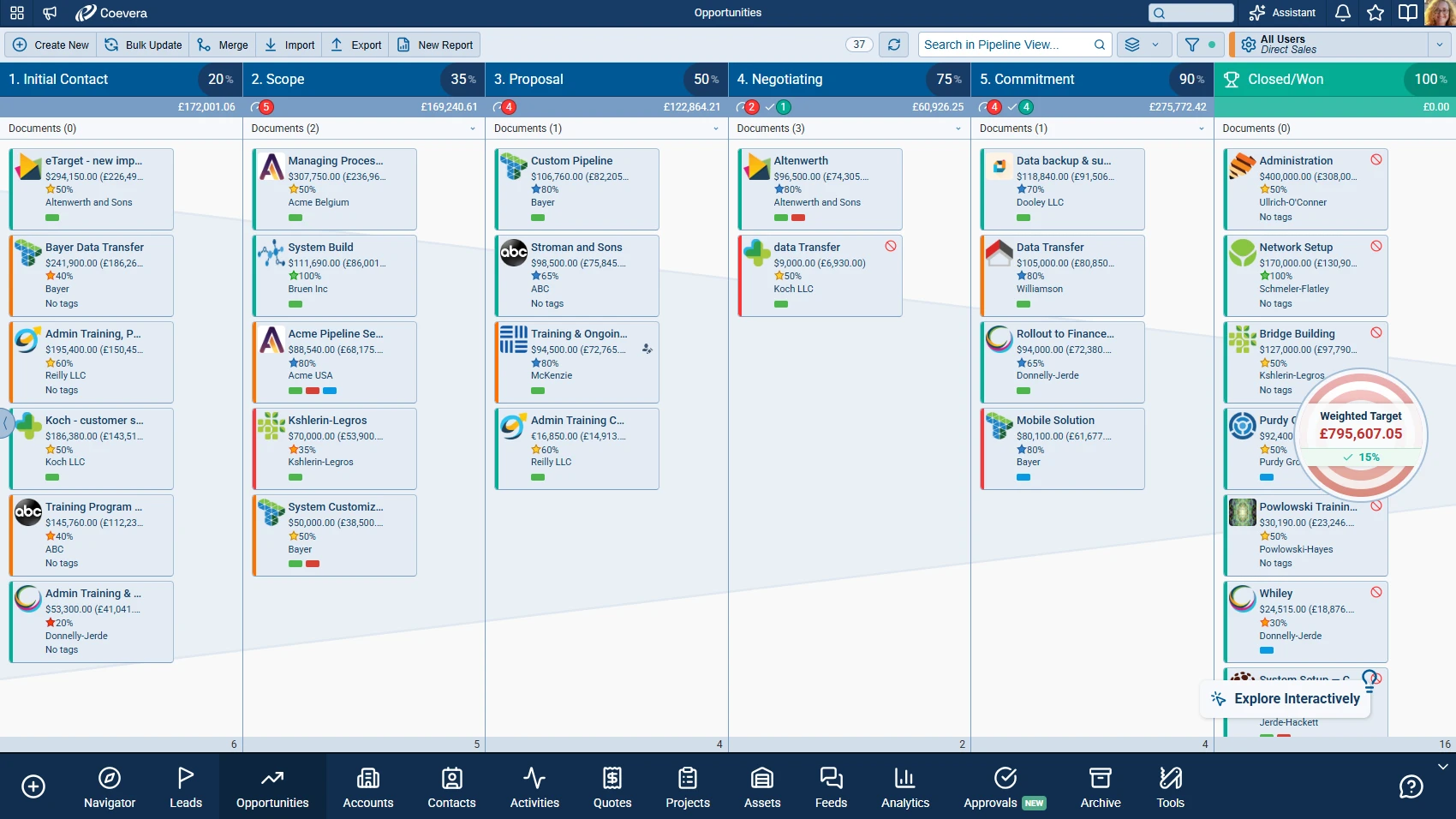
v6.5.0MinorReleased

Brand New Solutions, Email Inbox with Labels and Reworked Email Sync, Voyager AI Improvements, and other Various Improvements…

Coevera 6.5.0 introduces Solutions — a live canvas that shows a complete working set-up as one connected picture — separates email synchronization from email linking in the Inbox, adds AI guardrails, history reports, and Sankey charts to Voyager AI, and lands sixteen improvements across the product.

SolutionsEmailVoyager AI
Share
Features
3
Improvements
16
Security
—
Coming soon

Overview

Three capabilities lead this release. Solutions is a new area of the CRM that shows a complete working set-up — processes, forms, sequences, templates, reports, fields, and entities — as one connected, visual picture on a live canvas. A Solution can be built from one of 19 pre-built templates through a guided setup, from scratch on an empty canvas, or by copying an existing Solution, and it stays in sync with the system through re-scanning against the live configuration, node health on each card, and statistics and activity logs from all participating tools in one place. The Email Inbox then separates synchronization from linking: the new Email Sync and Folder Sync Preferences settings decide what lands in the Inbox, while Email Linking decides only what appears in Feeds, and the configuration windows of all email integrations are unified into a single screen. The Inbox also gains personal Labels, an automatically refreshing email list, Select All for bulk actions, and existing record detection when creating records from an email with Voyager AI.

Voyager AI Improvements add AI guardrails that screen every prompt and answer and check text from outside the CRM for prompt-injection attempts, together with history reports, Sankey charts, calculated columns, and dashboard definitions, faster responses through improved caching, and a set of fixes. Sixteen Various Improvements round out the release, among them a Step Indicator for sales steps, an Import Result window with a downloadable Import Log, an option to sync only open tasks to Google Tasks, Price Lists and Price Schedules fields on Products, a Quick Menu for one-click access to Inbox, Calendar, Tasks, Contacts, and Feeds, the option to let Online Form respondents continue later, and access to the release notes from Admin.

What's in this release
  • Solutions — a new area that shows a complete working set-up of processes, forms, sequences, templates, reports, fields, and entities as nodes and connections on a live canvas.
  • A Solutions Library of 19 pre-built templates, with a guided setup that creates every node and connects them in a single all-or-nothing operation.
  • The Solution Editor — a left nodes panel, a canvas with Fit On Screen and a Detail level slider, node statuses, groups, and automatic connection scanning.
  • Solution statistics and activity logs that combine Automatizer, Email Sequence, and Online Form output in one place, and a Solution Manager option in User Roles that grants edit rights.
  • Email sync separated from email linking: Email Sync and Folder Sync Preferences decide what lands in the Inbox, while Email Linking decides only what appears in Feeds.
  • One configuration design for the email integrations, with folder selection, sync mode, and privacy settings in one place — SendGrid keeps its layout, without folder selection.
  • Personal Inbox Labels — nested, colored, visible only to their owner, and mappable to synced folders.
  • An automatically refreshing email list and a Select All row for bulk actions across a whole folder.
  • Voyager AI — Existing Record Detection offers to link a matching Account or Contact when records are created from an email.
  • Voyager AI guardrails screen every prompt and answer, and check text from outside the CRM for prompt-injection attempts.
  • Voyager AI gains history reports, Sankey charts, and calculated columns, sees dashboard definitions, and reads every sub-table of an advanced report.
  • A Step Indicator field on Leads, Opportunities, and Quotes, Sales Velocity in Navigator KPI charts, and activity date columns in the Lead list view.
  • An Import Result window after every import, with failed rows kept on screen and a downloadable Import Log.
  • An option to sync only open tasks to Google Tasks, Sync with profile on by default in Column Settings, and Select All for Sales Units in the Invite User dialogue.
  • Price Lists and Price Schedules fields on Products, a Linked Record column for Notes, Copy Record for Task and Appointment triggers in Automatizer, and lighter item dividers in the Products & Services table.
  • A Quick Menu rail to Inbox, Calendar, Tasks, Contacts, and Feeds, an option to let Online Form respondents continue later, Triggered Online Form personalization categories that list only the current form’s fields, legible info box buttons, and the release notes reachable from Admin.
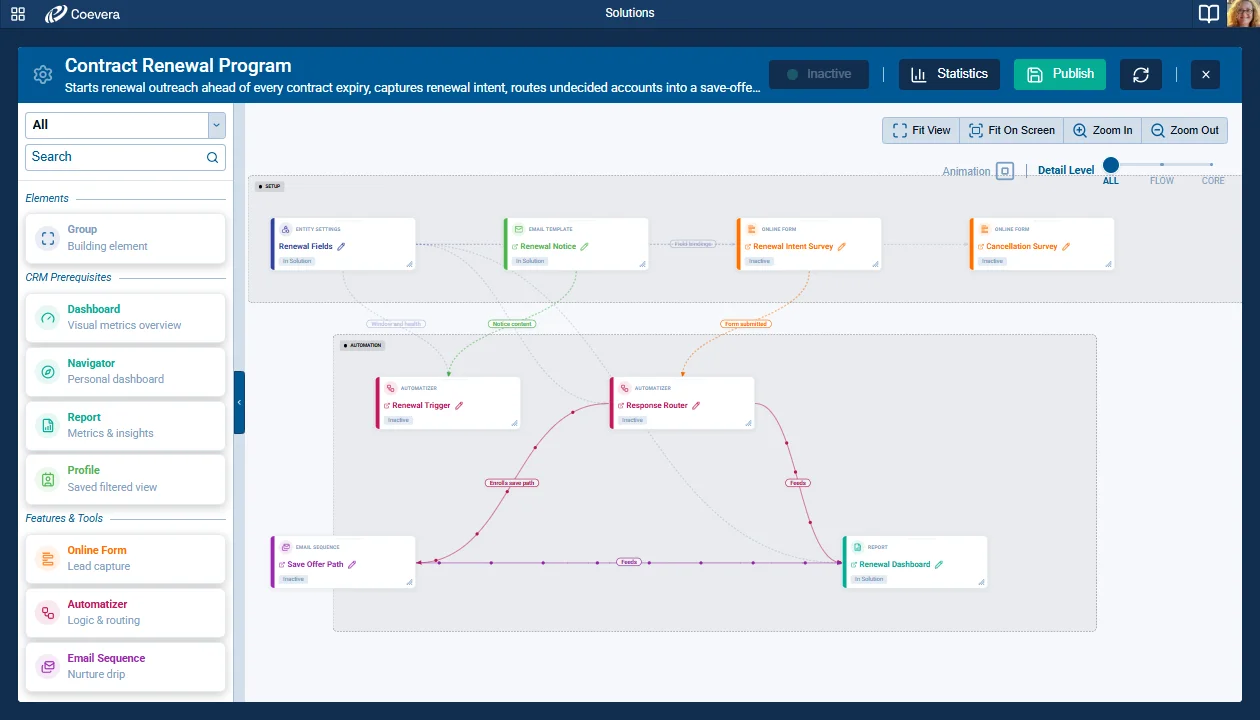
Solution Editor

What we're proud of

Your whole set-up, on one canvas

Solutions shows a complete working set-up — processes, forms, sequences, templates, reports, fields, and entities — as one connected picture, with every part a node and every real dependency a connection. Start from one of 19 templates and a guided setup, and the canvas stays in step with the live configuration through re-scanning and node health on every card.

01New · Solutions

Solutions

Solution Editor

Solutions is a new area of the CRM that shows a complete working set-up — processes, forms, sequences, templates, reports, fields, and entities — as one connected, visual picture. Each Solution is a named, goal-driven package, such as New Client Onboarding or Lead Nurture Campaign, displayed on a live canvas where every part of the set-up appears as a node and every real dependency between those parts appears as a connection.

A Solution can be built from a pre-built template through a guided setup, from scratch on an empty canvas, or by copying an existing Solution. Once it exists, it stays in sync with the system: the canvas is re-scanned against the live configuration, node health is shown on each card, and statistics and activity logs from all participating tools are available in one place.

All screenshots

17
#solutions
02New · Email

Email Inbox

Email Integration Configuration

Scope 3 reworks how Coevera synchronizes email and how users organize it in the Inbox. Email synchronization is now separated from email linking: what lands in the Inbox is decided by the new Email Sync and Folder Sync Preferences settings, while the Email Linking checkboxes decide only which synced emails are linked to Accounts and Contacts and therefore appear in Feeds. The configuration windows for all email integrations — Outlook/O365, Gmail, IMAP, Exchange, and SendGrid — are unified into a single two-column screen with folder selection, sync mode, and privacy settings in one place. Personal Labels, an automatically refreshing email list, a Select All control for bulk actions, and existing record detection when creating records from an email with Voyager AI have also been added.

All screenshots

10
#email-inbox
03New · Voyager AI

Voyager AI Improvements

Voyager AI Improvements

What was changed in Voyager AI for this release

AI guardrails — every prompt and answer is screened. Text that comes from outside the CRM is screened separately for prompt-injection attempts, so an email can’t give the AI instructions. Genuine customer content is never blocked or masked.

History reports — Voyager can now create and edit history reports: value trends over a period, and snapshot comparisons between two dates.

#voyager-ai-improvements

Various Improvements

As part of our ongoing usability enhancement program, we've updated the following features.

Various ImprovementsPipeline

Step Indicator for Sales Steps

Step Indicator for Sales Steps — Rendering

A new read-only Step Indicator field shows a record’s position within its process as a row of boxes, filled up to the current step, on Leads, Opportunities, and Quotes.

All screenshots

2
#step-indicator-for-sales-steps
Various ImprovementsAdministration

Import Result Window

Import Result Window — Import result

Every import now ends with an Import Result window listing each outcome and the number of records affected, with failed rows kept on screen and a downloadable Import Log.

All screenshots

2
#import-result-window
Various ImprovementsIntegrations

Google Tasks Sync: Limit the Synced Tasks

Google Tasks Sync: Limit the Synced Tasks

A new Sync tasks setting can push only open tasks to Google Tasks, with a confirmation before a changed list or sync scope restarts synchronization, and a status strip that shows a running sync or the last failure.

All screenshots

2
#google-tasks-sync-limit-the-synced-tasks
Various ImprovementsPipeline

Products: Price Lists and Price Schedules Fields

Products: Price Lists and Price Schedules Fields

Two new read-only fields are available on Products: Price Lists and Price Schedules. Each lists the names of the active price lists or price schedules the product is priced in.

  • Standard lists appear under Price Lists and scheduled lists under Price Schedules — the two never mix. Each price list is listed once, even when the product is priced in several currencies, and entries are ordered by name.
  • Both fields can be used in filters and as report display fields. They are not available as grid columns and are not shown by default.
  • Price Schedules is only offered when Price Schedules are enabled for the space under Automation Hub › Product Pricing. Price Lists is always available.
  • Both fields are also available in Admin › Products, where they are likewise hidden by default.
#products-price-lists-and-price-schedules-fields
Various ImprovementsPipeline

Column Settings: Sync with Profile

Column Settings: Sync with Profile
  • Sync with profile is now on by default for new profiles and for existing default profiles that have not been changed.
  • When a user turns on Sync with profile and the current column settings differ from those stored in the profile — different fields or different column widths — a Sync Column Settings prompt appears.
  • Save Current replaces the stored profile settings with the current column layout. Load profile applies the stored settings, as before.
#column-settings-sync-with-profile
Various ImprovementsPipeline

Activity Dates in the Lead List View

Activity Dates in the Lead List View

Upcoming Activity Date and Last Activity Date can now be added as columns in the Lead list view. The fields already existed on Leads but could not be added as columns.

#activity-dates-in-the-lead-list-view
Various ImprovementsPipeline

Linked Record Column for Notes

Linked Record Column for Notes
  • The Notes list view and the Add Existing window gain a Linked Record column showing the name of the record a note is linked to.
  • The column behaves like the Linked Records column on Documents, and the value is always underlined.
  • A note can be re-linked to another record.
#linked-record-column-for-notes
Various ImprovementsAutomatizer

Automatizer: Copy Task and Appointment Records

The Copy Record action is now available for Task and Appointment triggers, so activity records can be copied from an Automatizer process.

#automatizer-copy-task-and-appointment-records
Various ImprovementsAdministration

Online Forms: Personalization Fields for the Current Form

Online Forms: Personalization Fields for the Current Form
  • In personalization, the Triggered Online Form - Response and Triggered Online Form - Question Title categories now list only the fields of the current form, instead of every form field.
  • Markers from fields outside the current form that already exist on older record forms continue to work — no validation or restriction is applied to them.
#online-forms-personalization-fields-for-the-current-form
Various ImprovementsAdministration

Invite User: Select All for Sales Units

Invite User: Select All for Sales Units

The Sales Unit table in the Invite User dialogue now has the standard selector header with a Select All checkbox, so administrators no longer need to tick each unit individually when inviting users.

#invite-user-select-all-for-sales-units
Various ImprovementsQuotes & Documents

Products & Services Table: Item Dividers

The item divider in the Products & Services table is lighter, so it is less prominent and matches the overall table design.

#products-services-table-item-dividers
Various ImprovementsAdministration

Info Box Button Legibility

Buttons inside info boxes now use the standard primary button style — a filled background with white label text — so the action is legible against the info box background.

#info-box-button-legibility
Various ImprovementsAdministration

Email Inbox — Quick Menu

Email Inbox — Quick Menu

A permanent icon rail on the left edge reaches Inbox, Calendar, Tasks, Contacts, and Feeds in one click, alongside the unchanged bottom navigation.

#email-inbox-quick-menu
Various ImprovementsAdministration

Online Forms: Let Respondents Continue Later

Online Forms: Let Respondents Continue Later — Saved progress setting

Form owners can let respondents leave an Online Form and continue it later, with their answers saved in their browser.

All screenshots

2
#online-forms-let-respondents-continue-later
Various ImprovementsAdministration

Release Notes Accessible from Admin

Release Notes Accessible from Admin

Space administrators can now open the official Coevera CRM release notes from Admin. The link opens https://www.coevera.com/crm/release-notes/.

#release-notes-accessible-from-admin

Frequently Asked Questions

A named, goal-driven package — such as New Client Onboarding or Lead Nurture Campaign — displayed on a live canvas where every part of a working set-up appears as a node and every real dependency between those parts appears as a connection. Processes, forms, sequences, templates, reports, fields, and entities can all take part.

From one of 19 pre-built templates in the Solutions Library through a guided setup, from scratch on an empty canvas, or by copying an existing Solution. A template install creates all nodes and connects them in a single all-or-nothing operation, and the tools it creates stay deactivated until you activate the nodes as the final step. Copying duplicates the visualization only — it never creates copies of the underlying processes, custom entities, or fields.

A Solutions switch in the User Role allows or denies access. Editing needs the separate Solution Manager option, which requires full access to Automatizer, Email Sequence, Online Forms, and Approval Processes; when it is enabled, a pop-up lists the tools that need to be updated and Update corrects them all at once. Without Solution Manager, a user sees Solutions as a watcher.

Synchronization and linking are now separate. The Email Sync and Folder Sync Preferences settings decide which emails are synced to the Inbox, while the Email Linking checkboxes decide only which synced emails are linked to Accounts and Contacts and therefore appear in Feeds. Emails that are not linked are synced to the Inbox only.

Yes. Existing users' Email Sync and folder settings are preserved, and Email Linking checkbox states are preserved too; new integrations have all Email Linking options selected. What the Email Linking checkboxes control has changed: they now decide only whether a synced email is linked to a record and shown in Feeds, not whether it is stored at all.

Every prompt and answer is screened. Text that comes from outside the CRM is screened separately for prompt-injection attempts, so an email can't give the AI instructions. Genuine customer content is never blocked or masked.

See these changes in your own pipeline

Start a free trial and explore what's new for yourself.

No credit card required · Free 14-day trial

groupsTrusted by sales organizations across North America, the UK, Europe and Australasiaverified_userISO 27001 CertifiedshieldGDPR CompliantblockData never used to train AI