v4.0.0MajorReleased

New Project Management, Account Planning and more (Kepler)

Coevera 4.0.0 introduces a new Project Management module — including Account Plans for tracking a Revenue Goal per customer — alongside chart and reporting upgrades and a batch of usability enhancements across List Views, fields, and dates.

AccountsReportsPipeline
Share
Features
2
Improvements
10
Security
Coming soon

Overview

The headline of this release is a brand-new Project Management module. Users can track the completion status and timeline of each Project, add Objectives (milestones), group Activities within them, and follow progress in an Objective View or a Gantt Chart View. Projects link to an Account, appear on a new Projects tab on Account records, and can be linked to multiple Stakeholders (Contacts). A special Project template, the Account Plan, lets you plan a Revenue Goal for a customer over a period of time and track the Revenue Achieved from Opportunities won within it. Project Management is a chargeable add-on module that must be activated before use, with access controlled through User Roles.

Beyond Project Management, this release adds several charting and reporting upgrades — an average line on custom charts, a Show Comparison option on Scorecard charts, resizable report charts via Edit Layout, and Forecast Report Charts on custom dashboards — plus a new Sales Cycle Length field and data drilldown for Rollup fields. A batch of usability enhancements rounds it out: shared column selections when sharing a List View profile, contextual filtering in Lookup fields, pipeline filtering in the Account Opportunities tab, and quick date presets for Task Due Dates and Opportunity Closing Dates.

What's in this release
  • A new Project Management module tracks the completion status and timeline of each Project, with Objectives, grouped Activities, an Objective View, and a Gantt Chart View.
  • Projects link to an Account, appear on a new Projects tab on Account records, and can be linked to multiple Stakeholders (Contacts).
  • Two out-of-the-box Project templates ship — Default Project and Account Plan — configurable by Admins in the Admin Module, with additional custom Project Forms.
  • Account Plans let you plan a Revenue Goal for a customer over a period and track the Revenue Achieved from Opportunities won within it.
  • An average line can now be added to custom charts to show trends over time.
  • Scorecard charts gain a Show Comparison option to compare the current period against the previous one.
  • Individual reports can be resized via Edit Layout to suit the data displayed.
  • Forecast Report Charts can now be added to custom dashboards.
  • A new Sales Cycle Length field counts the days from Lead/Opportunity creation to the date it was Won or Lost, using the Actual Closing Date.
  • Rollup fields can now be drilled down to their underlying data.
  • List View profiles can share column selections via Synchronize columns with List View and the Column Chooser.
  • Lookup fields support an optional contextual filter that limits values to records linked to the open record.
  • The Opportunities tab of an Account can now be filtered by pipeline.
  • Quick date presets are available for Opportunity Closing Date and Task Due Dates.
Project Management

What we're proud of

Project management, native to your CRM

The new Project Management module brings project tracking directly into Coevera — track each Project's timeline and completion, break work into Objectives and grouped Activities, and follow progress in an Objective View or a Gantt Chart. Its Account Plan template turns the same tooling toward revenue, letting you set a Revenue Goal per customer and track the Revenue Achieved as linked Opportunities are won.

01New · Accounts

Project Management

Project Management

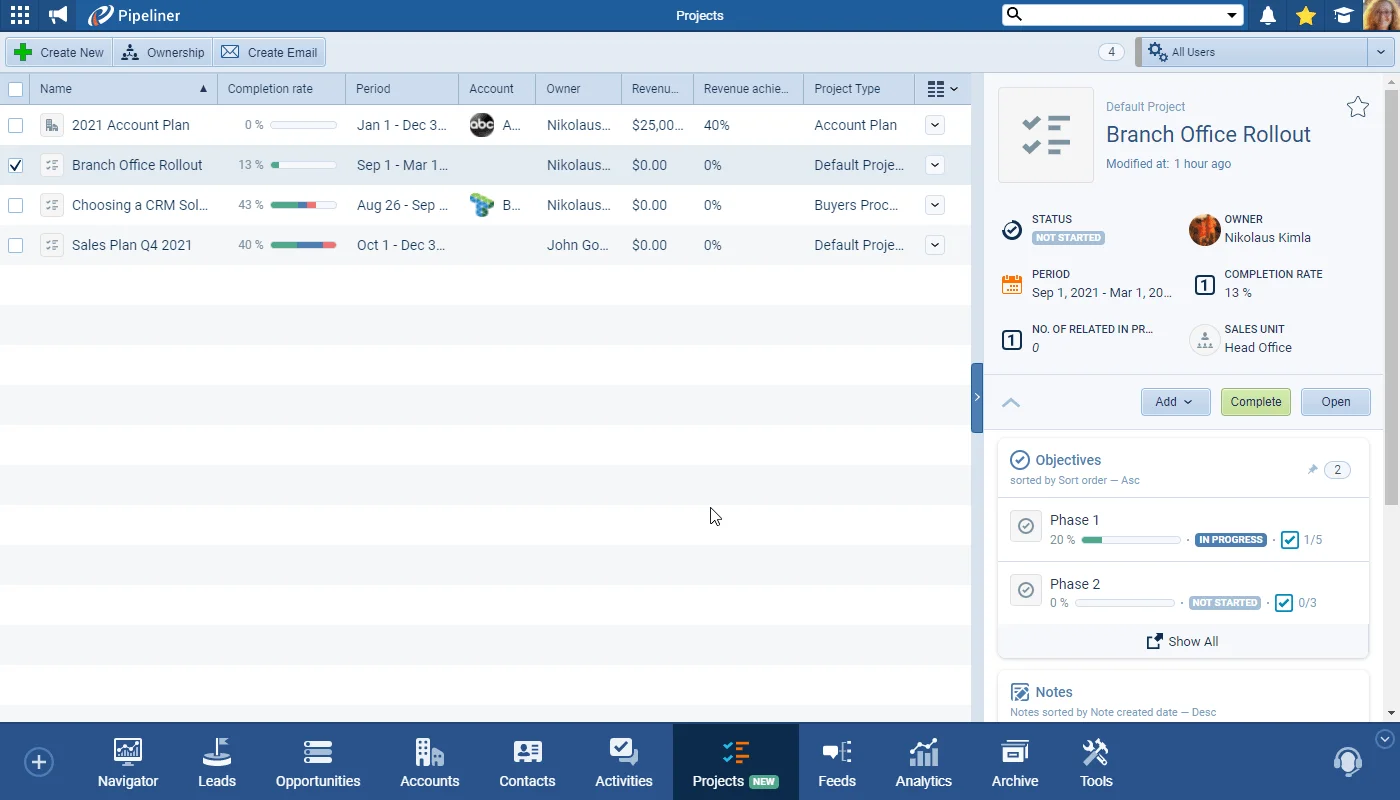
In another major enhancement to Coevera, we’ve added a brand new Project Management Module. Users can track the completion status and timeline for each Project, add Objectives (milestones) and create and group Activities within Objectives and then view them in the Objective View or in a Gantt Chart View. Projects can be linked to an Account and will be visible from the new Projects tab that will be available from Account records when Projects are enabled. You can also link each Project to multiple Stakeholders (Contacts).

Access to Projects is granted/denied by updating the User Roles for your Coevera space.

There are 2 types of out-of-the-box Project templates — Default Project and Account Plan. These templates can be accessed in the Admin Module by your Coevera Admins. Additional custom Project Forms can be created and all project forms can be updated and configured by your Admins.
All screenshots

3
Documentation#project-management
02New · Accounts

Account Planning

Account Planning

Account Plans are a special Project type/template allowing you to plan your Revenue Goal or target for a particular customer (Account) over a period of time. All Opportunities linked to that Account from within the planned period are visible on the Opportunities tab of the Account Plan project and those that are won within the time period are included in the “Revenue Achieved” total.

Users can track the completion status and timeline for each Account Plan, add Objectives (goals/milestones) to help them achieve their Revenue Goal and create and group Activities within those Objectives and then view them in the Objective View or in a Gantt Chart View.

Account Plans must be linked to an Account and will be visible from the new Projects tab that will be available from Account records when Projects are enabled. You can also link each Account Plan to multiple Stakeholders (Contacts).

All screenshots

3
Documentation#account-planning

Various Improvements

Various ImprovementsPipeline

Share column selections when sharing a profile in List View

Share column selections when sharing a profile in List View

Many of our users have asked for the ability to share List Views with other users and we have listened! When you are creating a custom profile and sharing it with colleagues, you can now choose to “Synchronize columns with List View” and select just the columns to be included using the “Column Chooser”. When your colleague uses the shared profile in the “List View“, they’ll see the columns you chose!

#share-column-selections-when-sharing-a-profile-in-list-view
Various ImprovementsReports

Adding Average values to Charts

Adding Average values to Charts

You can now easily see trends over time by adding the “average line” to your custom charts.

#adding-average-values-to-charts
Various ImprovementsReports

Scorecard Comparisons in Charts

Scorecard Comparisons in Charts

Using the Scorecard Chart has now become even more useful as you can switch on the new “Show Comparison” option to compare values for your current period to the previous one.

#scorecard-comparisons-in-charts
Various ImprovementsReports

Resize Charts in Reports

Resize Charts in Reports

You can access the option to “Edit Layout” within each individual report to allow you to resize a report chart to suit the data displayed.

#resize-charts-in-reports
Various ImprovementsReports

Add Charts from Forecast Reports in Dashboard

Add Charts from Forecast Reports in Dashboard

You can now also add Forecast Report Charts to your custom dashboards.

#add-charts-from-forecast-reports-in-dashboard
Various ImprovementsPipeline

New Field “ Sales Cycle Length”

New Field “ Sales Cycle Length”

We’ve added a new field “Sales Cycle Length” which is the number of days from the creation of the Lead/Opportunity to the date it was Won or Lost (using the Actual Closing Date field) .

#new-field-sales-cycle-length
Various ImprovementsPipeline

Data Drilldown for Rollup Fields

Data Drilldown for Rollup Fields

For those of you using our new Rollup field, you can now drill down to the underlying data.

#data-drilldown-for-rollup-fields
Various ImprovementsAccounts

Filter by Pipeline in Account Opportunities Tab

Filter by Pipeline in Account Opportunities Tab

You can now filter Opportunities by pipeline in the Opportunities tab of an Account.

#filter-by-pipeline-in-account-opportunities-tab
Various ImprovementsPipeline

Contextual Filtering in Lookup field

Contextual Filtering in Lookup field

By default, Lookup fields use all records that meet your “Filter” criteria. It’s now possible to apply an additional contextual filter option so that only those records that are linked to the one you have selected will be available. In this example, when choosing values in your Lookup field, it would show only those Contacts with “Marketing” in their job title that are linked to/related to the Account record you have open.

#contextual-filtering-in-lookup-field
Various ImprovementsPipeline

Quick options for Task Due Date + Opportunity Closing Date

Quick options for Task Due Date + Opportunity Closing Date

For ease of use, there are new quick options with date presets for “Opportunity Closing Date” and “Task Due Dates

#quick-options-for-task-due-date-opportunity-closing-date

Frequently Asked Questions

It lets you track the completion status and timeline of each Project, add Objectives (milestones), group Activities within them, and view progress in an Objective View or a Gantt Chart View. Projects link to an Account, appear on a new Projects tab on Account records, and can be linked to multiple Stakeholders.

Project Management is a chargeable add-on module that must be activated before it can be used, with access granted or denied through User Roles. New Enterprise customers may have it enabled by default depending on their contract; existing Starter, Business, or older Enterprise customers should contact their Account Manager to discuss.

An Account Plan is a special Project template for planning a Revenue Goal for a particular customer (Account) over a period of time. Opportunities linked to that Account within the planned period appear on the plan's Opportunities tab, and those won within the period are included in the Revenue Achieved total.

Two — Default Project and Account Plan — accessible to your Coevera Admins in the Admin Module. Admins can also create additional custom Project Forms and configure all project forms.

You can add an average line to custom charts, switch on Show Comparison for Scorecard charts, resize charts within individual reports via Edit Layout, and add Forecast Report Charts to your custom dashboards.

It is the number of days from the creation of a Lead or Opportunity to the date it was Won or Lost, based on the Actual Closing Date field.

See it in your own pipeline

Start a free trial and explore what's new in Coevera 4.0.0 for yourself.

No credit card required · Free 14-day trial

groupsTrusted by clients around the globeverified_userISO 27001 CertifiedshieldGDPR CompliantblockData never used to train AI