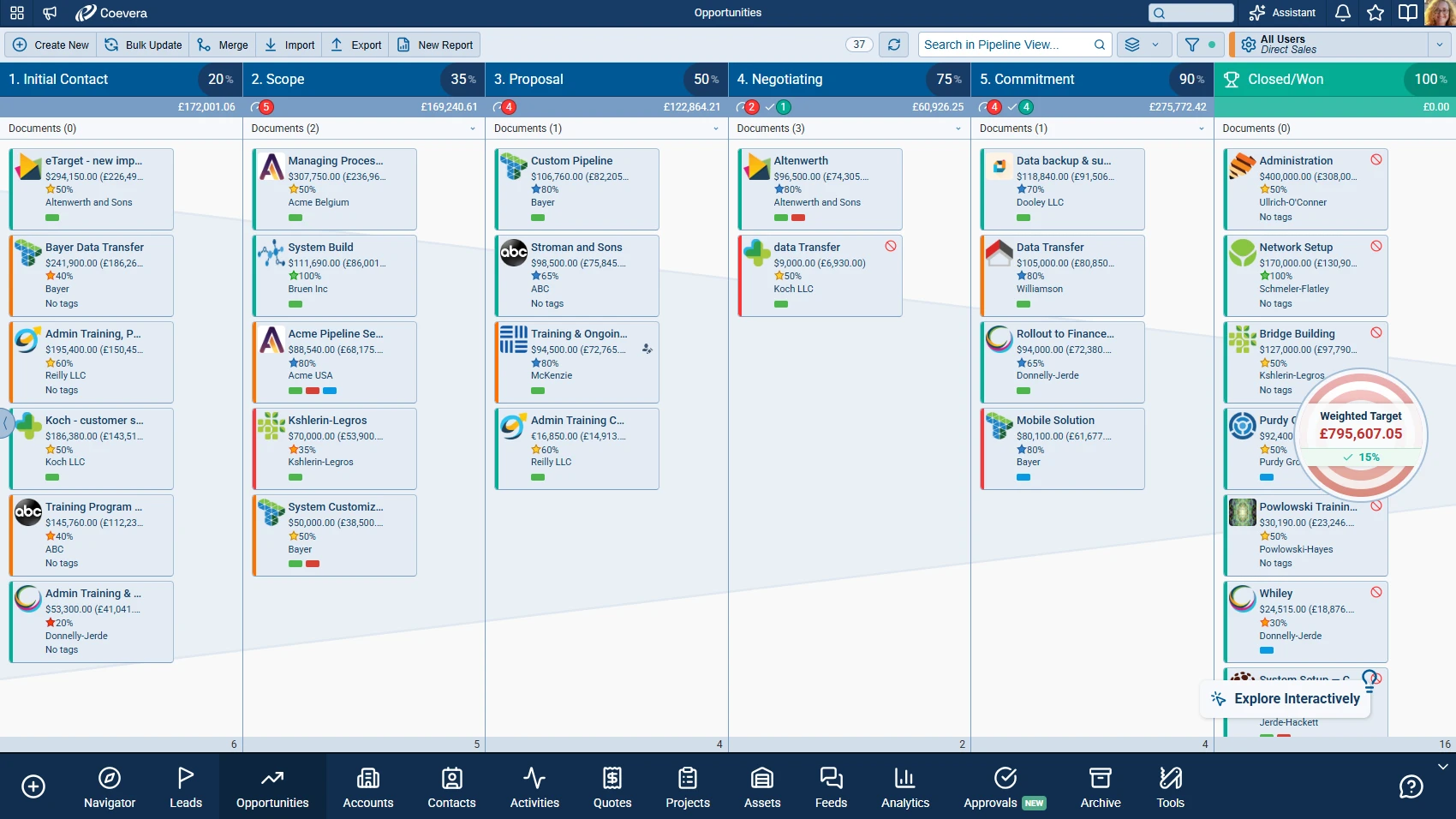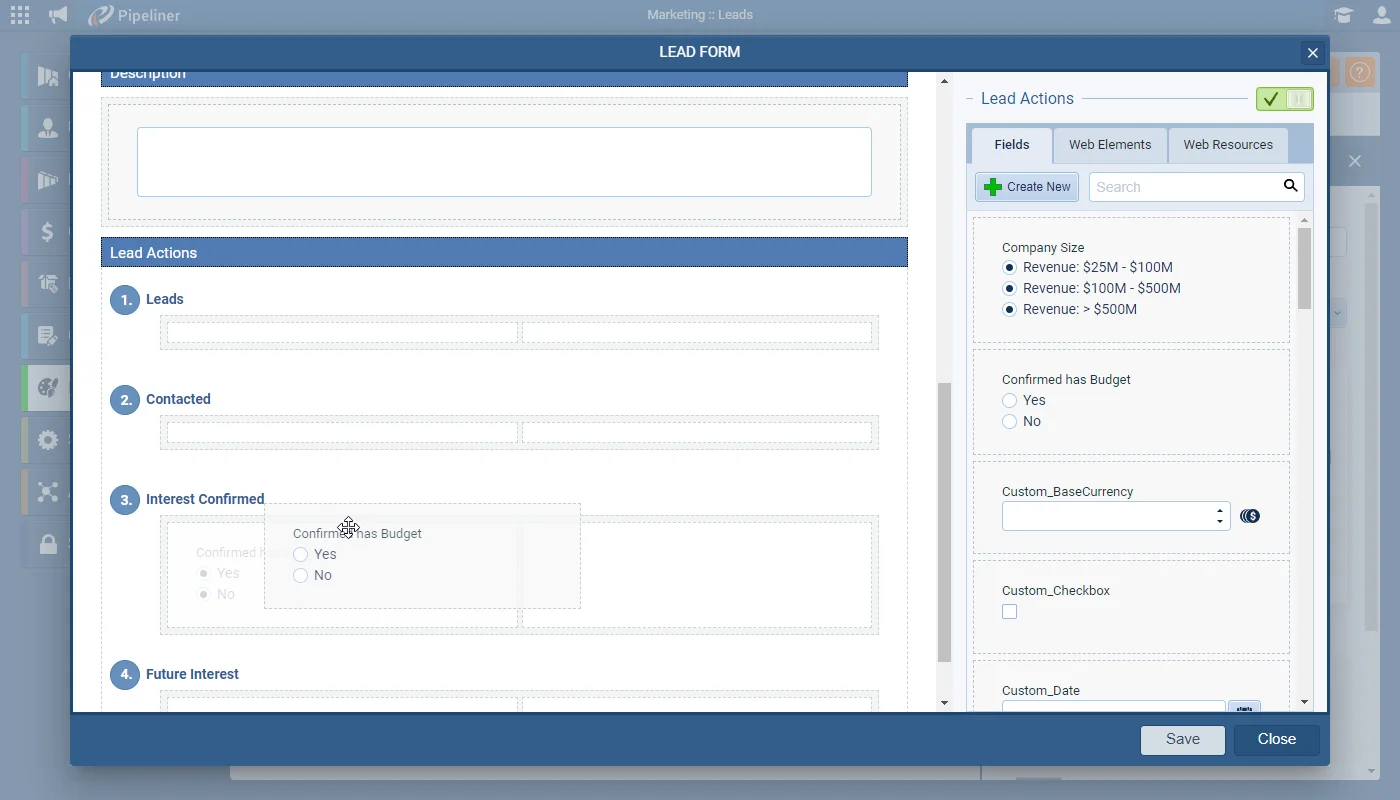
Lead Action fields allow Coevera Admins to ensure that the right questions have been asked and answered before your team can move “Leads” onwards through your Lead process towards “Qualification“. Coevera Admins can add fields to the relevant step in your Lead process, making them required so that a Lead cannot be moved into that step without the field being completed. This can help ensure that your Business Development team is capturing the right information at the right time so that when the Lead is “Qualified“, all the correct information is passed onwards to the Sales team.
New Lead Actions, Form Fields Highlighting, Improved Forecasts and more
Coevera 4.11.0 introduces Brand New Lead Actions to gate lead progression behind required fields, adds hierarchy roll-ups and flexible date ranges to Forecasts, brings coloured field highlighting to Form Views, and lets admins surface extra fields on the Qualification and Won forms.
- Features
- 4
- Improvements
- —
- Security
- —
Overview
Brand New Lead Actions let Coevera Admins attach required fields to a step in the Lead process, so a Lead can't move toward Qualification until the right questions have been answered — when a user tries to advance the Lead, a dialog prompts them to complete any missing Lead Action fields first. Improved Forecasts add hierarchy roll-ups of up to five levels — across Users, Sales Units, Products, Product Categories, and Accounts — and let you drive the forecast date range from any system or custom date field.
Two more enhancements round out the release. Form Views gain coloured field highlighting, applied per view across Leads, Opportunities, Accounts, and Contacts, so different views can spotlight different fields. And the Opportunity Qualification and Won forms can now show additional fields, letting users check and verify data before saving a new Opportunity or winning the deal.
- Brand New Lead Actions add required fields to a step in the Lead process, blocking progression until they're completed.
- Moving a Lead into a step with incomplete Lead Action fields triggers a pop-up dialog to fill them in first.
- Lead Action fields are configured in the Admin Module under Fields & Forms › Leads › Forms.
- Improved Forecasts roll up through a hierarchy of up to five levels — Users, Sales Units, Products, Product Categories, or Accounts.
- Forecast hierarchies can also be flat, such as just Users or just Products.
- The forecast date range can be driven by any system or custom date field, including a custom Product Line item date.
- Selected Accounts can be copied across all chosen Products so you don't re-select them in each branch of a Forecast.
- Form Views support coloured field highlighting on selected fields, chosen per field and colour.
- Field highlighting works within Leads, Opportunities, Accounts, and Contacts, and is individual to each Form View.
- The Opportunity Qualification and Won forms can display additional fields for users to verify before saving or winning.
- Multiple Opportunity processes can each have their own Qualification and Won forms.

What we're proud of
Guardrails for your Lead process
Brand New Lead Actions let admins attach required fields to a step of the Lead process, so a Lead can't advance toward Qualification until the right questions have been answered. If those fields are still empty when a user moves the Lead, a dialog appears and holds the Lead in place until they're completed — so the Sales team always inherits complete, qualified information.
Brand New Lead Actions
Improved Forecasts
Using a hierarchy allows you to plan Forecasts to roll up from one type of record to another — for example, a number of “Users” to a “Sales Unit” or from certain “Accounts” to a “User” or from “Users” to “Products“. You can use up to 5 levels in a hierarchy — one level for each type of record — Users, Sales Units, Products, Product Categories or Accounts.
NOTE: The bottom level is the most important and is where the key values live — both Forecast values and for Quota settings.
NOTE: You can opt for a flat structure – for example, selecting just Users or just Products.
All screenshots
4Adding Field Highlighting to your Form Views
Users can apply coloured field highlighting to selected fields when working with multiple “Form Views” within the web app. “Form Views” can be created and shared by users working within Leads, Opportunities, Accounts and Contacts.
Access “Multiple Form Views” from within an open record by clicking on the “Views” dropdown and selecting “Manage Views”.
All screenshots
3Qualification + Won Form
Coevera Admins can now choose to make additional fields visible on the “Opportunity Qualification” and “Opportunity Won” Forms so that users can check and verify additional field data before saving the new “Opportunity” or winning the deal.
All screenshots
2Frequently Asked Questions
Related releases
See it in your own pipeline
Start a free trial and explore what's new in Coevera 4.11.0 for yourself.
Nessuna carta di credito richiesta · Prova gratuita di 14 giorni