What's New

The latest Coevera CRM release, new features, and platform improvements.

NEWPublic beta

Coevera MCP Server

Connect Coevera to your AI assistant and let it do real work across your CRM — always within your permissions, never beyond them.

The CRM we keep improving

Coevera Cloud delivers a level of visualization and instant, dynamic insights unrivaled in the CRM space — available in every edition. This ensures a supreme user experience, a short learning curve, and high, rapid adoption rates.

Its unique administration backend means non-technical users can easily configure the system — no programmers, consultants, or systems integrators required, and no need for an expensive, full-time administrator. That saves companies money and minimizes risk.

Coevera Cloud is part of the same product line that includes the market-leading iOS and Android mobile CRM apps. With cloud and mobile options together, Coevera serves the largest addressable market of any CRM — from teams that want a cloud-only CRM to those who rely on the most effective mobile CRM app available.

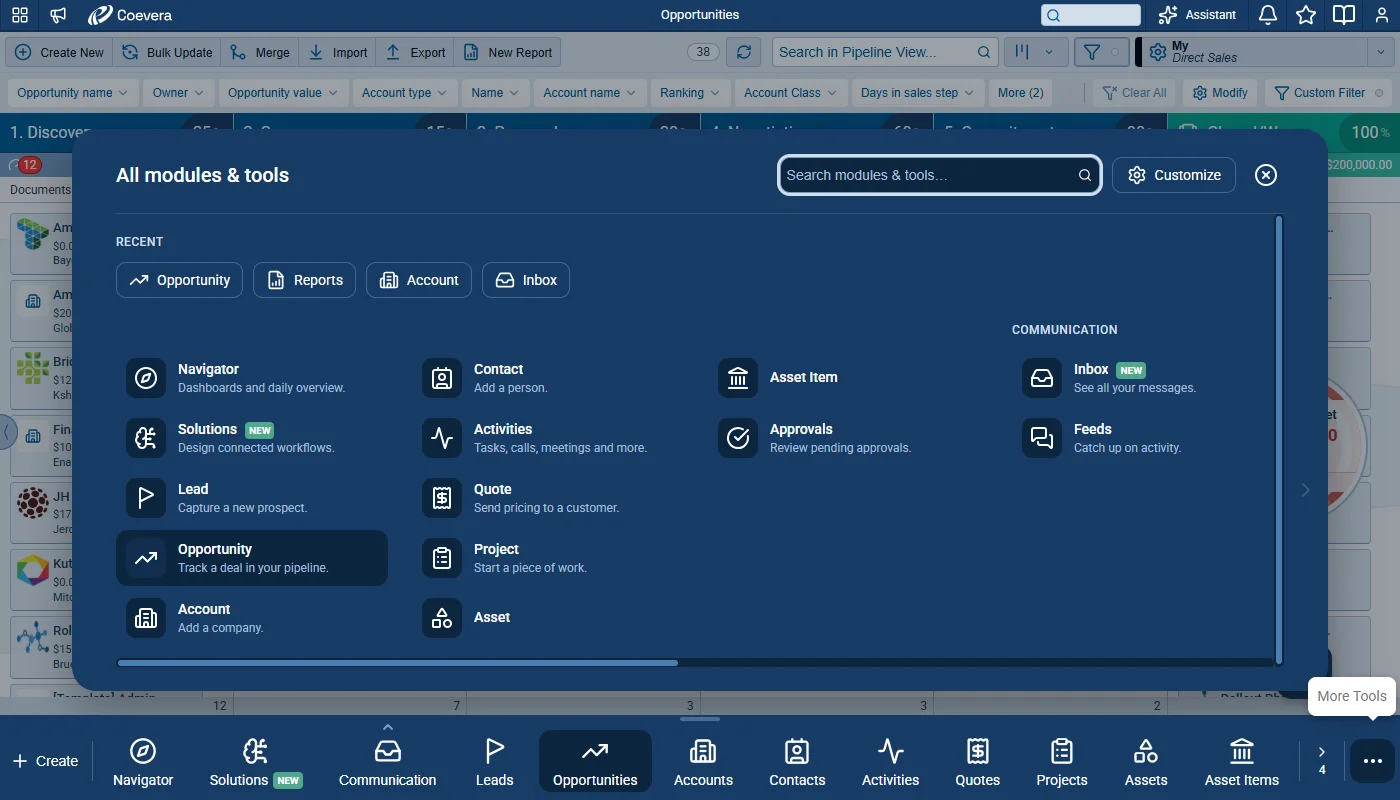
Create New and All Modules & Tools — More Tools
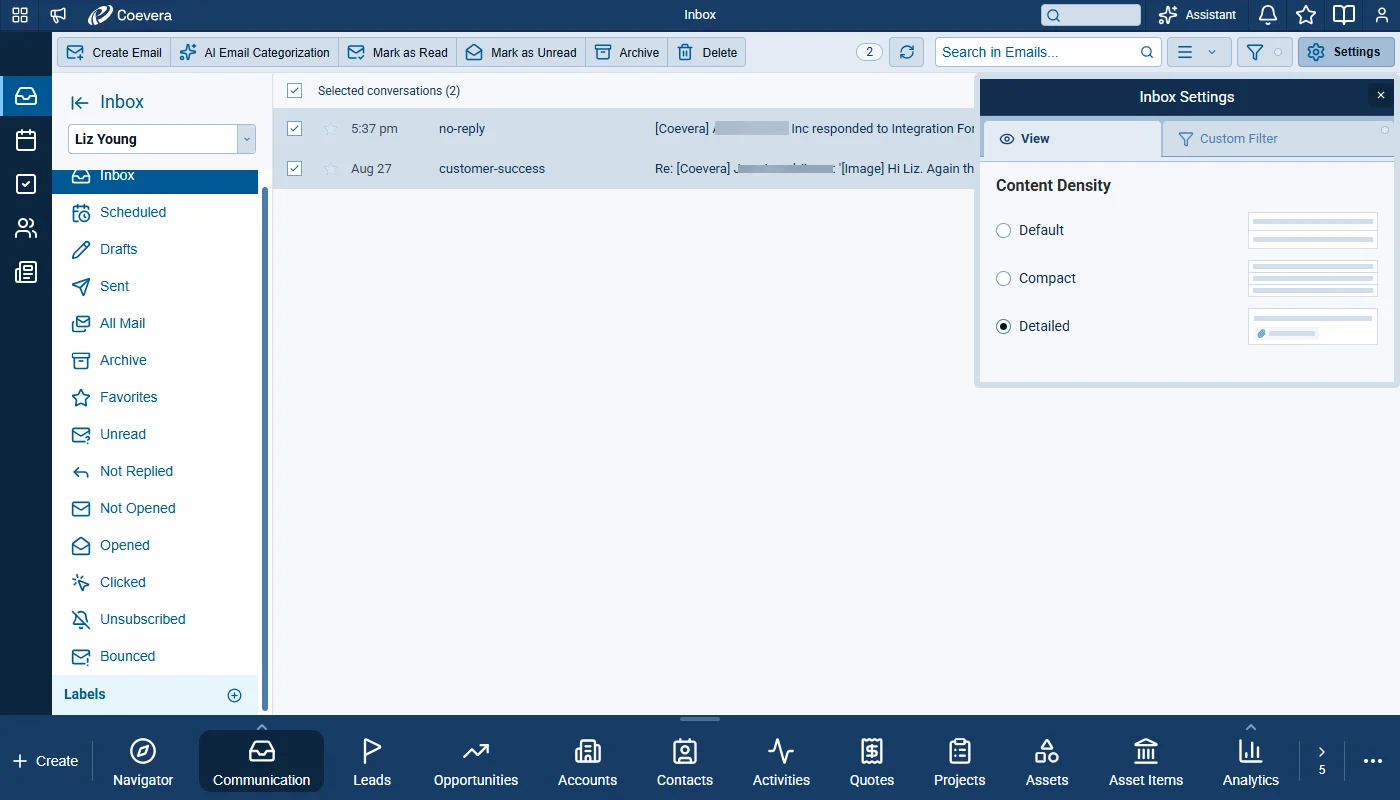
Detailed Content Density
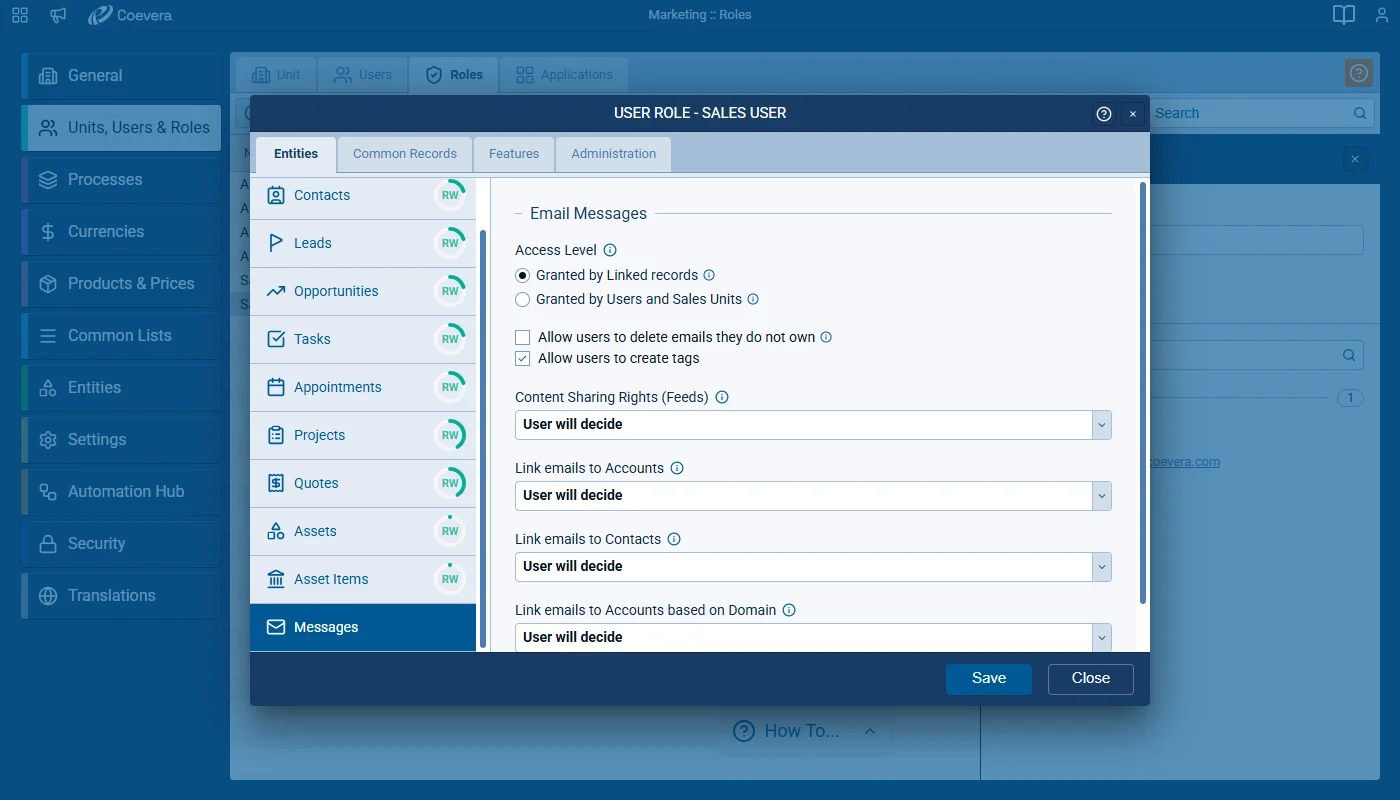
Email Access in Feeds per User Role
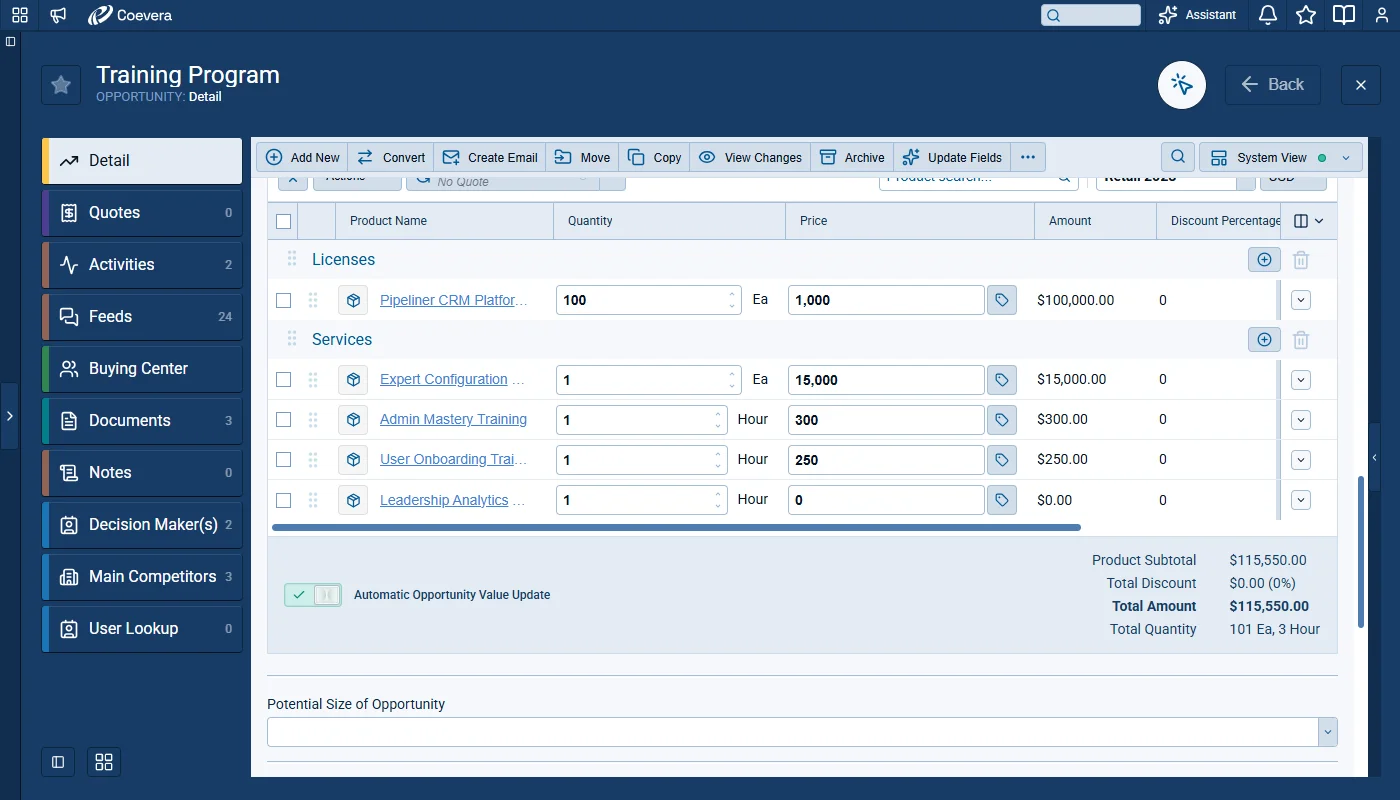
Opportunity Value Recalculation for Background Product Changes
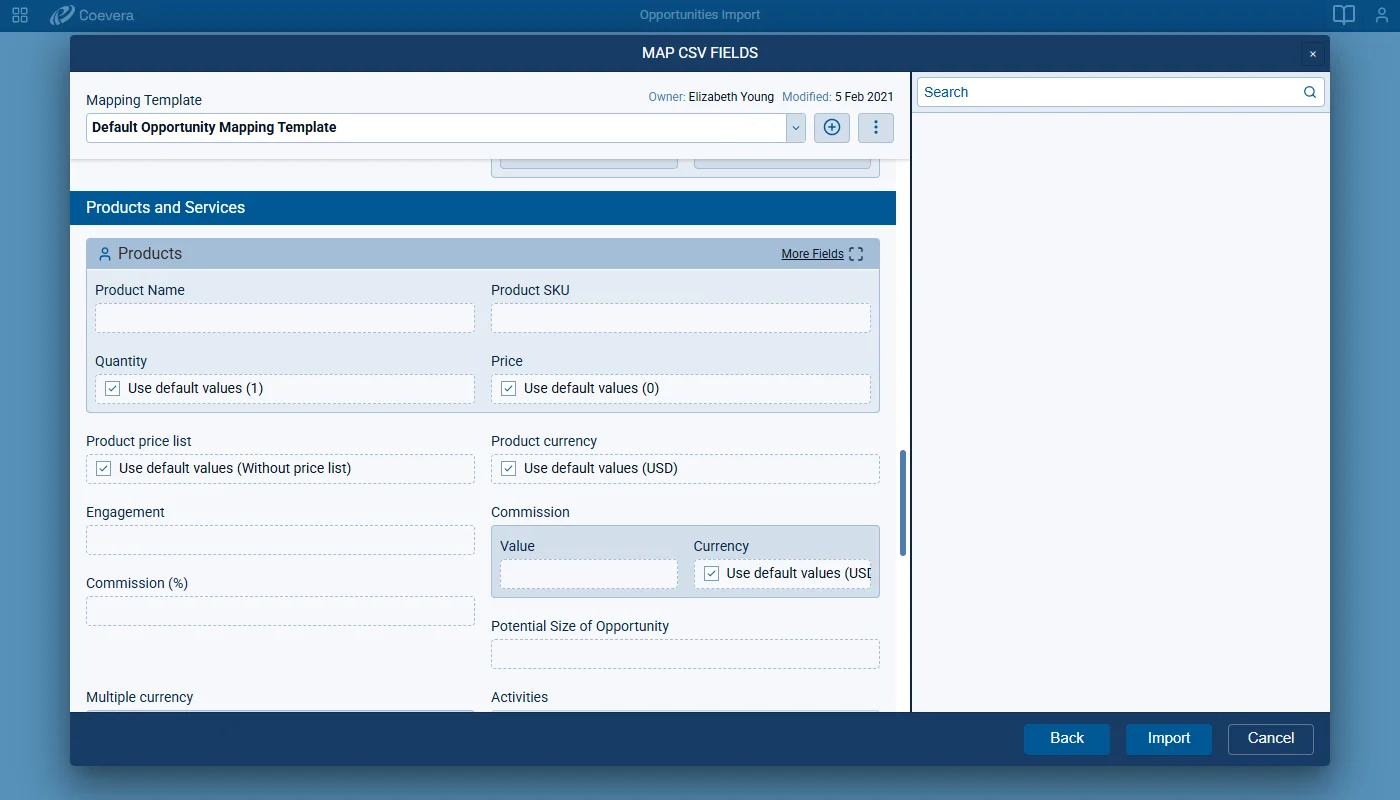
Opportunity Import: Match Product Line Items by SKU
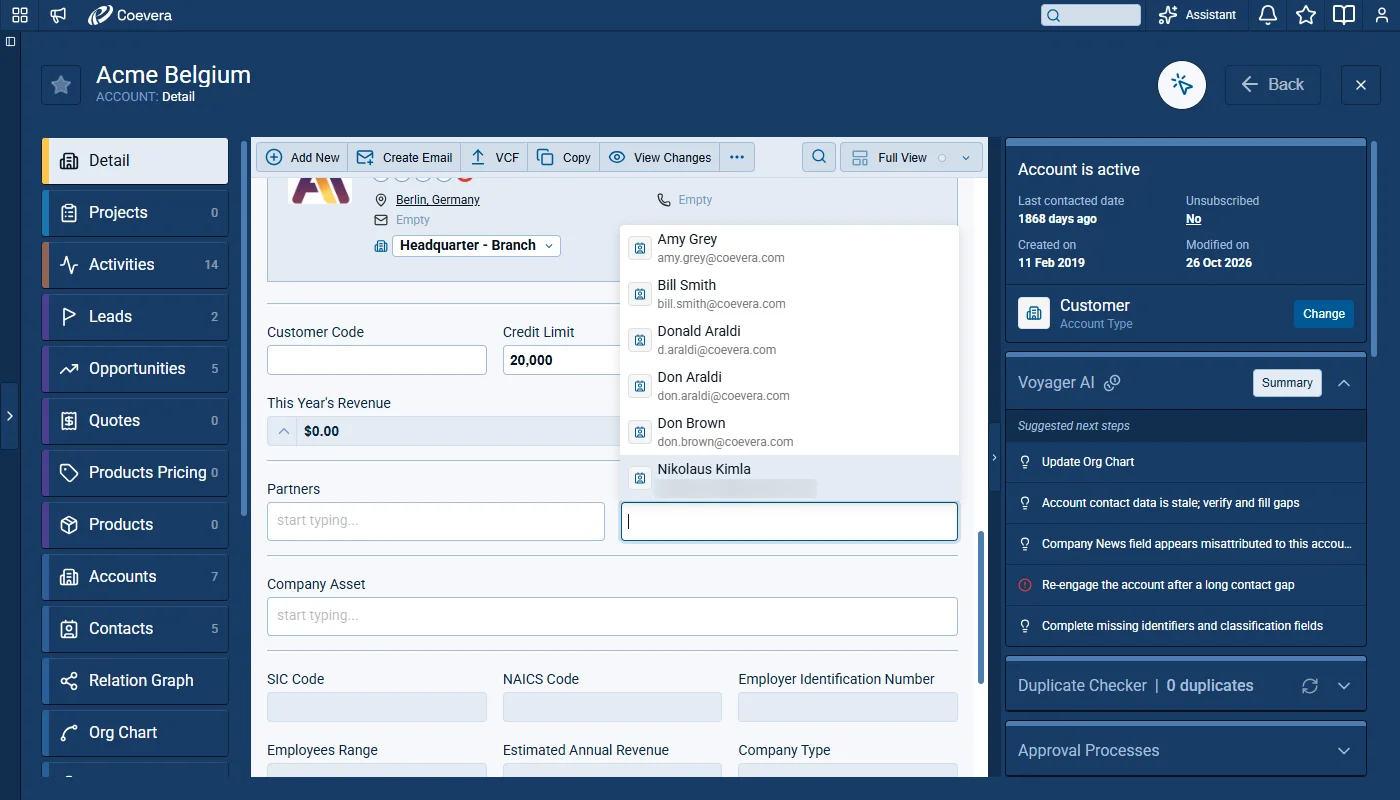
User Lookup: Search by Email
Latest releasev6.6.0October 29, 2026AdministrationEmailMCP Server

Customizable Bottom Main Menu, Email Inbox Archive, Email Access in Feeds per User Role, and other Various Improvements…

Coevera 6.6.0 turns the bottom menu into a sticky, customizable bar, adds a Detailed view and an Archive folder to the Email Inbox, lets administrators decide per user role which emails users see in Feeds, introduces the Coevera MCP Server for AI assistants, and lands nine improvements across the product.

4 new features · 9 improvements · 1 touching access control

What's in this release

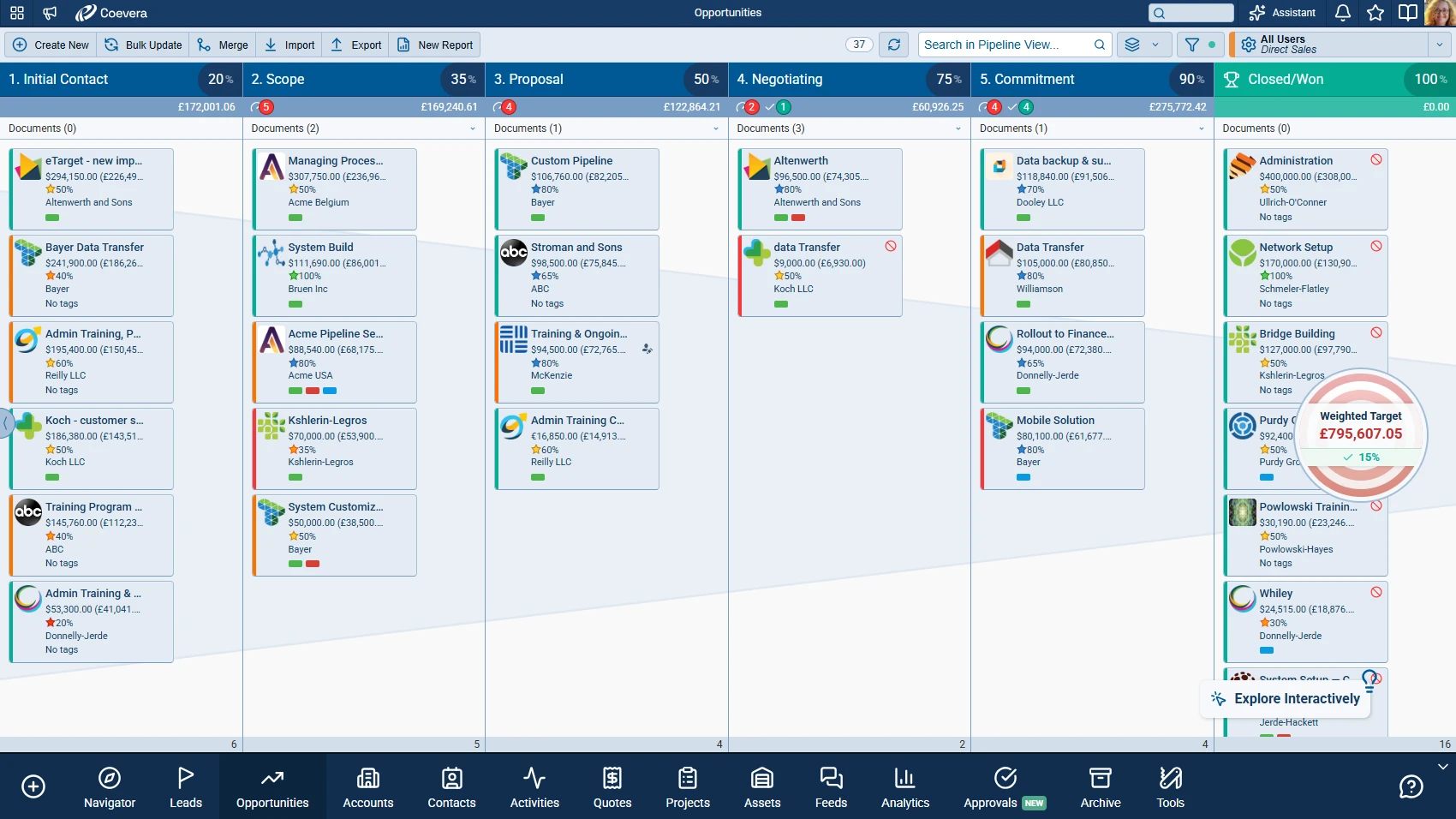
  • A sticky, customizable bottom bar — Create first, then one tab per pinned module or tool in each user’s own order, with groups shown as a single tab that opens a submenu.
  • Create for new records and More Tools for every module and tool the role offers — two sheets, each with a search field and recently used items.
  • Customize bottom menu — drag rows to reorder, pin or unpin items, or drag an item straight onto the bar; Reset to default restores the role’s default order and pins.
  • Role Navigation Settings in Role › Features › Navigation — the items a role offers, their default order and grouping, custom sections, and whether users can customize their bar.
  • An optional Navigation description of up to 30 characters for custom entities, shown in More Tools and Create New.
  • How To as an icon on the bar, Explore Interactively as a small button above it, and minimized emails and notes as Emails and Notes pills that never take space from the bar.
Questions about Coevera 6.6.0

Open More Tools and click Customize. Drag rows up or down to reorder the bar, use the pin toggle to show or hide an item, or drag an item straight onto the bar. Reset to default restores your role's default order and pins. If there is no Customize button, your role does not allow customization and the bar follows the layout set by your administrator.

Existing roles and users keep what they see today: the default order is applied, customization starts unchecked, and every user starts from the role layout. Administrators can then let users rearrange their own bar with the Users can customize the bar (reorder and pin) checkbox in Role › Features › Navigation.

How To is now an icon on the bar, shown only on screens with How-To content. Explore Interactively is a small icon-only button above the bar. Minimized emails and notes appear as Emails and Notes pills above the bar, to the left of the Explore Interactively button, each showing the number of minimized windows.

Select one or more conversations in the Inbox folder and use the new Archive action. The conversation moves to the Archive folder and stays visible in other folders as usual. Unarchive returns it to the Inbox, and when a new email arrives in an archived conversation, the conversation also reappears in the Inbox.

Two changes in particular can reduce what a user sees. Being able to see an email template no longer gives access to the emails sent with it, so users who reached emails only through a template no longer see them on records, in email lists, in Feeds, or in notifications. And when a role's email Access Level is Granted by Users and Sales Units, users in that role see an email only if they own it, it is shared with them, or it belongs to or is shared by a user or sales unit on the role's list, and they can still see the record it is linked to. The Inbox is not affected: users always see the full contents of any mailbox they have rights to.

In User Settings, the email account row now starts with a sync button with a caret. Choose a timeframe from Last 3 days to Last year, and the sync runs according to your configured email settings. Emails you deleted manually are not synced again. This works for O365, Gmail for Email Sync, IMAP, and MS Exchange. The button is not available while the integration is in a warning or error state, and only one account per integration can sync at a time.

Experience It Yourself

Book a personalized demo, focused on your specific use case.

Panoramica personalizzata di 30 minuti · Senza impegno, senza pressioni

Trusted by sales organizations across North America, the UK, Europe and AustralasiaISO 27001 CertifiedGDPR CompliantData never used to train AI