v6.6.0MinorReleased

Customizable Bottom Main Menu, Email Inbox Archive, Email Access in Feeds per User Role, and other Various Improvements…

Coevera 6.6.0 turns the bottom menu into a sticky, customizable bar, adds a Detailed view and an Archive folder to the Email Inbox, lets administrators decide per user role which emails users see in Feeds, introduces the Coevera MCP Server for AI assistants, and lands nine improvements across the product.

Share
Features
4
Improvements
9
Security
1
Prossimamente

Overview

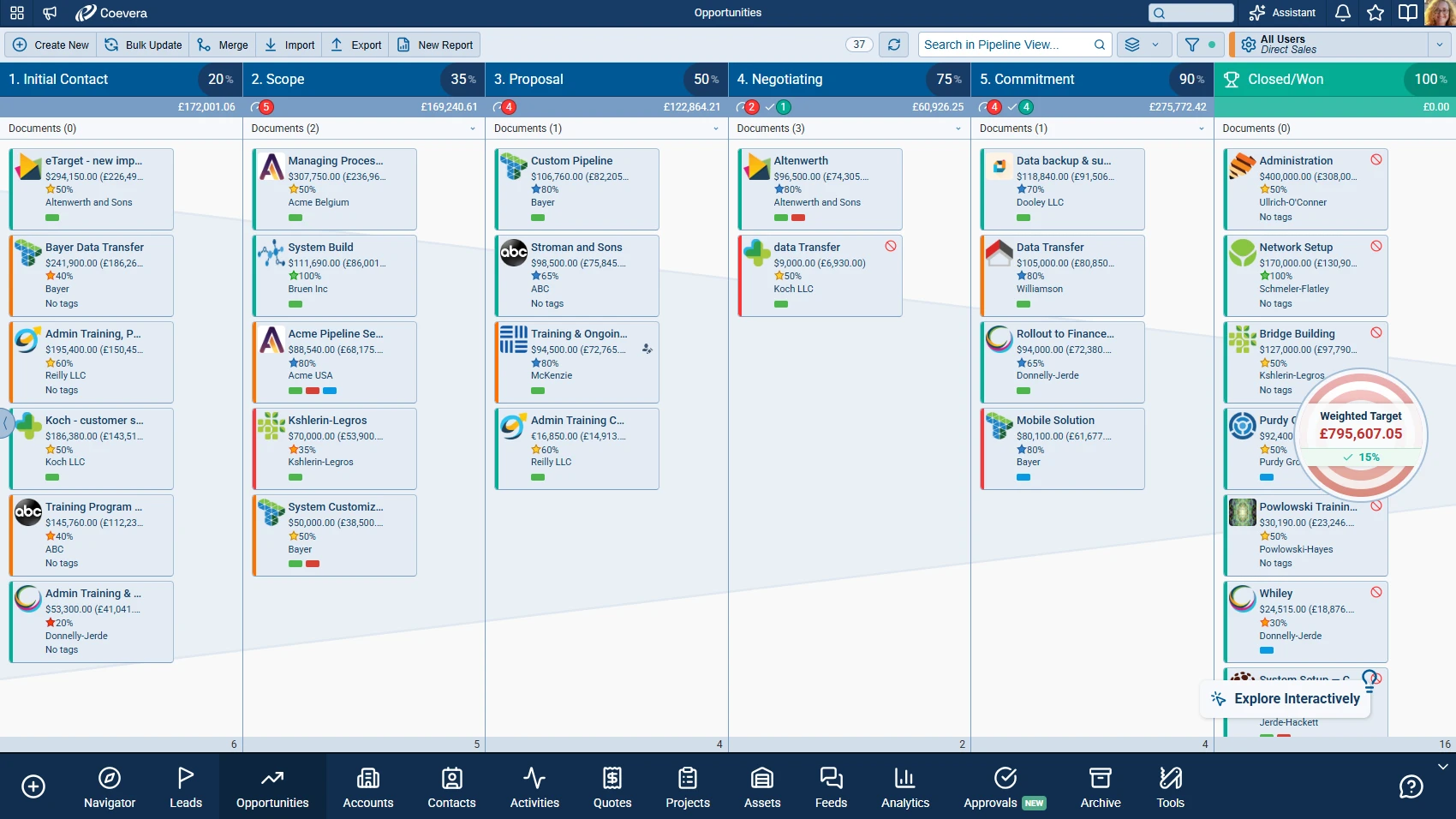
Four changes lead this release. The bottom menu becomes a sticky, customizable bar: each user pins and orders the modules and tools they use most, grouped as their role defines, while searchable Create and More Tools sheets keep everything else one click away. Administrators decide per role in Role › Features › Navigation which items are offered, in which default order and grouping, and whether users can rearrange their own bar, and custom entities gain an optional navigation description. Explore Interactively and minimized emails and notes move out of the bar so they never take space from it, and How To becomes an icon on the bar, shown only on screens with How-To content.

The Email Inbox gains a Detailed content density that shows attachments directly in the email list and a dedicated Archive folder. Email integrations can now sync past emails on demand, from the last three days up to the last year, and IMAP and Exchange accounts open their configuration without asking for the password each time, and being able to see an email template no longer gives access to the emails sent with it. With Email Access in Feeds per User Role, administrators can limit a role to emails owned by or shared with selected users and sales units and set the email linking settings for the whole role. The new Coevera MCP Server makes Coevera CRM data and operations available as tools for AI assistants such as Claude and ChatGPT, always within the permissions of the signed-in user, covering search, reports, exports, record changes, and bulk business operations on Opportunities and Leads. Among the improvements, with automatic value update turned on, the Opportunity value is now recalculated when product line items change through background processes, Opportunity import can match products by SKU, User Lookup fields find users by email, and Google Tasks sync no longer deletes lists.

What's in this release
  • A sticky, customizable bottom bar — Create first, then one tab per pinned module or tool in each user’s own order, with groups shown as a single tab that opens a submenu.
  • Create for new records and More Tools for every module and tool the role offers — two sheets, each with a search field and recently used items.
  • Customize bottom menu — drag rows to reorder, pin or unpin items, or drag an item straight onto the bar; Reset to default restores the role’s default order and pins.
  • Role Navigation Settings in Role › Features › Navigation — the items a role offers, their default order and grouping, custom sections, and whether users can customize their bar.
  • An optional Navigation description of up to 30 characters for custom entities, shown in More Tools and Create New.
  • How To as an icon on the bar, Explore Interactively as a small button above it, and minimized emails and notes as Emails and Notes pills that never take space from the bar.
  • A Detailed content density that shows up to three attachments of a conversation directly in the email list, with the rest one click away.
  • A dedicated Archive folder, with an Archive action in the Inbox and Unarchive to send a conversation back.
  • Sync Past Emails on demand for O365, Gmail for Email Sync, IMAP, and MS Exchange, from the last three days up to the last year.
  • IMAP and Exchange configuration opens directly, without asking for the password each time.
  • No email access through email templates — being able to see a template no longer gives access to the emails sent with it.
  • An email Access Level per user role — Granted by Linked records, the default, or Granted by Users and Sales Units to narrow which emails the role sees in Feeds.
  • Email linking settings per role — Link e-mails to Accounts, Link e-mails to Contacts, and Link emails to Accounts based on Domain can be set to On or Off for everyone in the role.
  • The Coevera MCP Server — Coevera CRM data and operations as tools for AI assistants such as Claude and ChatGPT, always within the signed-in user’s permissions: search, reports, CSV exports, record changes, and bulk operations on Opportunities and Leads.
  • Nine improvements, including Opportunity value recalculation for background product changes, product matching by SKU in Opportunity import, search by email in User Lookup fields, and Google Tasks sync that no longer wipes lists.
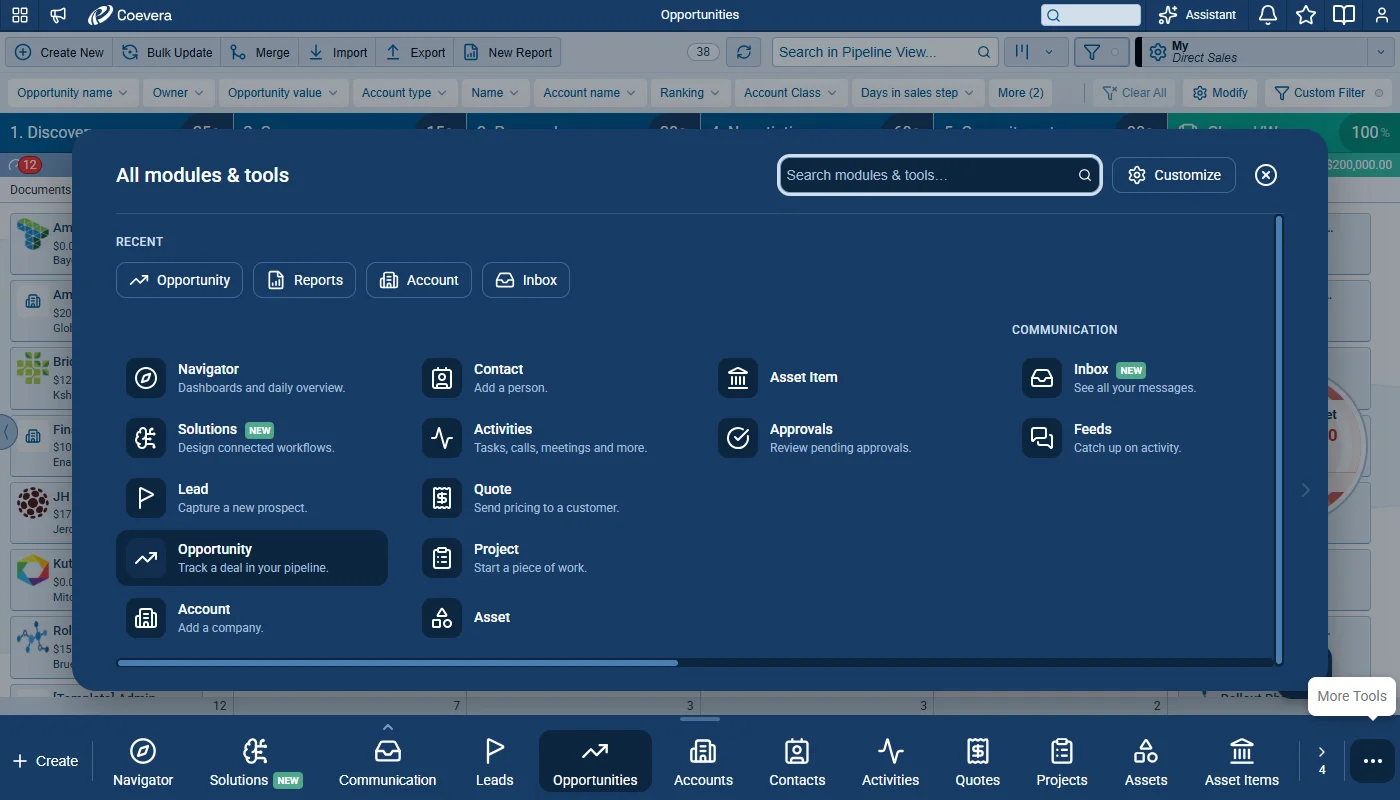
Create New and All Modules & Tools — More Tools

What we're proud of

Your modules and tools, one click away

The bottom menu is now a sticky bar that holds the modules and tools a role uses most, in the order and groups its administrator sets, with everything else one click away in More Tools. Where the role allows it, each user can pin and reorder their own bar.

01New · Administration

Customizable Bottom Main Menu

Create New and All Modules & Tools — More Tools

The bottom menu is now a sticky, customizable bar. Each user pins and orders the modules and tools they use most, grouped as their role defines, with everything else one click away. Administrators decide per role which items are offered, in which default order and grouping, and whether users can rearrange their own bar. How To, Explore Interactively, and minimized emails and notes move out of the bar so they never take space from it.

All screenshots

10
Documentation#customizable-bottom-main-menu
02New · Email

Email Inboxes Improvements

Detailed Content Density

This release adds new ways to organize and review conversations in the Inbox: a Detailed view that shows attachments directly in the list and a dedicated Archive folder. Email integrations can now sync past emails on demand, IMAP and Exchange accounts can be configured without retyping the password, and access to emails is no longer granted through email templates.

All screenshots

3
Documentation#email-inboxes-improvements
03New · Email

Email Access in Feeds per User Role

Email Access in Feeds per User Role

Administrators can now control, per user role, which emails users see in Feeds, on records, and in other places where emails are shown. Instead of every user seeing all emails linked to records they can access, a role can be limited to emails owned by or shared with selected users and sales units. Administrators can also set the email linking settings for a whole role, so account history no longer depends on each user’s individual configuration.

All screenshots

3
Documentation#email-access-in-feeds-per-user-role
04New · MCP Server

Coevera MCP Server

The Coevera MCP Server makes Coevera CRM data and operations available as tools for AI assistants, such as Claude, ChatGPT, and any other MCP-compatible client. The assistant discovers the available tools and calls them to read, search, and change records directly, always under the signed-in user’s permissions. This is the first published release, and it covers everything delivered from version 1.1.3 to version 2.1.0.

The server uses the Streamable HTTP MCP transport. Tool calls are sent to the /mcp endpoint with an Authorization: Bearer token, and sessions are stateless.

Sign-in uses the OAuth 2 Authorization Code flow against the Coevera OAuth server, with PKCE (S256). The server publishes the OAuth discovery documents with its own origin as issuer (RFC 8414), and a 401 response carries a WWW-Authenticate challenge with resource_metadata (RFC 9728), so clients such as ChatGPT can register the connector by themselves.

About the MCP Server#coevera-mcp-server

Various Improvements

As part of our ongoing usability enhancement program, we've updated the following features.

Various ImprovementsPipeline

Opportunity Value Recalculation for Background Product Changes

Opportunity Value Recalculation for Background Product Changes

When automatic value update is turned on, the Opportunity value is now recalculated whenever product line items change through Automatizer, the API, Online Forms, sequences, or any other background process.

  • Adding or removing a product line item triggers the recalculation.
  • Updating a product line item triggers it when a field that affects the amount is changed, such as Price or Amount.
  • The same behavior applies when the Update or Create Opportunity action in Automatizer changes product line items.
  • The value is recalculated only once, even when many product line items change at the same time.
#opportunity-value-recalculation-for-background-product-changes
Various ImprovementsAutomatizer

Automatizer: Clearer Messages About Deactivated Users

Automatizer log messages about deactivated users are now clearer and easier to understand.

  • Messages now show the name of the affected record.
  • An orange message is a warning: the action was executed, but the process or record should be reviewed. A red message means the action was not executed.
#automatizer-clearer-messages-about-deactivated-users
Various ImprovementsAdministration

Opportunity Import: Match Product Line Items by SKU

Opportunity Import: Match Product Line Items by SKU

The Product SKU field can be mapped alongside Product Name in Opportunities › Import › Map CSV Fields › Products and Services › Products.

  • Either field, or both, can be mapped. At least one is required, so Product Name is no longer required on its own.
  • Product SKU is saved with the Mapping Template like every other mapped field. In existing templates, it is unmapped.
  • When the SKU matches a product, that product is used and the name is not checked for that row.
  • When the SKU matches no product, the row is matched by Product Name if a name column is mapped. Otherwise, the product is unmatched.
  • Without a SKU column, imports work exactly as before.
  • In the Non-existing Product(s) found dialogue, unmatched products are listed under Missing Products by SKU when the row has one, otherwise by name.
#opportunity-import-match-product-line-items-by-sku
Various ImprovementsAdministration

User Lookup: Search by Email

User Lookup: Search by Email

User Lookup fields and filters now find users by any part of their email address as well as by name, and show each user’s sign-in email in the results.

#user-lookup-search-by-email
Various ImprovementsAdministration

Protected and System Auto Number Fields: Editing Disabled

  • In Admin › Fields, the Add, Pattern - Edit, and Pattern - Delete actions are disabled for protected and system Auto number fields, such as Quote Number.
  • Pattern editing no longer appears available when it cannot be saved.
#protected-and-system-auto-number-fields-editing-disabled
Various ImprovementsReports

Reports: Email Templates in Send and Schedule

Reports: Email Templates in Send and Schedule — Email Templates in Send Report and Schedule Report

Send Report and Schedule Report gain an Email Templates button, and a new Report field category fills in the report’s name, type, owner, and URL.

#reports-email-templates-in-send-and-schedule
Various ImprovementsPipeline

Step Activities: Send Email Recipients From Lookup Fields

Step Activities: Send Email Recipients From Lookup Fields

In the Send Email step activity of Lead Processes, Pipelines, and Quote Processes, the Recipients list now offers a new group for each Contact or Account lookup field that has Enable Primary Record turned on.

  • Groups are labeled <Entity> - <Lookup field name> (Primary) — for example, Opportunity - Billing Contact (Primary) — and offer the email fields of the Contact or Account.
  • Search filters the new groups in the same way as the existing ones.
  • In the sales step checklist, the Send Email item opens an email with To set to the chosen email field of the primary record in that lookup field.
  • If the lookup is empty, no record is primary, or the email is blank, To stays empty.
  • Existing step activities keep their recipient. If the lookup field is deleted, Recipients shows Unknown.
#step-activities-send-email-recipients-from-lookup-fields
Various ImprovementsReports

Dashboards: Report Sharing Update From the Power Panel

When the sharing settings of a dashboard are changed from the Power panel, a pop-up now offers to update the sharing of all reports in the dashboard, in the same way as when sharing is changed from the dashboard sharing setting.

#dashboards-report-sharing-update-from-the-power-panel
Various ImprovementsIntegrations

Google Tasks Sync: Lists Are No Longer Wiped

Changing the list or the Sync tasks setting no longer deletes a Google Tasks list: tasks are merged into the chosen list, and the previous list stays in Google.

#google-tasks-sync-lists-are-no-longer-wiped

Frequently Asked Questions

Open More Tools and click Customize. Drag rows up or down to reorder the bar, use the pin toggle to show or hide an item, or drag an item straight onto the bar. Reset to default restores your role's default order and pins. If there is no Customize button, your role does not allow customization and the bar follows the layout set by your administrator.

Existing roles and users keep what they see today: the default order is applied, customization starts unchecked, and every user starts from the role layout. Administrators can then let users rearrange their own bar with the Users can customize the bar (reorder and pin) checkbox in Role › Features › Navigation.

How To is now an icon on the bar, shown only on screens with How-To content. Explore Interactively is a small icon-only button above the bar. Minimized emails and notes appear as Emails and Notes pills above the bar, to the left of the Explore Interactively button, each showing the number of minimized windows.

Select one or more conversations in the Inbox folder and use the new Archive action. The conversation moves to the Archive folder and stays visible in other folders as usual. Unarchive returns it to the Inbox, and when a new email arrives in an archived conversation, the conversation also reappears in the Inbox.

Two changes in particular can reduce what a user sees. Being able to see an email template no longer gives access to the emails sent with it, so users who reached emails only through a template no longer see them on records, in email lists, in Feeds, or in notifications. And when a role's email Access Level is Granted by Users and Sales Units, users in that role see an email only if they own it, it is shared with them, or it belongs to or is shared by a user or sales unit on the role's list, and they can still see the record it is linked to. The Inbox is not affected: users always see the full contents of any mailbox they have rights to.

In User Settings, the email account row now starts with a sync button with a caret. Choose a timeframe from Last 3 days to Last year, and the sync runs according to your configured email settings. Emails you deleted manually are not synced again. This works for O365, Gmail for Email Sync, IMAP, and MS Exchange. The button is not available while the integration is in a warning or error state, and only one account per integration can sync at a time.

NEWPublic beta

Coevera MCP Server

Connect Coevera to your AI assistant and let it do real work across your CRM — always within your permissions, never beyond them.

See these changes in your own pipeline

Start a free trial and explore what's new for yourself.

Nessuna carta di credito richiesta · Prova gratuita di 14 giorni

groupsTrusted by sales organizations across North America, the UK, Europe and Australasiaverified_userISO 27001 CertifiedshieldGDPR CompliantblockData never used to train AI