v4.12.0MinorReleased

New Document Template Preview, Office 365 Tasks Integration, Highlighting Improvements and more

Coevera 4.12.0 adds Document Template Preview with in-place editing for Office 365 templates, introduces Highlight Changes in List Views, brings a new Office 365 Tasks (To Do) integration, and rounds out reporting and usability with chart and folder improvements.

Quotes & DocumentsIntegrationsReports
Share
Features
3
Improvements
3
Security
Prossimamente

Overview

Document Template Preview leads the release. Customers using Office 365 templates can now preview a completed document or spreadsheet from the Documents tab and — with the OneDrive or SharePoint integration enabled — edit the file directly and reload the preview to check the result. A new Attach & Send option emails the finished template in one step, the Coevera Templates add-in for Word and Excel can save a document straight to a record, and Manage Templates lets admins track and deactivate templates.

Beyond the headline, Highlight Changes surfaces recent edits inside a List View, colour-coding numeric, currency, and date fields with arrows and a tooltip showing who changed what and when. A new Office 365 Tasks (To Do) integration replaces the retiring Exchange Tasks integration and syncs Subject and Due Date in both directions, admins gain advanced visualization for long multi-select checkbox fields, reporting picks up dynamic drill-down titles, multi-select and lookup fields as chart data sources, and on-chart numbers, and users can hide empty folders across Reports, Document Manager, and the email and document template pickers.

What's in this release
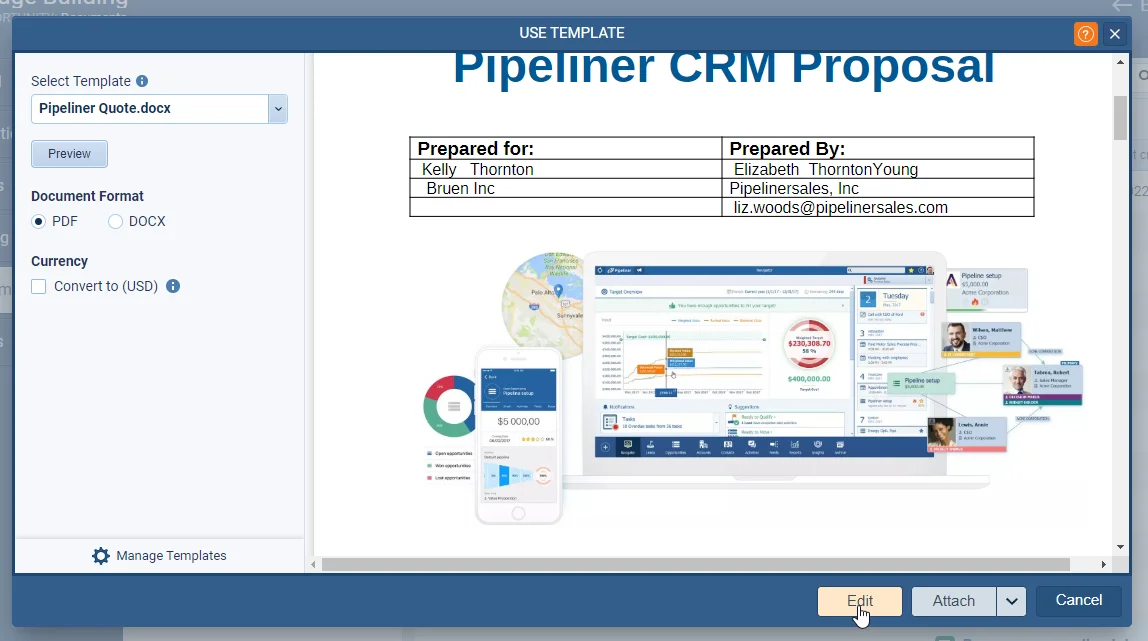
  • Document Template Preview lets users preview a completed Office 365 document or spreadsheet from the Documents tab.
  • With the OneDrive or SharePoint integration enabled, users can edit a template file directly and reload the preview to see amendments.
  • A new Attach & Send option sends a completed template directly by email in one step.
  • The Coevera Templates add-in for Word and Excel can save a document straight to a selected record inside Coevera.
  • Manage Templates lets admins keep track of all templates and deactivate ones that should no longer be selected.
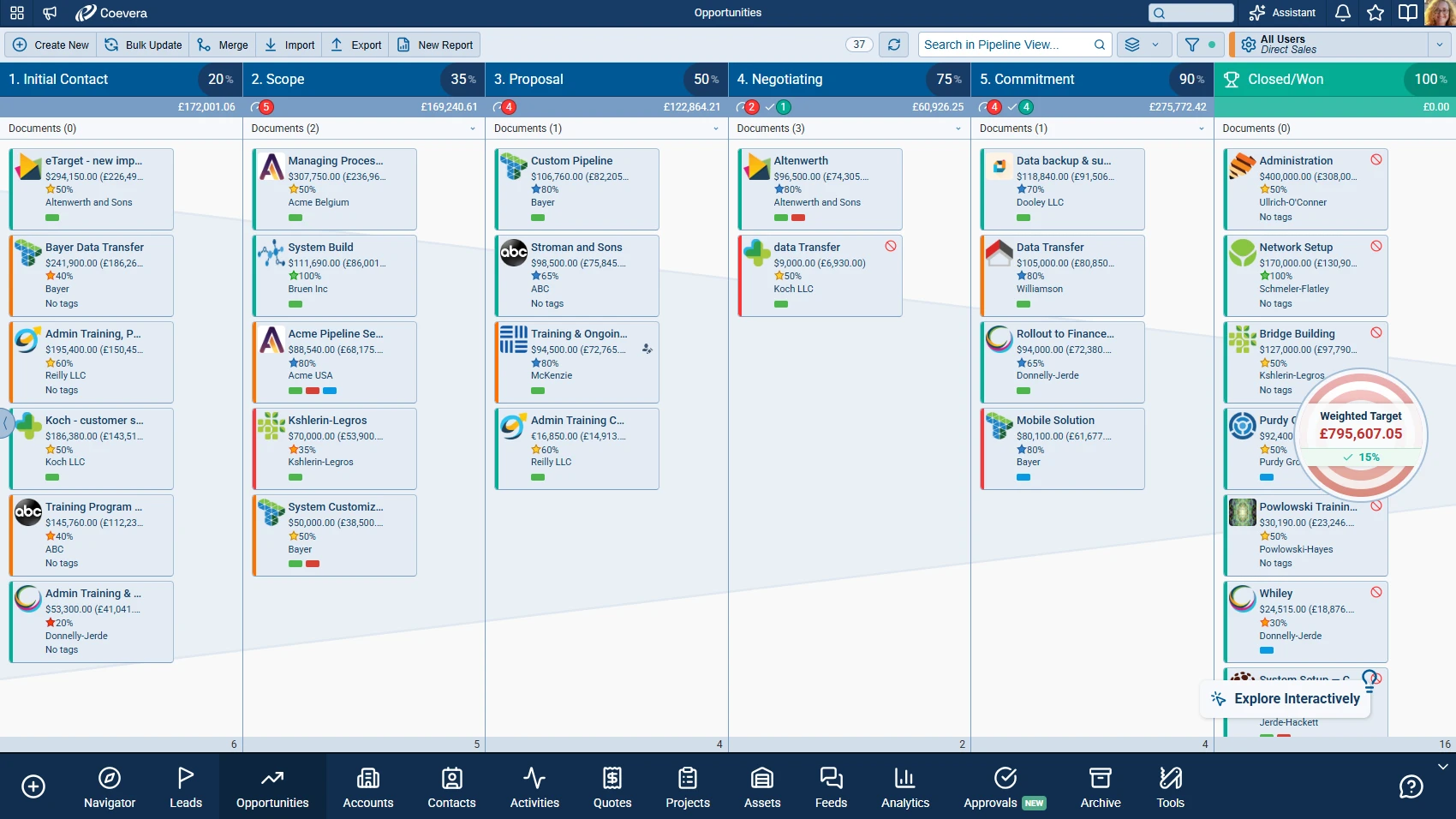
  • Highlight Changes colour-codes edits made within a chosen date period across all or selected List View fields.
  • Numeric and currency changes show green up or red down arrows, date changes show directional arrows, and other changes highlight blue.
  • Hovering a highlighted field shows a tooltip with the field name, its previous and new values, and who made the change and when.
  • The new Office 365 Tasks (To Do) integration replaces the Exchange Tasks integration and syncs Subject and Due Date both ways.
  • Admins can enable advanced Multi Select visualization so long checkbox fields show only selected values on the form.
  • Chart drill-downs now display the report name, series, and the column or segment the user clicked.
  • Multi-select and lookup fields can now be used as a data source in charts.
  • A new Show Numbers option displays aggregate values directly on chart columns, points, and slices.
  • Users can hide empty folders in Reports, Document Manager, and the email and document template pickers, per location.
Document Template Preview (with edit functionality)

What we're proud of

Preview, edit, and send templates without leaving Coevera

Document Template Preview lets customers using Office 365 templates preview a completed document or spreadsheet right inside the Documents tab. With the OneDrive or SharePoint integration enabled, they can edit the file in place, reload the preview to check the result, then use Attach & Send to email it — no downloading and re-attaching required.

01New · Quotes & Documents

Document Template Preview (with edit functionality)

Document Template Preview (with edit functionality)

This release contains some really useful enhancements for customers using Office 365 templates within Coevera. Users can now “Preview” the completed file (document or spreadsheet) from within the “Documents” tab and if they see anything that needs to be changed, as long as either the OneDrive or Sharepoint integration is enabled, users will be able to “Edit” the file directly and “Reload” the “Preview” to view amendments.

All screenshots

3
Documentation#document-template-preview-with-edit-functionality
02New · Pipeline

Highlighting Changes

Highlighting Changes

Highlight Changes” allows users to highlight changes made within a chosen date period to all — or specifically selected — fields within a “List View” The date “Period”can be selected from one of the preset ranges a “Custom” number of days can be chosen and changes displayed for all fields in the List View or just selected fields.

All screenshots

2
Documentation#highlighting-changes
03New · Integrations

Office 365 Tasks Integration

Office 365 Tasks Integration

This new Outlook Tasks (To Do) integration is a replacement for the existing Exchange Tasks integration which will soon be switched off unless your organisation is using its own on premise Exchange servers.

Individual users activate from the “Apps” tab under their user Settings.

Documentation#office-365-tasks-integration

Various Improvements

Various ImprovementsAdministration

Multi Select checkbox fields

Multi Select checkbox fields

When using Multi Select checkbox fields with long lists (more than 10 options), the field can use up a lot of space on the Form. Now, Admins can “Enable advanced Multi Select visualization” for multi select checkbox fields in the Admin Module in Fields & Forms.

The result of this option is that only selected values display on the Form with additional options available for selection by clicking into the field. If no options are chosen, the field displays as empty with a legend of “no options selected”.

All screenshots

2
#multi-select-checkbox-fields
Various ImprovementsReports

Reporting Improvements

Dynamic Drill-down titles in charts

When users drill-down from a chart segment, the window will display the current report name, series and column/segment that the user clicked, so the user always knows which data they’re looking at.

Users can now choose multi-select & lookup fields as a data source in charts.

All screenshots

4
#reporting-improvements
Various ImprovementsQuotes & Documents

Hiding Empty Folders

Hiding Empty Folders

Users can choose to hide/show empty folders in various locations where folders are used:

  • Reports
  • Document Manager
  • Email Templates
  • Create Email – Use templates
  • Attach Document – Company Documents

This setting is stored on an individual user basis for each location that they select it – it’s not universal for all users or for all locations.

#hiding-empty-folders

Frequently Asked Questions

You can preview a completed Office 365 document or spreadsheet from the Documents tab, and — with the OneDrive or SharePoint integration enabled — edit it directly and reload the preview to see your changes. A new Attach & Send option then emails the finished file in one step.

Yes. The Coevera Templates add-in for Word and Excel now has a Save Document option that saves the file directly to a selected record, instead of downloading it and attaching it separately.

It highlights changes made to records within a chosen date period across all or selected fields in a List View. Numeric and currency changes show green up or red down arrows, date changes show directional arrows, other changes highlight blue, and a tooltip shows the field's previous and new values and who made the change and when.

The new Outlook Tasks (To Do) integration replaces the existing Exchange Tasks integration, which will soon be switched off unless your organisation runs its own on-premise Exchange servers. Users activate it from the Apps tab in their user settings, and Subject and Due Date sync in both directions.

Chart drill-downs now show the report name, series, and the clicked column or segment; multi-select and lookup fields can be used as chart data sources; and a new Show Numbers option displays aggregate values directly on chart columns, points, and slices.

Yes. You can choose to hide empty folders in Reports, Document Manager, Email Templates, the Create Email template picker, and Attach Document – Company Documents. The setting is saved per user for each location, so it isn't universal across users or locations.

See it in your own pipeline

Start a free trial and explore what's new in Coevera 4.12.0 for yourself.

Nessuna carta di credito richiesta · Prova gratuita di 14 giorni

groupsTrusted by clients around the globeverified_userISO 27001 CertifiedshieldGDPR CompliantblockData never used to train AI