v3.12.0MinorReleased

Buying Center, Products on Accounts, New Lookup Field Type and more

Coevera 3.12.0 › expands the Buying Center with on-the-fly Contact Groups, Org Chart access, and Ghost Contacts, adds a Products tab to Accounts for upsell and cross-sell analysis, and introduces a new Lookup field type for building custom relationships between records.

AccountsQuotes & DocumentsAdministration
Share
Features
3
Improvements
3
Security
Demnächst verfügbar

Overview

Three features lead this release. The Buying Center gains "on the fly" Groups to batch Contacts however you need — by political alignment, or by how you plan to activate each relationship — along with direct access to an Account's Contact Org Chart and the ability to add "Ghost" Contacts to represent people influencing a deal before you know enough to save them as a Contact. A new Products tab on Accounts breaks down the Products and Product Categories tied to Open, Won, and Lost Opportunities, with a Trend View and a List View to surface upsell and cross-sell potential. And a new "Lookup" field type lets Coevera Admins create custom relationships between record types, such as an Account Manager user field on Accounts or a Main Competitors field on Opportunities.

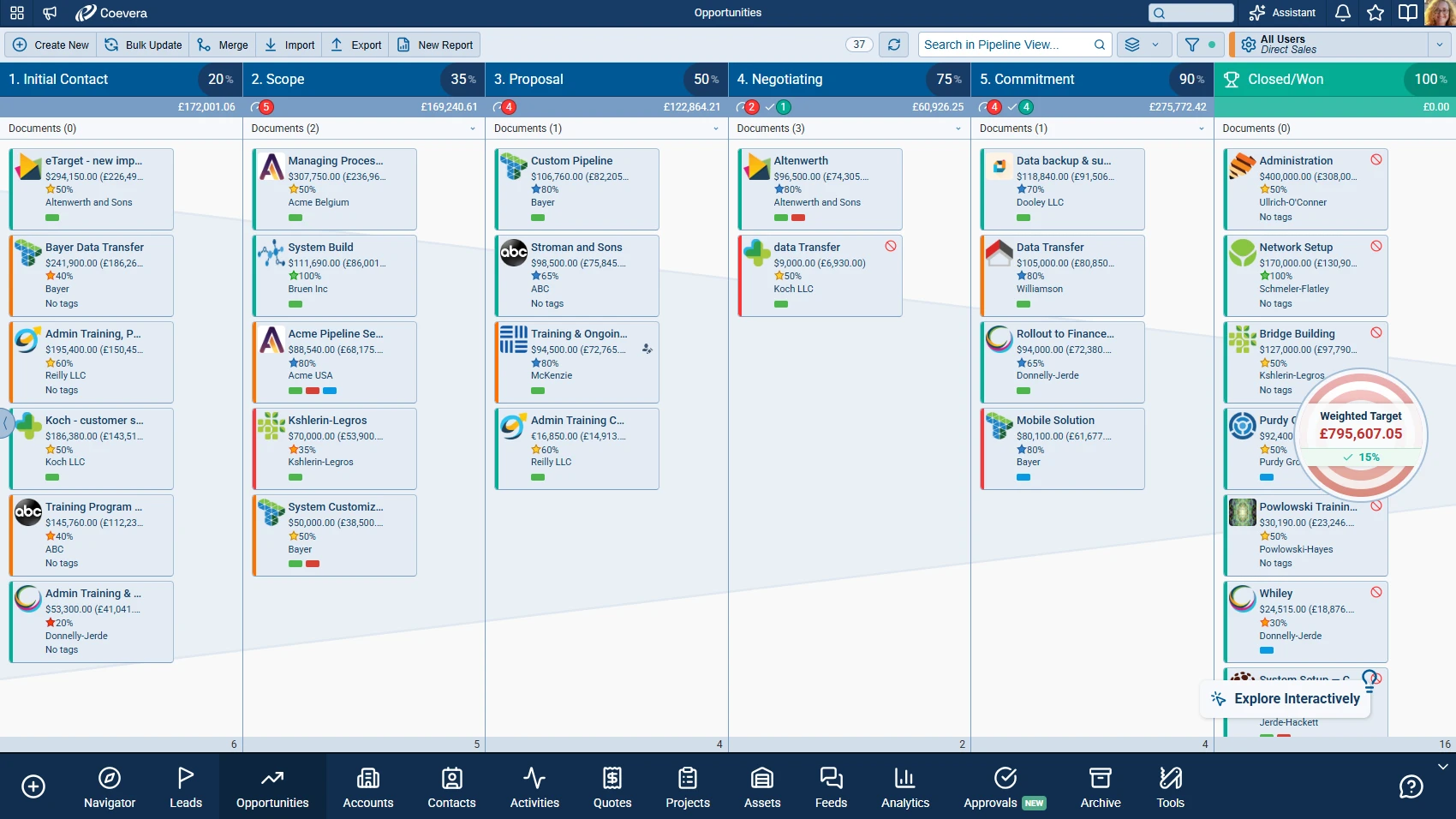
Beyond the headline features, a batch of improvements lands across integrations and reporting: appointments synced from the Office 365 and Google Calendar integrations now link automatically to the matching Contact or Account, new Contact fields — Primary Account Account Role and Primary Account Relationship — become available for Filters and Reports, and load times improve when filtering feeds by User or Sales Unit and for the Compact view on Opportunities.

What's in this release
  • The Buying Center lets you create "on the fly" Groups to batch Contacts together, adding and removing Groups as needed.
  • Groups can reflect "political" alignments of Contacts or prioritise sets of Contacts by how you need to activate the relationships.
  • You can access an Account's Contact Org Chart from the Buying Center and add additional Contacts directly from the Org Chart.
  • A "Ghost" Contact card represents an individual influencing a deal before you know enough about them to add them as a Contact.
  • A Ghost Contact can be promoted to a saved Contact, and Ghost Contacts can be added to an Account's Org Chart.
  • Accounts gain a new Products tab showing a breakdown of Products and Product Categories included in Open, Won, or Lost Opportunities linked to the Account.
  • The Products tab Trend View visualises trends over time to help identify upsell and cross-sell potential, with drilldown into the Opportunity data.
  • The Products tab List View gives an overview of Open, Won, and Lost Amounts by Category or Product, filterable by Period, Product Category, or Pipeline.
  • A new "Lookup" field type in the Admin Module's Fields and Forms lets Admins create custom relationships between different record types.
  • Lookup fields support a "Filter" option to refine selectable records and can show related records as a new tab on the linked entity.
  • Lookup fields are available on the Mobile app and can be used in Reports, Filters, and Automatizer processes.
  • Appointments synced from the Office 365 and Google Calendar integrations link automatically to the related Contact or Account.
  • New Contact fields — Primary Account Account Role and Primary Account Relationship — are available for Filters and Reports.
  • Load times improve when filtering feeds by User or Sales Unit and for the Compact view on Opportunities.
Buying Center

What we're proud of

See every influence on the deal

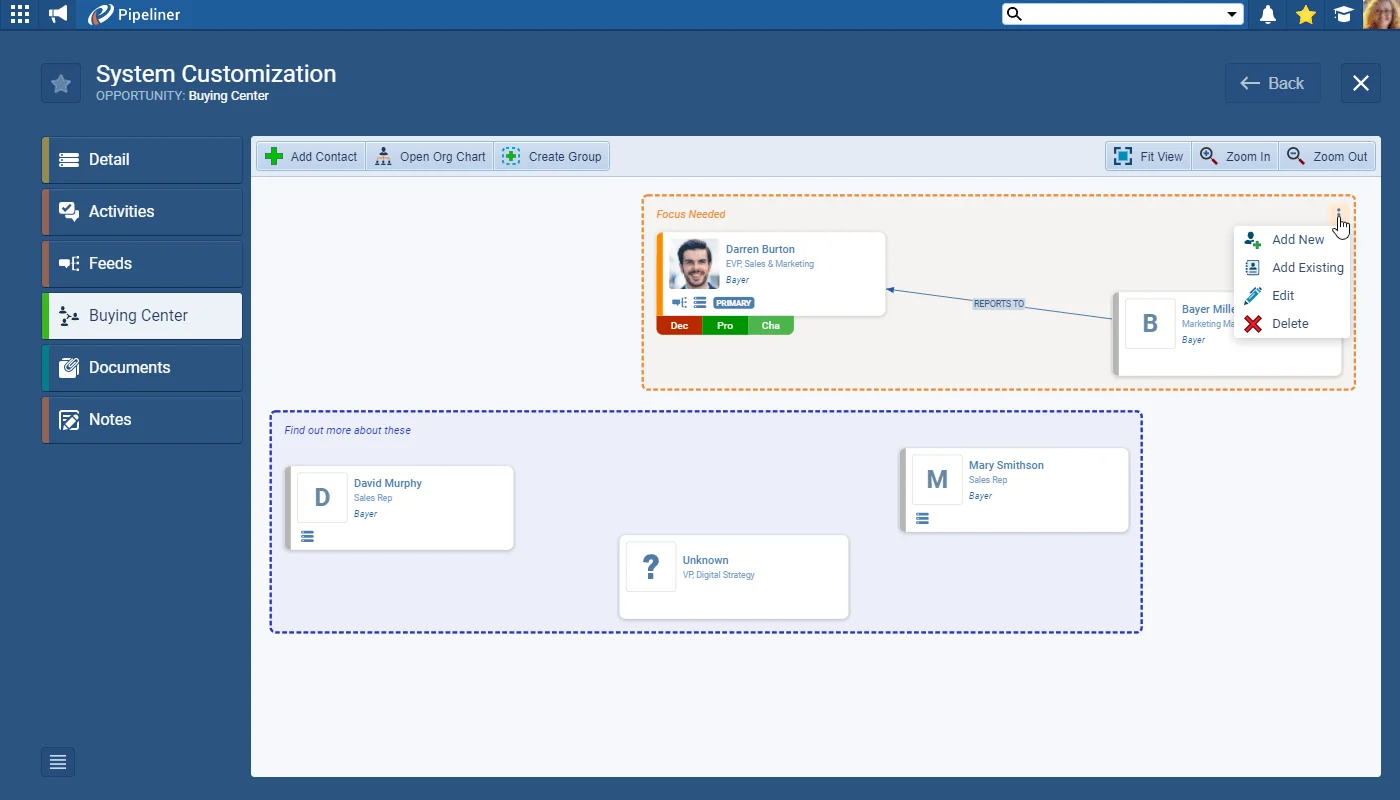
The Buying Center now batches Contacts into "on the fly" Groups, opens an Account's Contact Org Chart directly, and adds "Ghost" Contacts for the people you know are shaping a deal before you've learned enough to save them — and a Ghost can be promoted to a full Contact once you have.

01New · Accounts

Buying Center

Buying Center

As well as enhancements to the individual Contact cards making it even easier to define and view the types and strengths of the relationships you have, we’ve now added the ability for you to create “on the fly” Groups so you can batch Contacts together. Maybe you want to reflect “political” alignments of Contacts or prioritise sets of Contacts by how you need to activate the relationships — it’s entirely down to you! You can add, and remove, Groups as needed to help you manage your deals.

You can now also access the Account’s Contact Org Chart from your Buying Center and add additional Contacts directly from the Org Chart.

We’ve also covered the frequent situation where you know someone is influencing the progress of your deal but you don’t yet know enough about them to add them as a Contact. Now you can add a “Ghost” Contact card to represent this individual. For example, you could be talking to the Manager but need to find out who the VP is. Once you’ve been able to research and find out more information, the “Ghost” can be promoted to a saved Contact in Coevera. You can also add “Ghost Contacts” to your Org Chart for an Account.
All screenshots

3
Documentation#buying-center
02New · Accounts

Products on Accounts

Products on Accounts

To enhance Account Management, there is a new Products tab to Accounts. Use the Products tab to see a breakdown of what Products or Product Categories were included in Open, Won or Lost Opportunities linked to that Account.

Use the Trend View to visualise trends over a period of time for the Account and help identify upsell and cross-sell potential. Drilldown into the Opportunity data by clicking on a product from the Trend View. Or use the “List View” for an overview of Open, Won and Lost Amounts (by Category or Product). Whichever View you are using, you can filter by Period, Product Category or Pipeline.

All screenshots

3
Documentation#products-on-accounts
03New · Administration

New Field Type "Lookup Field"

New Field Type "Lookup Field"

An additional field type has been added to the available options when creating a new custom field in the Admin Module>Fields and Forms. The new "Lookup" field allows Coevera Admins to create custom relationships between different types of entity/record. For example, on an Account record, as well as the record Owner which is the default in Coevera, you may want to create a User Lookup field named "Account Manager" to track which of your colleagues is responsible for ongoing account management for the company.

Or for Opportunities, you might want to add a field named "Main Competitors" so you can look up the account(s) that is/are the main competitor(s) for the deal and track all opportunities where those companies have been your main competition over time.

In this example, you would use the "Filter" option to refine the account records available for users to select when using the field to just accounts of type "Competitor". Tick the box to "show related on the linked " to create a new tab on the linked entity so, for example, you will be able to see all related Opportunities where the Account is one of your main competitors. Type the name you want to use for your new tab in "Section Name".

All screenshots

7
Documentation#new-field-type-lookup-field

Various Improvements

Various ImprovementsIntegrations
  • Automatic linking Accounts/Contact in Appointments Office 365 + Google — For those using our Office 365 or Google Calendar integrations, you’ll no longer need to manually link appointments synced into Coevera to the related Account or Contact. The integration will link automatically to the Contact/Account-based email address.
  • New fields for Filters and Reports on Contacts — As a follow up to the improved Org Chart in the last release, we have added new fields to Contacts which are available for Reports and Filters:
    • Primary Account Account Role” › e.g. now you can filter all contacts that have a Primary Account Account Role of “Champion”.
    • Primary Account Relationship” › e.g. filter Contacts that you have a “Weak” relationship with.
  • Ongoing Speed Improvements — Improved load time when filtering feeds by User or Sales Unit. Improved load time for the Compact view on Opportunities.
#various-improvements

Frequently Asked Questions

You can create "on the fly" Groups to batch Contacts together, access an Account's Contact Org Chart directly and add Contacts from it, and add "Ghost" Contacts to represent people influencing a deal before you save them as full Contacts.

A Ghost Contact card represents someone you know is influencing the progress of a deal but don't yet know enough about to add as a Contact. Once you research and find out more, the Ghost can be promoted to a saved Contact, and Ghost Contacts can also be added to an Account's Org Chart.

It shows a breakdown of the Products and Product Categories included in Open, Won, and Lost Opportunities linked to that Account, presented as a Trend View or a List View and filterable by Period, Product Category, or Pipeline.

The Trend View visualises product trends over a period of time for the Account so you can identify upsell and cross-sell potential, and you can drill down into the underlying Opportunity data by clicking on a product.

It is a new custom field type in the Admin Module's Fields and Forms that lets Coevera Admins create custom relationships between record types — for example a User Lookup field named Account Manager on Accounts, or a Main Competitors field on Opportunities.

Lookup fields are available on the Mobile app and can be used in Reports, Filters, and Automatizer processes. A Filter option refines which records are selectable, and you can surface related records as a new tab on the linked entity.

See it in your own pipeline

Start a free trial and explore what's new in Coevera 3.12.0 for yourself.

Keine Kreditkarte erforderlich · 14 Tage kostenlos testen

groupsTrusted by clients around the globeverified_userISO 27001 CertifiedshieldGDPR CompliantblockData never used to train AI