v1.1.0MinorReleased

Improved Global Search, List View, Call, Log, Accounts and Contacts, Leads and Opportunities Enhancements and more

Coevera 1.1.0 adds sales velocity and sales activity tracking to the Pipeline and Bubble Chart views, refreshes the Accounts and Contacts Compact View, and gives the Reports Power Panel drag-and-drop column control — plus a batch of navigation and performance improvements across the app.

AccountsPipelineReports
Share
Features
3
Improvements
8
Security
Demnächst verfügbar

Overview

This release focuses on the working views salespeople live in. In Leads and Opportunities, the Pipeline and Bubble Chart views now show sales velocity and sales activity as notification badge icons — click a badge to review every velocity and activity notification — while Quick View information appears on hover over individual Sales Stages and Stage Extracts, the heart icon in Compact View reveals detailed Fitness information, and the Bubble Chart sidebar and Pipeline View header display a tooltip indicating the type of target value. The Accounts and Contacts Compact View is updated too: you can click "Location" to open a record on the interactive map, see the last Customer Email, Appointment, or Call, and copy an Account address straight into Contact details while editing.

Reporting gets more control through the Reports Power Panel View Settings — choose fields as columns from a dedicated window, drag and drop fields to reorder columns within the report itself, and expand long descriptive fields directly in the report without opening the record detail. A wider set of usability improvements rounds out the release: Global Search now lists recently opened Leads, Opportunities, Contacts, Accounts, and Activities; detail menus can be collapsed; clicking any phone field starts a mobile call; unassigned leads raise a notification badge; a custom work week flows into the Activities Calendar View; sent emails can be logged as an Email type Activity; and under-the-hood optimizations improve overall speed.

What's in this release
  • Pipeline and Bubble Chart views show sales velocity and sales activity notification badge icons; click a badge to review all notifications.
  • Quick View information appears on hover over individual Sales Stages and Stage Extracts.
  • Hovering the heart icon in Compact View reveals detailed Fitness information.
  • The Bubble Chart sidebar and Pipeline View header show a tooltip indicating the type of target value on hover.
  • Clicking "Location" in the Accounts and Contacts Compact View opens the record on the interactive map.
  • Compact View surfaces the last Customer Email, Appointment, or Call for a record.
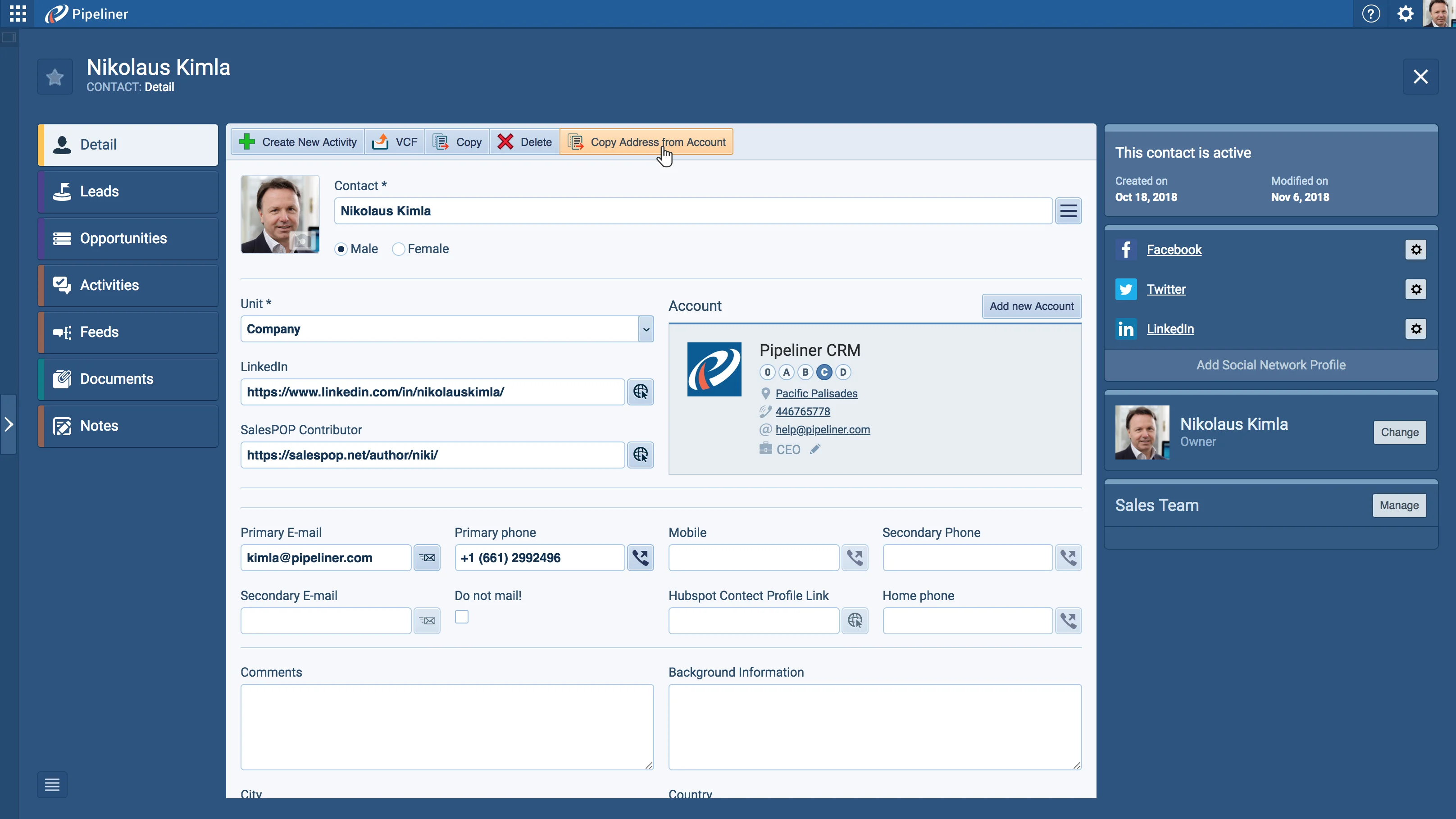
  • When editing a contact, the Account address can be copied into the Contact details.
  • The Reports Power Panel View Settings lets you choose fields as columns from a dedicated fields window.
  • Fields can be dragged and dropped in the Reports Power Panel to reorder report columns.
  • Long descriptive fields can be expanded directly in a report without opening the record detail.
  • Global Search lists recently opened Leads, Opportunities, Contacts, Accounts, and Activities when you click the input.
  • Menus in Leads, Opportunities, Accounts, and Contacts Detail can be collapsed using the arrow on the left.
  • Clicking a phone field anywhere in the application initiates a mobile call.
  • Under-the-hood optimizations improve overall application speed.
Copy Account Address

What we're proud of

Velocity and activity, right in the pipeline

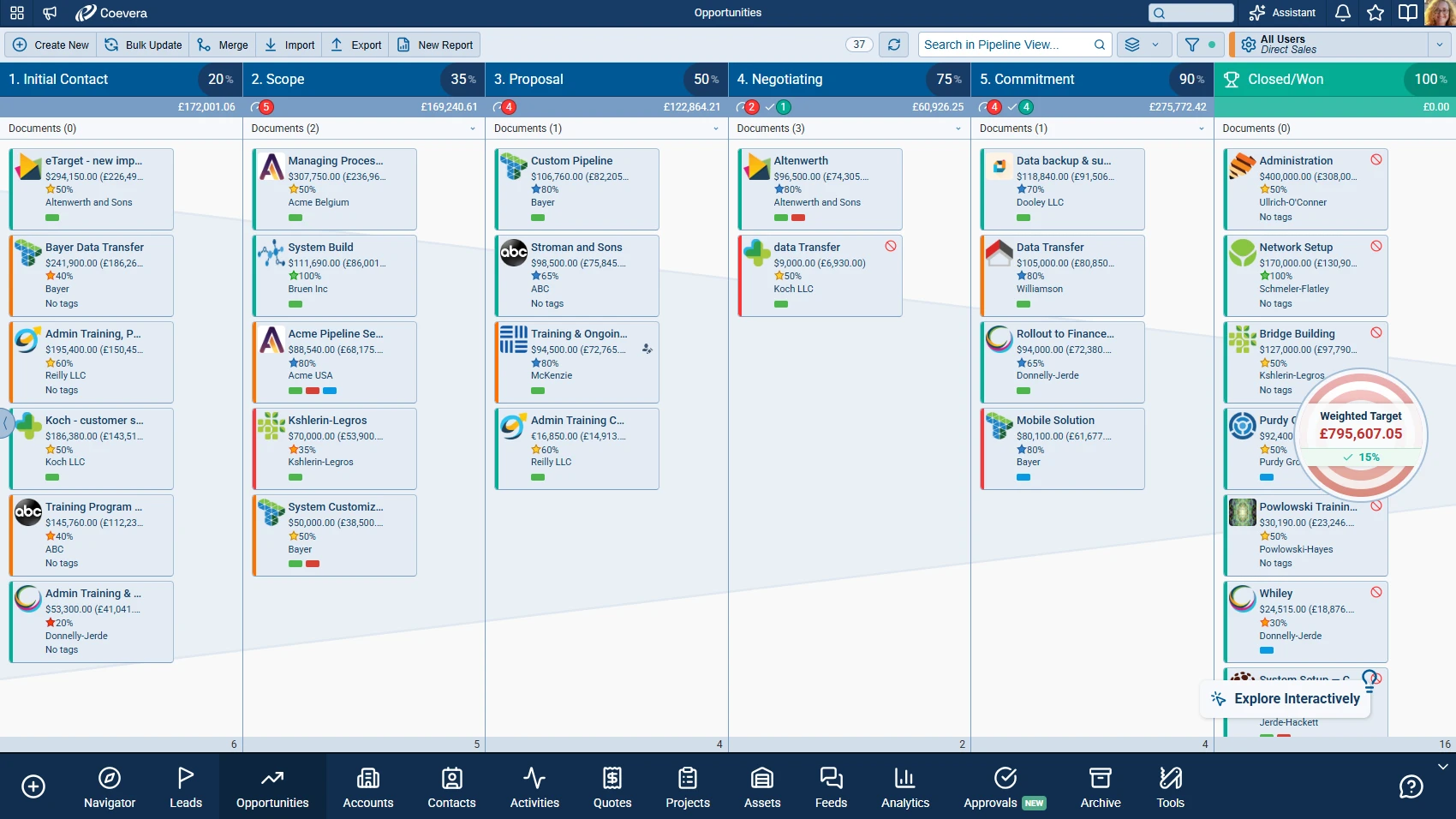
Coevera 1.1.0 surfaces opportunity sales velocity and sales activity directly in the Pipeline and Bubble Chart views — notification badge icons flag each, and a single click opens the full list of velocity and activity notifications.

01New · Accounts

Accounts and Contacts Improvements

We update the Compact View:

  • With the ability to click on the “Location” to view the record on the interactive map.
  • With the ability to see the information about last Customer Email, Appointment or Call.
  • When editing contact detail, you can now copy Account address to your Contact details.
#accounts-and-contacts-improvements
02New · Pipeline

Leads and Opportunities Improvements

Copy Account Address

With Coevera, you can track opportunity sales velocities and sales activities. Within Pipeline and Bubble Chart view you can now see the velocity and sales activities notification badge icons. Just click on the badge icon to review all sales velocity and sales activity notifications.

You can now display Quick View information upon hover over individual Sales Stages/Stage Extracts.

In Compact View, you can now hover over the heart icon to see the detail Fitness information.

All screenshots

4
#leads-and-opportunities-improvements
03New · Reports

Reports Improvements

Reports Drag and Drop

We updated the Reports Power Panel, particularly “View Settings”:

  • With the ability to choose fields as columns you want to add to the reports over dedicated fields window.
  • With the ability to drag and drop individual fields in Reports Power Panel in order to reorder columns within the report itself.
  • With the ability to expand long descriptive fields directly in the report without having to open the record detail.
#reports-improvements

Various Improvements

Various ImprovementsPipeline
Recently Opened Records

A batch of usability updates: recently opened records in Global Search, a resized Favorite column, collapsible detail menus, mobile calling from phone fields, an unassigned-leads badge, a custom work week in the Activities Calendar, logging sent emails as activities, and speed optimizations.

All screenshots

5
#various-improvements

Frequently Asked Questions

You can track opportunity sales velocities and sales activities from the Pipeline and Bubble Chart views, where notification badge icons flag each; clicking a badge reviews all sales velocity and sales activity notifications. Quick View information also appears on hover over individual Sales Stages and Stage Extracts.

You can click "Location" to view a record on the interactive map, see the last Customer Email, Appointment, or Call, and copy an Account address into Contact details when editing a contact.

In View Settings you can choose fields as columns from a dedicated window, drag and drop fields to reorder columns within the report itself, and expand long descriptive fields directly in the report without opening the record detail.

Yes — the Global Search panel now lists recently opened Leads, Opportunities, Contacts, Accounts, and Activities as soon as you click the input display.

Yes — clicking a phone field anywhere in the application initiates a mobile call.

You can collapse menus in Leads, Opportunities, Accounts, and Contacts Detail, set a custom work week that appears in the Activities Calendar View, log a sent email as an Email type Activity, and see a notification badge when leads are unassigned — alongside under-the-hood optimizations that improve speed.

See it in your own pipeline

Start a free trial and explore what's new in Coevera 1.1.0 for yourself.

Keine Kreditkarte erforderlich · 14 Tage kostenlos testen

groupsTrusted by clients around the globeverified_userISO 27001 CertifiedshieldGDPR CompliantblockData never used to train AI