v3.8.0MinorReleased

New Multiple Form Views, Import Templates Sharing and more

Coevera 3.8.0 introduces Multiple Form Views for custom field layouts on the Detail tab of Accounts, Contacts, Leads, and Opportunities, reworks manager Insights and Indicators with additional KPIs and drill-down, and adds a batch of import and usability improvements led by shareable import templates.

AdministrationReports
Share
Features
3
Improvements
Security
Próximamente

Overview

Two updates lead this release. Multiple Form Views lets users create their own Views on the Detail tab of Accounts, Contacts, Leads, and Opportunities — choosing which fields to show and excluding those they never use — alongside two defaults: a Full View that shows all data and cannot be modified, and a System View that shows all default fields. Views can be kept private to the individual or shared with other users, and selected when adding new records. The Insights and Indicators rework adds additional KPIs for manager-level users, lets you view All, Leading, or Lagging Indicators and swap between Users and Sales Units, compare using a Trend View or Bar View, and drill down into the underlying data by clicking a trend graph or bar chart; from a selection you can also run an Automatizer process or send a Mass Email, from both Insights and Indicators.

Beyond the two headline updates, a set of import and usability improvements land: field-mapping import templates can now be shared with colleagues, a Contact's Job Title can be mapped when importing Contacts or Leads/Opportunities with Accounts and Contacts, linking Activities to records now suggests recently opened and related records with extra identifying detail, List View customisation groups fields into Visible and Not Visible sections, and Automatizer can send a test email straight from an Action set-up.

What's in this release
  • Multiple Form Views lets users create their own Views on the Detail tab of Accounts, Contacts, Leads, and Opportunities.
  • Views are created via Manage Views then Create New, deselecting the fields you don't want to see.
  • Two default views ship: Full View (all data, cannot be modified) and System View (all default fields).
  • Form Views can be kept private or shared with other users, and can be selected when adding new records.
  • The Indicators tab gains additional KPIs for manager-level users.
  • Indicators can be viewed as All, Leading, or Lagging, and swapped between Users Indicators and Sales Units Indicators.
  • Indicators can be compared using a Trend View or a Bar View.
  • Clicking a trend graph or bar chart drills down into the underlying data behind a KPI.
  • From a selection in Insights or Indicators, you can run an Automatizer process or send a Mass Email.
  • Field-mapping import templates can be shared with colleagues, showing the template owner and creation date.
  • A Contact's Job Title can now be mapped when importing Contacts or Leads/Opportunities with Accounts and Contacts.
  • Linking Activities to records suggests recently opened and related records, with email and linked Account or pipeline shown.
  • List View customisation groups chosen fields under Visible and the remaining fields under Not Visible.
  • Automatizer can send a test email straight from an Action set-up instead of running the whole process test.
Multiple Form Views

What we're proud of

Record views tailored to each user

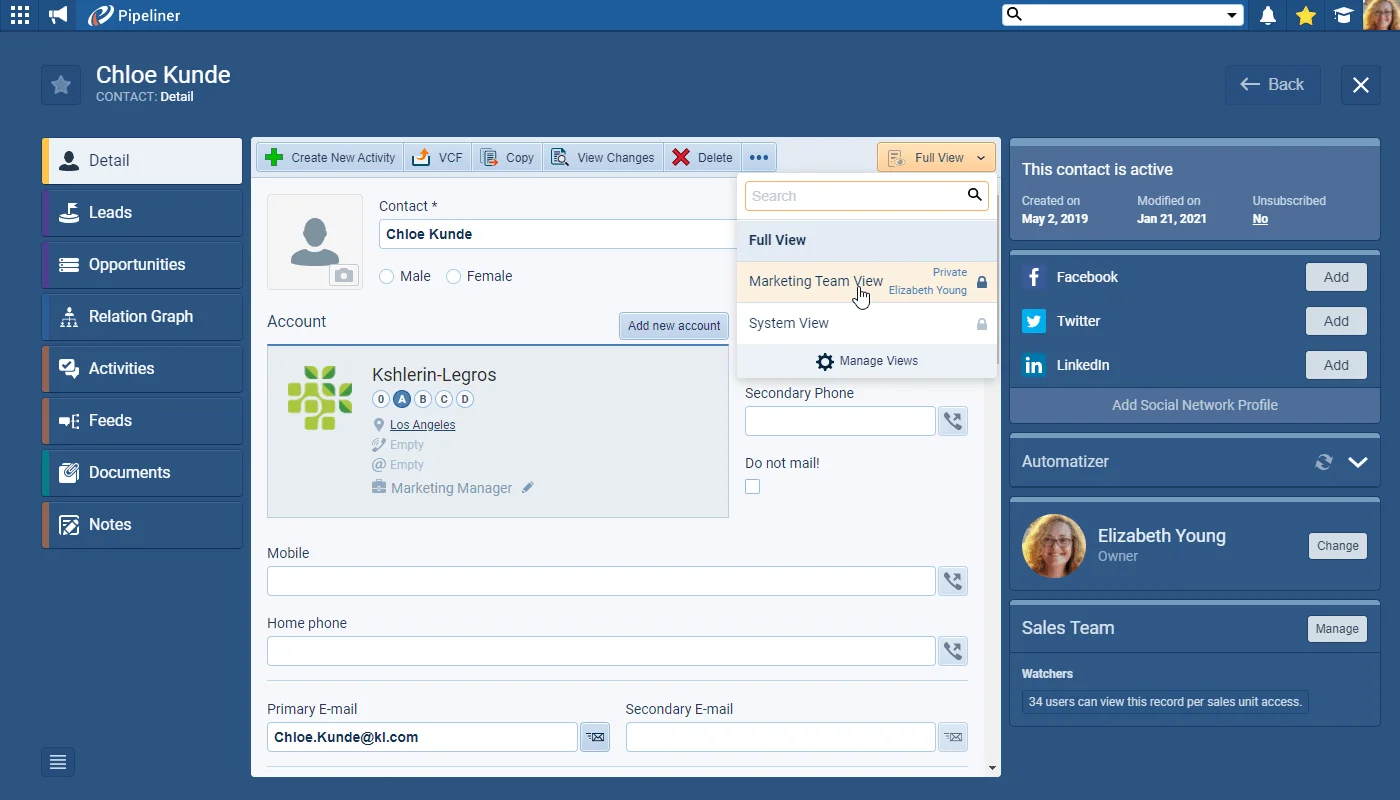
Multiple Form Views lets every user build their own layout of the Detail tab on Accounts, Contacts, Leads, and Opportunities — showing the fields they use and excluding the rest — while a Full View and a System View stay available, and any custom view can be private or shared with other users.

01New · Accounts

Multiple Form Views

Multiple Form Views

Users can now set up their own Views on the Detail tab of Accounts, Contacts, Leads and Opportunities. Users can choose which fields they commonly use — and need to see — and exclude those they never use from these Views.

Views are created by selecting the Manage Views option and then clicking on Create New. Once a name for the view has been entered, all fields available to view in the Detail tab of that type of record are listed and the user can deselect those that they do not want to see in their custom view.

There are 2 default views — “Full View(this view shows all data on the form and cannot be modified) and “System View(this view shows all default fields). Views can be private to the individual or be shared with other users. Users can also select Views when adding new records.
All screenshots

4
Documentation#multiple-form-views
02New · Reports

Insights User/Sales Unit/Indicators Rework

Insights User Sales Unit Indicators Rework

In this release, we’ve worked on updates to the Indicators tab used by Manager level users and have added additional KPIs (metrics). You can now select to view All Indicators, Leading Indicators or Lagging Indicators and can also easily swap between Users Indicators and Sales Units Indicators. Choose from the “Trend View” or “Bar View” to do your comparisons.

Once you’ve selected a KPI, you can now drill down into the underlying data by clicking on the trend graph or bar chart.

Selecting a record allows you to see more details in the right-hand panel and you can even select all — or some — records and run an Automatizer process or even send out a Mass Email! You can use this feature from Insights as well as from Indicators.

All screenshots

3
Documentation#insights-user-sales-unit-indicators-rework
03New · Administration

Import Templates Sharing

Import Templates Sharing

Other useful improvements include:

The ability to share your field mapping import templates so that your colleagues can use them when importing data from the same file layout. The owner of the mapping template and the date it was created is also displayed.

Another import improvement has made it easy to map a Contact’s Job Title when importing just Contacts or Leads/Opportunities with Accounts and Contacts.

All screenshots

5
#import-templates-sharing

Frequently Asked Questions

It lets users set up their own Views on the Detail tab of Accounts, Contacts, Leads, and Opportunities, choosing which fields they need to see and excluding those they never use.

Select the Manage Views option, click Create New, enter a name, and then deselect the fields you don't want to see in that custom view.

There are two: Full View, which shows all data on the form and cannot be modified, and System View, which shows all default fields.

Yes. Views can be private to the individual or shared with other users, and they can also be selected when adding new records.

Manager-level users get additional KPIs, can view All, Leading, or Lagging Indicators, swap between Users and Sales Units, compare in a Trend or Bar View, and drill down into the underlying data by clicking a trend graph or bar chart.

After selecting a KPI you can drill into the records behind it, then select some or all of them to run an Automatizer process or send a Mass Email — available from both Insights and Indicators.

See it in your own pipeline

Start a free trial and explore what's new in Coevera 3.8.0 for yourself.

No se requiere tarjeta de crédito · Prueba gratuita de 14 días

groupsTrusted by clients around the globeverified_userISO 27001 CertifiedshieldGDPR CompliantblockData never used to train AI