v3.6.0MinorReleased

Images Support in Emails & Notes, Required Sales Activities, Send & Track Surveys Through Google Forms and more

Coevera 3.6.0 adds image support across Emails, Email Templates, Automatizer emails, signatures, and Notes, introduces required Sales Activities that gate stage progression, and lets teams send and track surveys through Google Forms — alongside multi-record email linking, product table sections, a new Application user type, and change tracking for activities.

EmailIntegrationsAdministration
Share
Features
7
Improvements
Security
Próximamente

Overview

This release makes everyday communication richer and sales processes tighter. You can now insert images directly into Emails — including both Rich Text and HTML Email Templates and Automatizer emails — as well as into your Email Signature and Notes. Required Sales Activities let you mark each item in a pipeline stage's checklist as required, so an opportunity cannot advance until it is checked off or its Activity is completed. The Coevera Forms add-on adds a survey workflow, creating Tasks in Coevera from Google Forms submitted by your Contacts.

Beyond those headlines, emails can now be linked to additional records such as an Opportunity, not just the default Contact or Account. Product Table Sections let you group products under section headers within an Opportunity and output them to quote templates. A new Application user type gives your developer community scoped permissions and isolated credentials per integration, and a View Changes button brings change tracking to individual Tasks and Appointments.

What's in this release
  • Insert images into Emails, Email Templates (both Rich Text and HTML), Automatizer emails, your Email Signature, and Notes.
  • Uploaded images can be jpg, jpeg, png, or gif, and can be resized manually or auto-fit to Small or Best Fit.
  • Required Sales Activities let you mark each checklist item — Simple Checkbox, Field, or Activity — as Required, Not Required, or Activity Completed.
  • Users cannot move an opportunity to another stage until required items are checked off or the Activity is completed.
  • The Coevera Forms add-on can create Tasks in Coevera from Google Forms submitted by Contacts, ideal for sending and tracking surveys.
  • Enterprise Tier customers can create a Custom Task and add user-defined fields to capture specific survey responses.
  • Link emails to additional records such as an Opportunity beyond the default Contact or Account, with a link symbol showing how many records are linked.
  • Product Table Sections add Product Section Headers within an Opportunity's Products & Services, output to quote templates via Google Sheets/Excel, Word/Google Docs, or Pandadoc.
  • A new Application user type assigns specific permissions and separate usernames and passwords per integrated application for isolated security.
  • Applications can be set as the Triggering User for Automatizer processes and are shown against updates in the Change Log or Feed tab.
  • A View Changes button on activities tracks changes to individual Tasks and Appointments, with export available inside the app and from the Admin Module.
Images Support in Emails and Notes

What we're proud of

Rich images in emails and notes

You can now insert images directly into Emails, Email Templates (both Rich Text and HTML), Automatizer emails, your Email Signature, and Notes — upload jpg, jpeg, png, or gif files, then resize manually or auto-fit to Small or Best Fit.

01New · Email

Images Support in Emails & Notes

Images Support in Emails and Notes

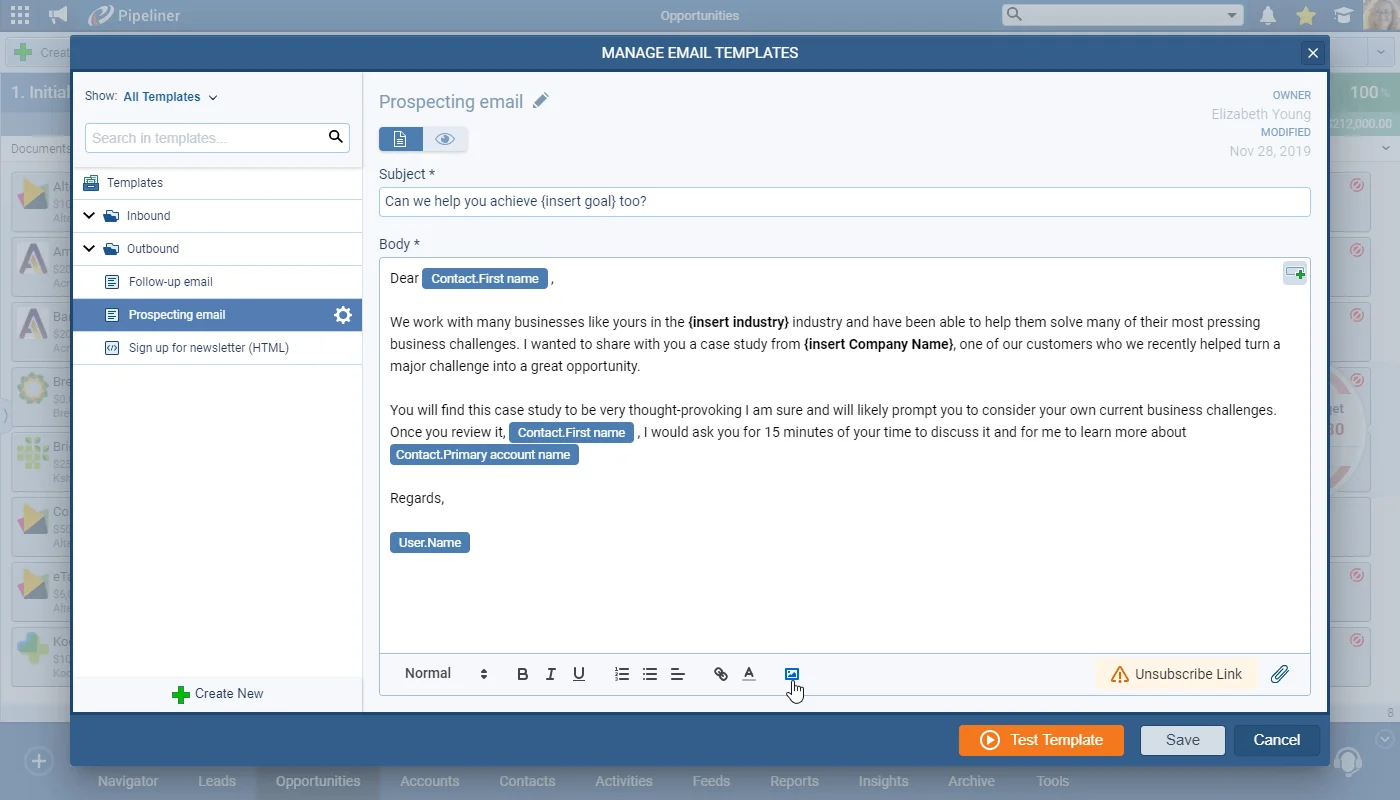
It is now possible to insert images into Emails, including Email Templates — both Rich Text and HTML — and Automatizer emails as well as into your Email Signature and also Notes:

Click on the Image icon to insert an image.

Select “Upload Image” to browse for your image file(s) which can be in jpg, jpeg, png or gif format and then click on Insert (X Images).

All screenshots

5
Documentation#images-support-in-emails-notes
02New · Pipeline

Required Sales Activities

Required Sales Activities

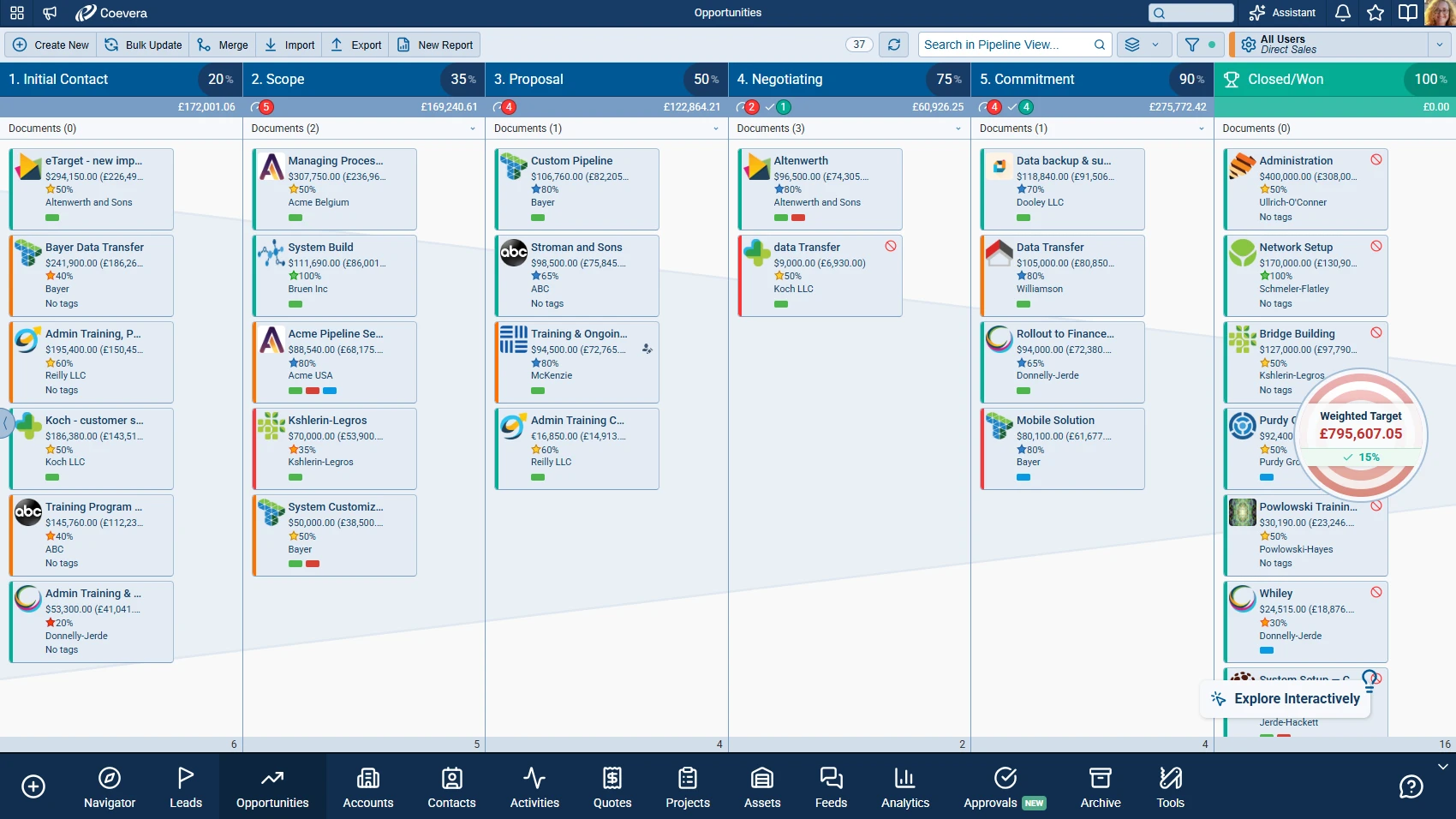
When adding items to the Sales Activities checklist in your pipeline(s) stages, you can choose to make each itemSimple Checkbox, Field or Activity — “Required”, “Not Required” or — for Activities e.g. Tasks — “Activity Completed”. If you set an item as required, users will not be able to move the opportunity to another sales step/stage without checking off the item — or completing the Activity.

All screenshots

2
Documentation#required-sales-activities
03New · Integrations

Send & Track Surveys Through Google Forms

Send & Track Surveys Through Google Forms

The Coevera Forms add-on now allows you to create Tasks in Coevera based on Google Forms submitted by your Contacts. Ideal use for this new feature is sending Surveys to customers/prospects and then tracking those responses as Tasks linked to Contact records in Coevera.

Enterprise Tier customers could create a Custom Taske.g. Training Survey — and add user-defined fields to capture specific responses.

You can link the Task created in Coevera when a response is submitted, you can link the created Task to any type of record based on matching fields (such as Account Name or Contact First name and Contact Last name or Opportunity Name). The best match to use is to link your Task to Contact based on their email address.

All screenshots

3
Documentation#send-track-surveys-through-google-forms
05New · Quotes & Documents

Product Table Sections

Product Table Sections

Within the Products & Services section of an Opportunity, you can now add Product Section Headers. These headers can be output to a quote template using Google Sheets/Excel (or Word/Google Docs) or using Pandadoc. To add a section header, select one or more Products that have been added to the Opportunity and then click on the Actions button. Click on “Group to the new section” and then edit your section name using the pencil icon.

All screenshots

2
Documentation#product-table-sections
06New · Administration

New User Type — Application

New User Type Application

This release has a big enhancement for our Developer Community. When working with custom integrations to Coevera, you can now assign specific permissions to each application that you are integrating to as well as use different usernames and passwords to maintain isolated security per Application.

Applications can also be selected as the Triggering User for Automatizer processes. The Application name is displayed against updates in the Change Log or Feed tab so users can easily see which application created/updated the record.

All screenshots

2
Documentation#new-user-type-application
07New · Pipeline

View Changes for Activities

View Changes for Activities

The View Changes button has been added to activities so that you can track changes made to individual Tasks and Appointments. Click on the View Changes button to access. Users with Export rights can export the changes from inside the App and Administrators can also export changes made to all Tasks and/or Appointments from the Export Entity Changes option on the Security menu in the Admin Module.

All screenshots

2
Documentation#view-changes-for-activities

Frequently Asked Questions

Images can be inserted into Emails, Email Templates (both Rich Text and HTML), Automatizer emails, your Email Signature, and Notes. Supported formats are jpg, jpeg, png, and gif, and images can be resized manually or auto-fit to Small or Best Fit.

When adding items to a pipeline stage's Sales Activities checklist, you can mark each item — Simple Checkbox, Field, or Activity — as Required, Not Required, or Activity Completed. Users cannot move an opportunity to another stage until required items are checked off or the Activity is completed.

The Coevera Forms add-on creates Tasks in Coevera from Google Forms submitted by your Contacts, letting you track survey responses as Tasks linked to Contact records. Enterprise Tier customers can create a Custom Task with user-defined fields to capture specific responses.

Yes. You can link an email to additional records, such as an Opportunity, as well as to the default Contact or Account. The link symbol shows how many records the email is linked to, and you can also unlink records.

It is a user type for custom integrations to Coevera. You can assign specific permissions to each application you integrate with and use different usernames and passwords for isolated security per Application. Applications can also be selected as the Triggering User for Automatizer processes.

A View Changes button on activities lets you track changes made to individual Tasks and Appointments. Users with export rights can export changes from inside the app, and administrators can export changes to all Tasks and Appointments from the Export Entity Changes option on the Security menu in the Admin Module.

See it in your own pipeline

Start a free trial and explore what's new in Coevera 3.6.0 for yourself.

No se requiere tarjeta de crédito · Prueba gratuita de 14 días

groupsTrusted by clients around the globeverified_userISO 27001 CertifiedshieldGDPR CompliantblockData never used to train AI