v3.13.0MinorReleased

WhiteSpace View, Activity Preview and more

Coevera 3.13.0 introduces the WhiteSpace View for Account-based cross-sell and upsell planning, adds a sidebar Activity Preview panel, and bundles usability improvements across Calling, Opportunities, imports, and reports.

AccountsPipeline
Share
Features
2
Improvements
6
Security
Próximamente

Overview

Two additions lead this release. The WhiteSpace View supports Account-based selling and Key Account Management by tracking cross-sell and upsell opportunities — comparing a selected Account to similar companies or to other Accounts in the same group, viewed by Product Category or Product, with new Opportunities or follow-up Activities created directly from the view. Activity Preview adds a right-hand sidebar panel that shows an Activity's key information, such as linked items and attached files, and lets users complete it, schedule follow-ups, or add comments without opening the record.

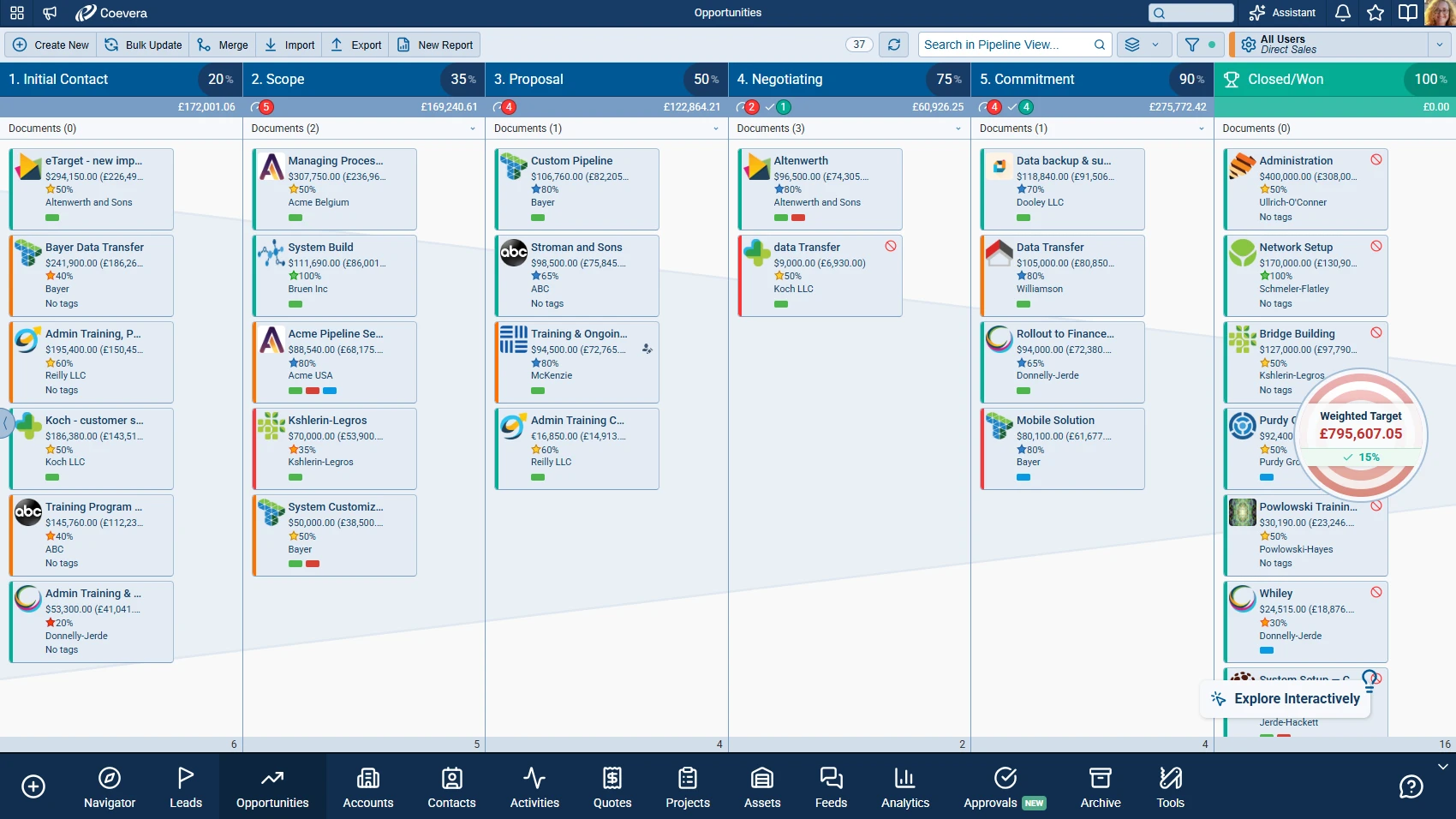
Beyond the two features, a set of usability improvements lands across the product: a dial pad for entering extension numbers and phone-tree options during calls, per-pipeline customisation of Opportunity Record Previews with a visual cue for custom views, named Editors & Watchers, a custom de-duplication field for Account imports, Outlook add-in fixes for finding existing Contacts, and faster report loading when many reports exist.

What's in this release
  • The WhiteSpace View tracks cross-sell and upsell opportunities for Account-based selling and Key Account Management.
  • It compares a selected Account to similar companies added via the Similar Accounts button, or to other Accounts in the same group added with Add to Comparison.
  • The view can be shown by Product Category or by Product, with additional Products added via the Add to Comparison button.
  • New Opportunities or follow-up Activities can be created directly from the WhiteSpace View.
  • Activity Preview shows a sidebar panel with an Activity's key details, linked items, and attached files without opening the record.
  • From the Preview Panel, users can complete an Activity, schedule follow-ups, or add comments.
  • Admins can customise the Preview fields and Overview content per Task or Appointment Type, reusing fields chosen for another Activity type.
  • A new Agenda button opens the Agenda pane in the Calendar and Task Board views.
  • A dial pad lets users enter extension numbers or phone-tree options when using Calling.
  • Opportunity Record Previews can use different fields per pipeline, with a green dot marking any view other than Full View.
  • Editors & Watchers now display names so users are recognisable even without a profile picture.
  • Account imports can de-duplicate incoming data against a chosen custom field.
  • Report loading is faster when many reports exist.
WhiteSpace View

What we're proud of

Plan whitespace, then act on it

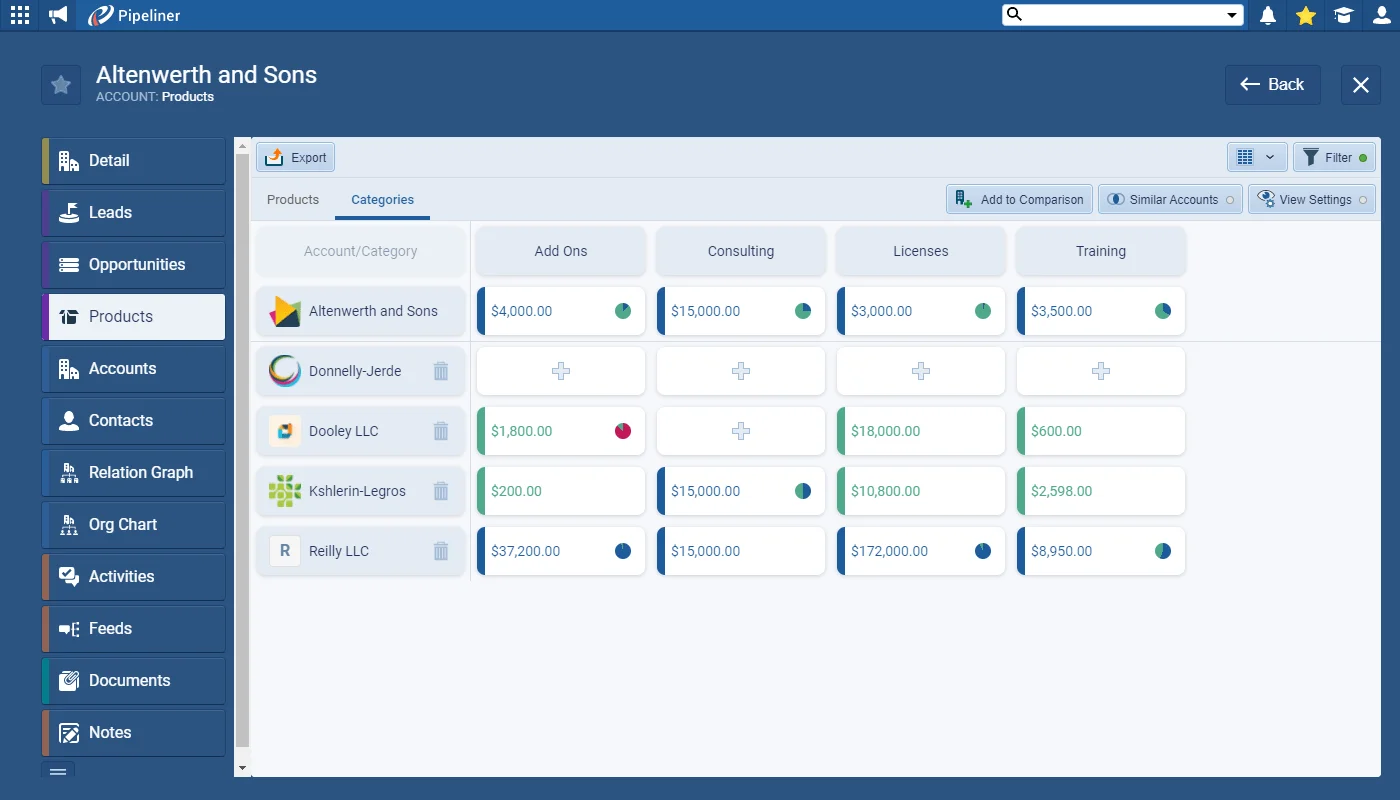
The WhiteSpace View compares a selected Account to similar companies or to other Accounts in its group, by Product Category or Product, so teams can spot cross-sell and upsell gaps — and create new Opportunities or follow-up Activities without leaving the view.

01New · Accounts

WhiteSpace View

WhiteSpace View

We’ve added another invaluable feature to help with your Account-based selling and Key Account Management strategy. The Whitespace View is all about tracking your cross-sell and upsell opportunities by comparing your selected Account to others that are similar (use the “Similar Accounts” button to add companies with the same Account Class or in the same industry, for example) or to other Accounts within the same group of companies (you can manually add any companies you want to review using the “Add to Comparison” option). Choose between Product Categories or Products for your view.

Changing the selection to Products shows you all Products included in Opportunities linked to your selected Accounts. You can manually add additional Products using the “Add to Comparison” button.

Once you’ve used the WhiteSpace view to plan, you can execute your strategy directly from the WhiteSpace View by creating new Opportunities or follow up Activities.
All screenshots

3
Documentation#whitespace-view
02New · Pipeline

Activity Preview

Activity Preview

We’ve updated Activities so that selecting any item displays a sidebar Preview panel on the right-hand side. Your users can now see all the important information about an Activity — such as Linked Items or attached files — without needing to open the Activity and can Complete, schedule Follow-Ups or add Comments, for example, right from the Preview Panel.

Coevera Admins can customise the fields displayed in the Preview as well as the content of the Overview from the Admin Module. Each “Task” or “Appointment Type” can be customised individually (or you can easily re-use fields that you’ve chosen for another type of Activity by clicking on Reuse fields!).

When using the Calendar or Task Board View, you can open up the Agenda pane by clicking on the new “Agenda” button.

All screenshots

4
Documentation#activity-preview

Various Improvements

Various ImprovementsPipeline
Various Improvements

A bundle of usability improvements: a Calling dial pad for extensions and phone-tree options, per-pipeline Opportunity Record Previews with a custom-view cue, named Editors & Watchers, a custom de-duplication field for Account imports, Outlook add-in fixes, and faster report loading.

All screenshots

4
#various-improvements

Frequently Asked Questions

It helps with Account-based selling and Key Account Management by tracking cross-sell and upsell opportunities — comparing a selected Account to similar companies or to other Accounts in the same group, viewed by Product Category or Product.

Yes. Once you've used the WhiteSpace View to plan, you can create new Opportunities or follow-up Activities directly from it.

Use the Similar Accounts button to add companies with the same Account Class or in the same industry, or use Add to Comparison to add specific companies or additional Products manually.

Selecting an Activity opens a right-hand sidebar Preview panel with its key information, such as linked items and attached files, without opening the Activity — and you can complete it, schedule follow-ups, or add comments there.

Yes. Admins can customise the fields shown in the Preview and the Overview content, individually per Task or Appointment Type, and can reuse fields chosen for another Activity type.

A batch of usability improvements: a Calling dial pad, per-pipeline Opportunity Record Previews, named Editors & Watchers, a custom de-duplication field for Account imports, Outlook add-in fixes, and faster report loading.

See it in your own pipeline

Start a free trial and explore what's new in Coevera 3.13.0 for yourself.

No se requiere tarjeta de crédito · Prueba gratuita de 14 días

groupsTrusted by clients around the globeverified_userISO 27001 CertifiedshieldGDPR CompliantblockData never used to train AI