v5.10.0MinorReleased

Brand New Voyager AI Call Transcription & Analysis, Improved Online Forms & Reports, Static Profiles, Account Health and other Various Improvements…

Coevera 5.10.0 introduces Voyager AI › Call Transcription & Analysis — recording browser calls, then transcribing and analyzing them — alongside file uploads in Online Forms, conditional formatting in Reports, Static Profiles, and per-account-type Account Health.

Voyager AIAccountsEmail
Share
Features
6
Improvements
10
Security
1
Próximamente

Overview

The headline of 5.10.0 is Voyager AI › Call Transcription & Analysis, which works alongside the Calling & Messaging feature to record calls made from the browser and then apply AI transcription and analysis to them. When a call ends, users can save it as a task with an optional AI-generated summary appended to the description, and a Call Details widget in the record's side panel lets them play back the recording, open the transcription, attach the transcript as a PDF or the audio as an MP3, and open Twilio's Voice Intelligence analysis. Admins and Subscription Admins also gain new cost breakdowns for recording, transcription, and AI voice intelligence in the Automation Hub and Customer Portal.

The release also expands Online Forms with File Upload fields — letting form recipients upload files, with admin controls over size, count, and allowed file types — and adds Conditional Formatting to Reports for color-coding cells against rules. Rounding out the new features are Static Profiles, a widget for adding records to saved profiles from record detail, the List View, Bulk Update, and Automatizer; the ability to activate or deactivate Tags across all supported entities; and per-account-type settings for Account Health. Ten further usability improvements span record Teams, forms, email sequences and signatures, audit exports, calendar appointments, and feed and activity filtering.

What's in this release
  • Voyager AI › Call Transcription & Analysis records browser calls, then applies AI transcription and analysis to them.
  • When placing a Call from Browser, users choose whether to record the call and which language to use.
  • Ending a recorded call offers Save as a New Task or Save and Open a New Task, with an option to append an AI call summary to the description.
  • A Call Details widget in the record's right-hand panel shows the transcription's processing state and lets users play back the recording.
  • From the Call Details widget, users can add an AI summary to the description, attach the transcription as a PDF, or attach the call audio as an MP3.
  • The Analysis button opens Twilio's Voice Intelligence page to play back, highlight names and dates, keyword-search, and categorize the call.
  • Admins see recording, transcription, and AI voice intelligence costs broken down per user in the Automation Hub Calling & Messaging configuration.
  • The Customer Portal Calling & Messaging tab shows Subscription Admins the month's total call, recording, and AI costs, all deducted from purchased Credit.
  • Online Forms can now include File fields so recipients upload files, with admins setting maximum file size, file count, and allowed file types.
  • Uploaded form files can be viewed, downloaded, or saved from each Form Response and from the Online Form Statistics.
  • Conditional Formatting in Reports color-codes each cell based on how its value compares to configured rules, including values from another field.
  • Static Profiles is a new record-detail widget showing how many static profiles a record belongs to and letting users add or remove it, also usable in List View, Bulk Update, and Automatizer.
  • Tags can now be activated or deactivated across all entities that support tags, including Email tags, with deactivated Email tags excluded from AI categorization.
  • Account Health can be configured per account type and switched off for chosen types, so health is only calculated where it is needed.
Voyager AI › Call Transcription & Analysis

What we're proud of

Your calls, transcribed and analyzed

Voyager AI › Call Transcription & Analysis records your browser calls and applies AI transcription and analysis. Each recorded call gets a Call Details widget to play back the audio, read and edit the transcript, append an AI summary, and open Twilio's Voice Intelligence analysis.

01New · Voyager AI

Voyager AI › Call Transcription & Analysis

Voyager AI › Call Transcription & Analysis

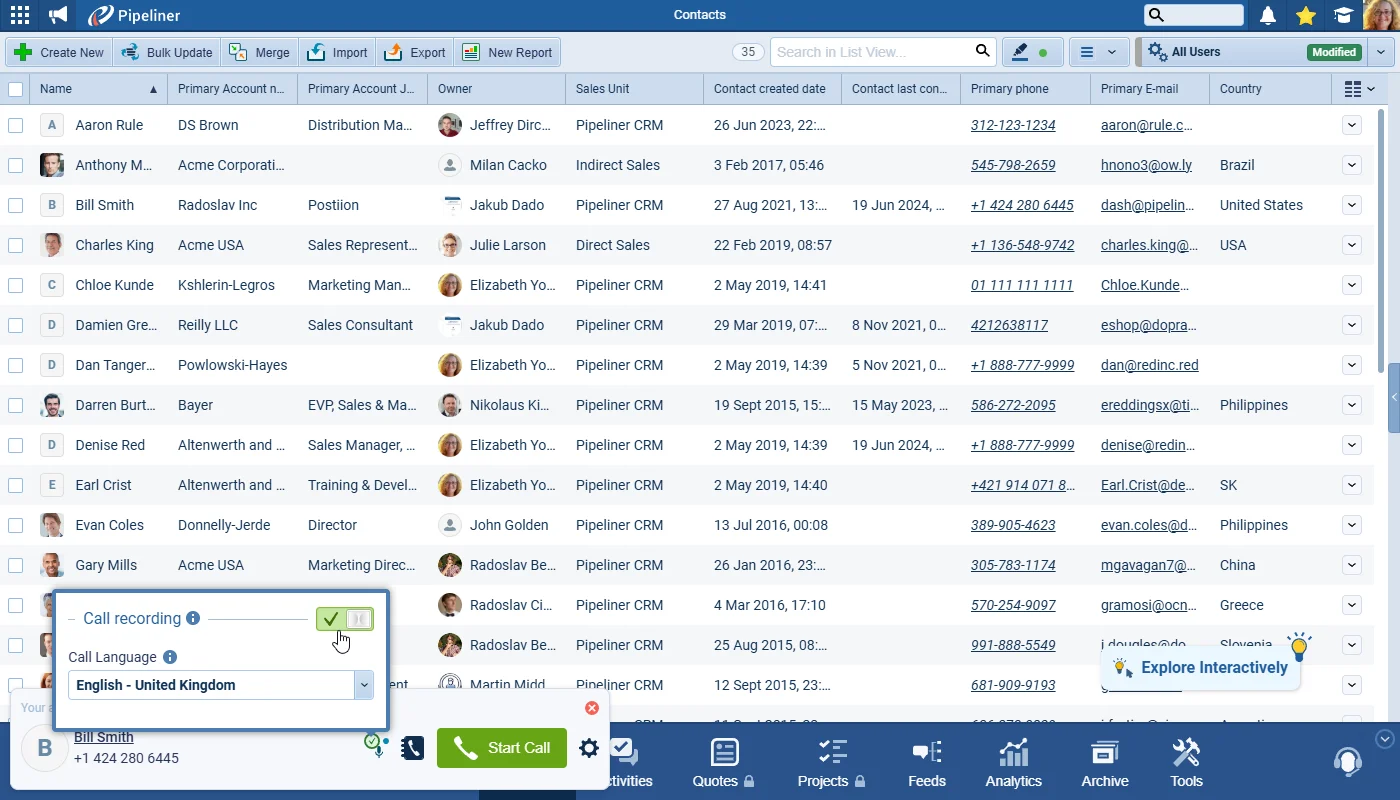
This valuable new feature works in concert with our Calling & Messaging feature by recording calls and then applying AI transcription and analysis to the recorded notes. When making a call using the “Call from Browser” option, the user will need to choose whether the call should be recorded and the language to be used.

All screenshots

8
Documentation#voyager-ai-call-transcription-analysis
02New · Quotes & Documents

Online Forms › File Upload

Online Forms › File Upload

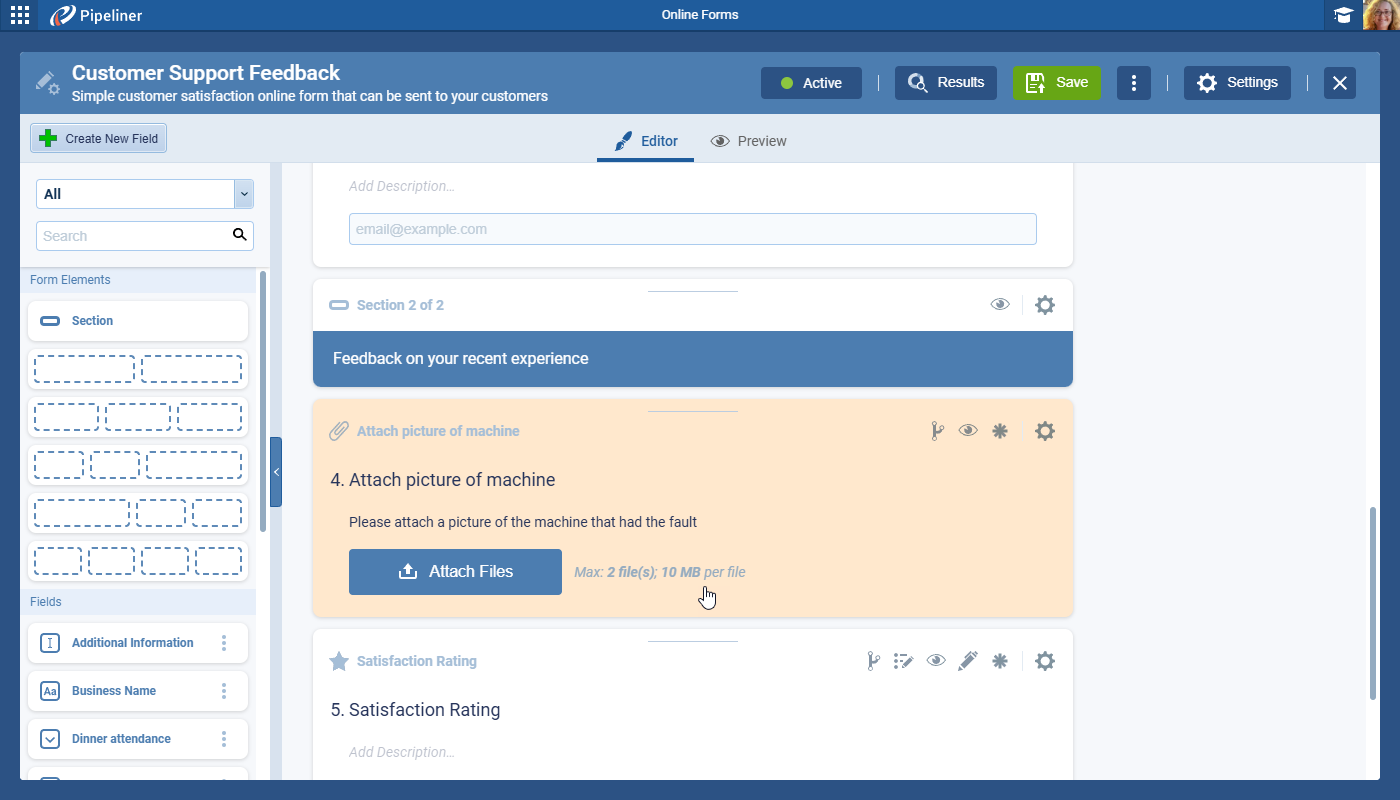
This release includes a further enhancement to Online Forms. Users can now add “File fields” to a Form, allowing recipients to upload files when submitting a form response. Your Form admins can specify the maximum size of each individual file, the total number of files that can be submitted with each form and which file types are allowed.

File fields can be added to the Form like any other field and can also have conditional rules applied to govern when they are visible or can be read only.

All screenshots

3
Documentation#online-forms-file-upload
03New · Reports

Conditional Formatting in Reports

Conditional Formatting in Reports

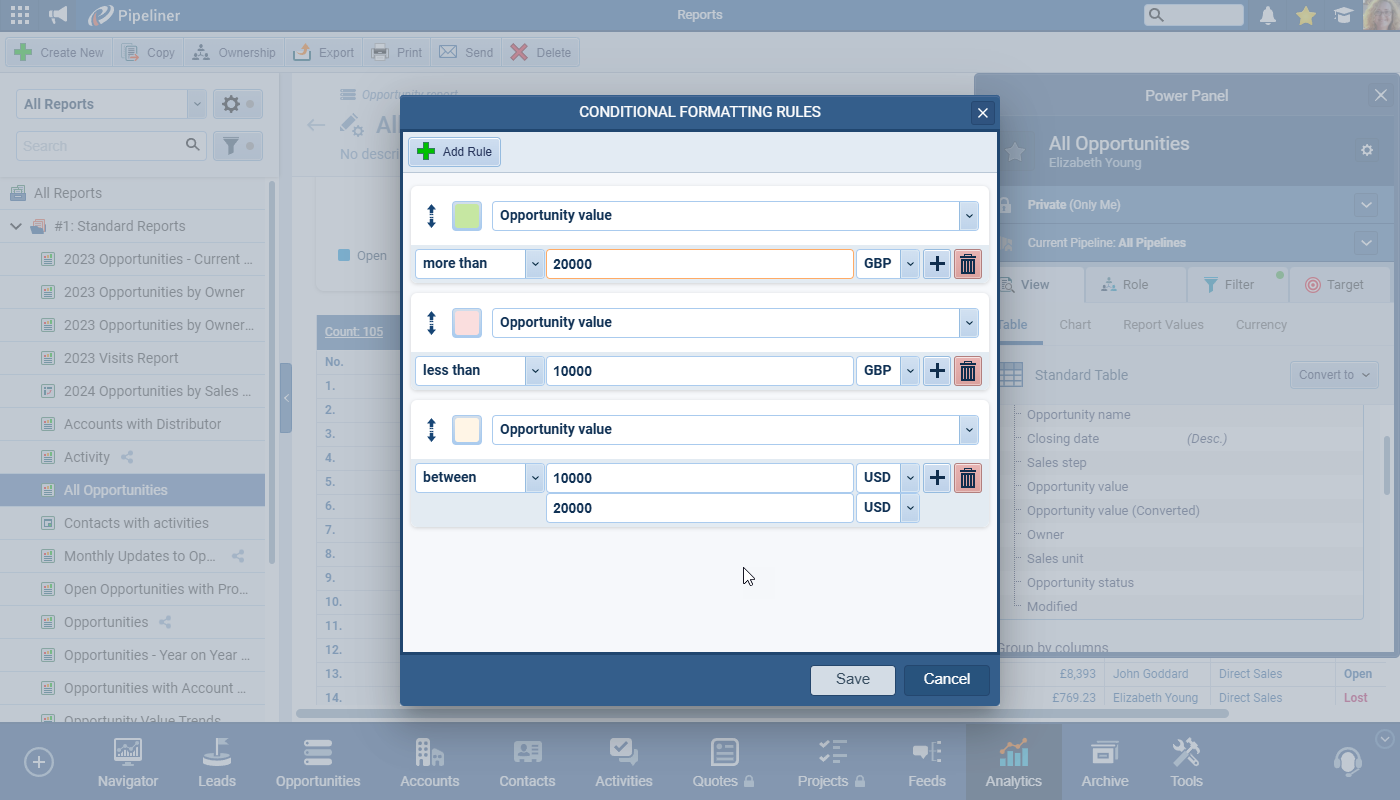
In Reports, users can now choose “Conditional Formatting” to color code each cell depending on how its value compares to the rule(s) that are set up. The example below fills the “Opportunity Value” field with a different colour depending on how large the value is.

It is also possible to color code a field based on a value in another field or “Report Value” by selecting the different field from the dropdown.

All screenshots

2
Documentation#conditional-formatting-in-reports
04New · Pipeline

Static Profiles

Static Profiles

A new widget “Static Profiles” will be available in the right panel of record details for compatible entities. This widget shows the number of static profiles that the selected record is part of and allows the user to add/remove selected record to multiple profiles, or to add selected record to a new profile. The user can only access static profiles that they have rights to see.

All screenshots

2
Documentation#static-profiles
05New · Administration

(De)Activating Tags

(De)Activating Tags

There is now the option to activate or deactivateTags” for all entities which support tags as well as Email tags.

  • Tags already used in records/emails are untouched — still visible.
  • Deactivated tags are not visible in the Tags selectors in records (inline edit, tags widget in record detail, email tags, etc).
  • Filters always showing both active & deactivated tags.
  • Email categorization › deactivated Email tags are excluded from AI categorization prompts.
Documentation#de-activating-tags
06New · Accounts

Account Types Support in Account Health

Account Types Support in Account Health

Account Health is an invaluable element of account management so we’ve added the option to have different account health settings per account type. “Account health” can be switched off per account type, so users don’t need to have account health calculated for all accounts — for example if a user wants to have account health set only for “key accounts” and not for “suppliers”.

If Account Health is not enabled for a particular Account Type:

  • Account health will not be recalculated for relevant records
  • The Account health widget will not be visible in record detail for related records
  • Account health will be shown as blank
Documentation#account-types-support-in-account-health

Various Improvements

As part of our ongoing usability enhancement program, we’ve updated the following features.

Various ImprovementsSecurity

Record Watchers vs Record Viewers

Record Watchers vs Record Viewers

To help clarify which users have visibility of records, the Teams section has been updated to include an additional section “Viewers” to differentiate users with read access to the record based on their sales unit settings from “Watchers” who are users explicitly granted visibility to the individual record in question.

#record-watchers-vs-record-viewers
Various ImprovementsIntegrations

Clear Selection for Radio Fields

Clear Selection for Radio Fields

A Clear Selection option lets users clear Radio Group choices in non-required fields across both Record Forms and Online Forms.

#clear-selection-for-radio-fields
Various ImprovementsIntegrations

Online forms summary › Drilldown titles update

Online forms summary › Drilldown titles update

To reduce confusion when opening drill-down dialogs and easily identify the context of each dialog, we’ve updated their headers for better clarity.

Dialog names now include the tab name as a prefix before the original title:

  • Responded › Contacts with Responses.
  • Sent › Contacts with Responses.
  • Sent and Not Responded › Contacts with Responses.
  • Unknown › Contacts with Responses.
#online-forms-summary-drilldown-titles-update
Various ImprovementsEmail

Unenrolling Records from Email Sequences

Unenrolling Records from Email Sequences

The Email Sequence widget adds a History tab tracking completed and unenrolled sequences, alongside a redesigned Unenroll dialog.

All screenshots

2
#unenrolling-records-from-email-sequences
Various ImprovementsAdministration

Administration › Removing Sales Actions section from an Opportunity Form

Administration › Removing Sales Actions section from an Opportunity Form

We’ve added a confirmation dialog to prevent accidental data loss when turning off “Sales Actions“:

  • Sales Actions Warning: Confirmation dialog titled “Turn off Sales Actions” with options to “Turn Off” or “Cancel“.
  • Unsaved Changes Alert: Prompt now appears when exiting forms with unsaved edits, allowing users to “Save Changes“, “Discard & Leave“, or “Cancel“.
#administration-removing-sales-actions-section-from-an-opportunity-form
Various ImprovementsEmail

E-mail Signature Improvements

E-mail Signature Improvements

Users can enable or disable their email signature without editing it, and a new Email Signature personalization field works in Automatizer, sequences, and templates.

#e-mail-signature-improvements
Various ImprovementsAdministration

Audit › Export Entity changes

Audit › Export Entity changes

Admins can now export changes made by a specific application(s) (integration). At least one user or application must be selected.

#audit-export-entity-changes
Various ImprovementsPipeline

Deleting Recurring Appointments

Owners of a recurring appointment synced into Coevera via Calendar integration, will now be able to deleted those recurring appointments. The “Delete action” will delete the current appointment and all future recurring appointments but only in Coevera — it has no effect on the calendar integration. If a user deactivates and reactivates a calendar integration is reactivated, recurring appointments will be re-synced back into Coevera.

#deleting-recurring-appointments
Various ImprovementsPipeline

Feeds Filter

Feeds Filter

In the Feeds filter within a record and from the main Feeds menu, the “Actor (user)” filter has been replaced with a multi-select component with categories to allow more flexible filtering of feeds.

#feeds-filter
Various ImprovementsPipeline

Activities Tab Filter

Activities Tab Filter

In the “Activities tab” of an open record, the “Activity Type Filter” has been replaced with a multi-select component with categories to allow more flexible filtering of activities.

#activities-tab-filter

Frequently Asked Questions

It works with the Calling & Messaging feature to record calls made from the browser, then applies AI transcription and analysis to them — with an option to append an AI-generated summary to the activity's description.

When making a call using the Call from Browser option, you choose whether the call should be recorded and which language to use before the call begins.

Each recorded call gets a Call Details widget where you can play back the audio, open and edit the transcription, add an AI summary to the description, attach the transcript as a PDF, or attach the audio as an MP3.

You can add File fields to a form so recipients upload files when submitting, and admins can set the maximum size per file, the number of files allowed, and which file types are accepted.

In Reports you can color-code each cell based on how its value compares to the rules you set, and format a field using a value from another field. When multiple rules apply, only the first satisfied rule, from top to bottom, is used.

Yes. You can apply different Account Health settings per account type and switch it off entirely for chosen types — for example, calculating health for key accounts but not for suppliers.

See it in your own pipeline

Start a free trial and explore what's new in Coevera 5.10.0 for yourself.

No se requiere tarjeta de crédito · Prueba gratuita de 14 días

groupsTrusted by clients around the globeverified_userISO 27001 CertifiedshieldGDPR CompliantblockData never used to train AI