v4.2.0MinorReleased

New Email Sequences, Account Hierarchy and more

Coevera 4.2.0 introduces Email Sequences for planning and running targeted email nurture campaigns, adds an Account Hierarchy view with an organizational chart, and brings a set of record, reporting, email, and document refinements.

EmailAccountsQuotes & Documents
Share
Features
2
Improvements
4
Security
Próximamente

Overview

Email Sequences leads this release. Activated from the Automation Hub, sequences let you plan and execute targeted email nurture campaigns as part of your ongoing account management: records — Contacts, Leads, Accounts, Opportunities, or Projects — are enrolled in a sequence built from a series of Email and Task steps, each executed a set number of days after the sequence starts and able to conditionally depend on the outcome of the previous step. Records can be enrolled from the Email Sequences tool, its widget, List Views, or an Automatizer process, and the sequence List View surfaces reply, open, and click statistics.

Beyond sequences, an updated Account Hierarchy view shows related Accounts and their organizational structure — with your selected Account labelled Current — and opens a full org chart in a separate window. Coevera now alerts a user when another user has saved changes to the same record since they opened it, Reports can be built on Projects, emails sent to a Contact can also link to an Account to update its Last Contacted Date, and files can be attached to a record by dragging and dropping them onto its Documents tab.

What's in this release
  • Email Sequences plans and executes targeted email nurture campaigns to Coevera Contacts, activated from the Automation Hub.
  • Records — Contacts, Leads, Accounts, Opportunities, or Projects — can be enrolled in an Email Sequence.
  • Sequences are built from Email and Task steps, each executed a set number of days after the sequence starts.
  • Each step can conditionally depend on the previous step, such as whether an email was opened, clicked, or replied to.
  • Records can be enrolled from the Email Sequences tool, its widget, List Views, or an Automatizer process.
  • The Email Sequences List View shows reply, open, and click rates, with enhanced statistics via the Show Statistics button.
  • Sequence settings control unenrollment on reply, unsubscribe, or a custom condition, plus timezone, time range, and send days.
  • A new Automatizer action enrolls records into an Email Sequence, and an Auto Follow-up action enrolls email recipients automatically.
  • The Account Hierarchy List View shows related Accounts and their hierarchy, with the selected Account labelled Current.
  • A View Account Hierarchy button opens the organizational chart in a separate window.
  • Coevera now alerts a user when another user has saved updates to the same record since they opened it.
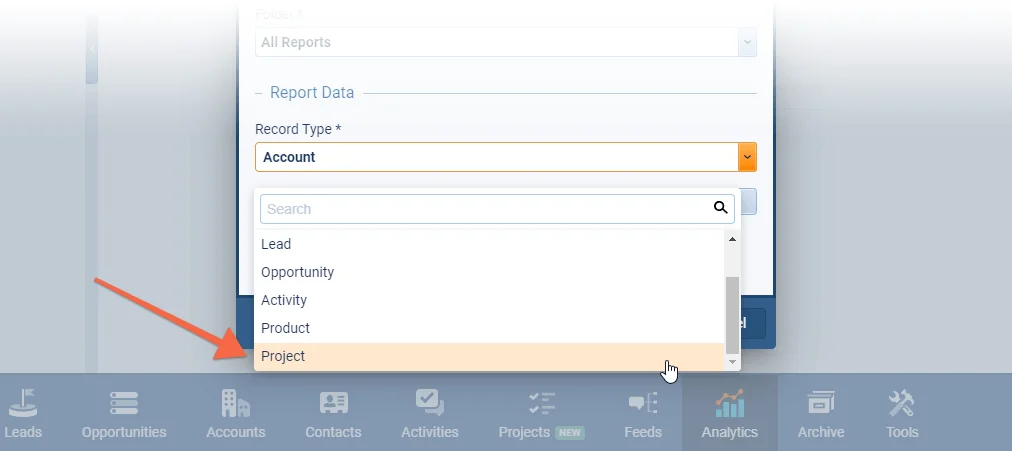
  • Reports can now be created based on Projects.
  • Emails sent to a Contact can also link to an Account or another record to update its Last Contacted Date.
  • Files can be attached to a record by dragging and dropping them onto the Documents tab.
Reports › Projects

What we're proud of

Nurture campaigns, built in

Email Sequences let you plan and execute a series of Email and Task steps to your Coevera Contacts, each step running on schedule and able to depend on whether the previous email was opened, clicked, or replied to — with enrollment available from List Views, the sequence widget, and Automatizer.

01New · Email

Email Sequences

Our new Email Sequences allow you to plan and execute targeted email nurture campaigns to your Coevera Contacts as part of your ongoing Account Management and communications strategy.

Email sequences is activated from the Automation Hub (it is available to Unlimited Tier customers as part of their subscription and to other customers as a chargeable add-on by agreement with their Account Manager).

Email sequences are made up of a sequential series of Emails or Tasks and are executed action by action based on the selected run date.
DocumentationDocumentation#email-sequences
02New · Accounts

Account Hierarchy

We’ve updated the “List View” of related Accounts from the Accounts tab within your selected record. This view now also shows you the hierarchy of the Accounts and you can also manage and update the relationship from the dropdown on the right hand side. Your selected Account is always labelled as “Current” so you know where it sits within the organizational structure.

Select an Account from the List to open up the “Preview Pane” on the right hand side and to access additional menu buttons.

Clicking on the “View Account Hierarchy” button opens up the organizational chart view in a separate window.

As part of our ongoing useability enhancement program, we’ve updated the following features.

Documentation#account-hierarchy

Various Improvements

Various ImprovementsPipeline

Managing Simultaneous Updates to the Same Record

To accommodate the rare scenario where separate users are working on the exact same record (Opportunity, Account etc.) at the same time, we’ve now added an alert that will let a user know that another user has saved updates to the record since they opened it. The second user can then select between overwriting the changes made by the first user with their own or reloading the record to see the most current version and then making their updates again.

#managing-simultaneous-updates-to-the-same-record
Various ImprovementsReports

Reports › Projects

Reports › Projects

You can now create Reports based on “Projects

#reports-projects
Various ImprovementsEmail

Linking Emails to Accounts when Sending

Linking Emails to Accounts when Sending

When sending an email to a Contact, you can now also choose to link to an Account — or another Contact record (as well as Lead, Opportunity or Project). We’ve added this option for those customers who want a specific email to a Contact to also update the Account’sLast Contacted Date

#linking-emails-to-accounts-when-sending
Various ImprovementsQuotes & Documents

Documents › Drag&Drop

Documents › Drag&Drop

Users can now Drag&Drop files directly onto the “Documents” tab of a record to attach them.

All screenshots

4
#documents-drag-drop

Frequently Asked Questions

They let you plan and execute targeted email nurture campaigns to your Coevera Contacts as part of your account management strategy. Sequences are activated from the Automation Hub — available to Unlimited Tier customers as part of their subscription and to other customers as a chargeable add-on by agreement with their Account Manager.

Contacts, Leads, Accounts, Opportunities, or Projects can be enrolled. Enrollment is available from the Email Sequences tool, the sequence widget on an open record, List Views, and as an action within an Automatizer process.

A sequence is an unlimited series of Email or Task steps. Each step is executed a set number of days after the sequence starts and can conditionally depend on the previous step — for an email, whether it was not opened, not clicked, or not replied to; for a task, its completion state.

You can choose to unenroll recipients when they reply, when they unsubscribe, or when a custom condition is met. Each sequence also lets you set a timezone, time range, and the days on which emails are sent.

The related Accounts List View now shows the hierarchy of Accounts and lets you manage the relationship from a dropdown, with your selected Account labelled Current. A View Account Hierarchy button opens the organizational chart in a separate window.

Coevera alerts the second user that another user has saved updates to the record since they opened it. That user can then overwrite the earlier changes with their own, or reload the record to see the most current version before making their updates again.

See it in your own pipeline

Start a free trial and explore what's new in Coevera 4.2.0 for yourself.

No se requiere tarjeta de crédito · Prueba gratuita de 14 días

groupsTrusted by clients around the globeverified_userISO 27001 CertifiedshieldGDPR CompliantblockData never used to train AI